Stable Diffusion General Inpaint Guide
Welcome
As usual this guide is eternally WIP.


Introduction
So you may have heard comments like "oh, I just inpainted that", "this is before inpainting", "just inpaint it, bro!", "the metadata is useless 'cause its an img2img" and are wondering, what is that magical thing that can elevate your rawgens onto the next level?
img2img/inpaint involves making changes to an existing picture, as opposed to text2img which means creating a new image from scratch. In (re)Forge this is apparent as these are two different main tabs, while in comfyUI the process means not feeding an empty latent into ksampler but loading an existing image and vae-encoding it. As I am more familiar with reForge this guide will show settings/screenshots of it, but the principles are the same for any UI. Another anon maintains a rentry collecting tips for comfyUI.
There are two main different notations of img2img, though technically they are the same:
- img2img (i2i)
This means that the changes are applied to the whole image. Some example use cases:- increasing the resolution of an existing generated image and increasing the details
- taking an existing photo/image and changing the style
- using a sketch to steer composition/pose for a new basegen
- make the overall image more coherent after editing
- inpainting
This means that you are selecting (masking) a certain area of the image that you want to apply changes to- add more details to your image (inpaint detailing) especially after the upscale
- selectively make major changes to that areas while keeping the rest of the image the same
- smooth in edits you made in an image editor
How does your prompt affect these processes? We will go through examples later, but some things to consider:
- for img2img you should supply a prompt that describes the whole content of the image to help the model along
- for inpainting it can be very helpful to adapt your prompt to make the model focus on the area/content you are changing. This can be done by commenting out sections that are not relevant to the selected area or weighing them down
So when to use what, why not always just edit and img2img upscale, done? For a lot of things this is just fine, e.g. if you are just removing sigantures or changing some colors it may not be necessary to use inpainting at all. But if you want to do major changes, e.g. changing the species of a character or replacing the background, you will need to inpaint first. Basically, inpaint prepares the basegen until everything is roughly in place, and then the img2img upscale will (hopefully) bring everything together coherently.
the overall process
- Generate basegen via text2img from scratch / create basegen via img2img from existing image
- Make any major edits necessary (sketch, image editor, photobash together from multiple sources)
- (optionally do masked inpaints on the basegen to fit in some rough edits)
- img2img upscale
- inpaint detailing/fixing
As you will see there are a few different ways to achieve the same goal with this topic. E.g. if you want to smooth in your edits with individual inpaints or if you want to just use one img2img upscale, if you want to use an image editor by default or try your luck with native inpaint is up to the specific process and personal experience and preference. This guide will try to give a few examples but it cannot cover every possible permutation, so experiment on your own to find out what works best in your case.
Let's define the following terms for this guide
- basegen
Sometimes also called rawgen, is the first image you receive from a text2img prompt, without hires.fix or adetailer applied. It is the "raw" result of your prompt and settings. - upscale(d image)
This refers to the image you have after you have increased the resolution from the basegen with either hires.fix or by img2img upscale. - denoise
Non-scientific explanation: the denoising process and its corresponding denoising strength are the core parameter for all i2i/inpaint techniques. For the sake of this guide you can think of it as a slider (0%-100%) on how much of the previous image/content should be "forgotten" before starting the generation process. The more denoising strength you use, the more the result will be changed from the original content. A setting of 1 basically means "forget everything and start from scratch with a t2i generation".
An img2img upscale is the same process that the "hires.fix" tool does, as in you take a basegen, use an "upscaler" to increase its dimensions (similar to how you would "Resize image" in Photoshop) to a new size or by a scale, and then denoise it again to increase the details.
The main advantages of using the img2img tab instead of hires.fix is that you have a bit more control. You could easily use a different sampler/scheduler, CFG scale and can change/randomize the seed. This makes it easy to experiment with these values if you run into issues with hires.fix.
You can click the "send to img2img" button from most locations to send the current image and its prompts/generation config directly to the tab.
In an img2img workflow only the first step would change as in that you don't create your basegen via prompting but from an exisiting image via img2img (without upscale). Sometimes a little bit of inpaint detailing can make sense before the upscale to better guide that step towards the desired result.
Important!
If you edit an image in any image editor, it will loose all generation metadata information! At various steps you might need to load that metadata back into the UI, so always keep a backup with metadata of each step!
As you may need to retry generation a few times to get a good result, if you have not done so yet, decrease the "Live preview display period" setting so you can see what is happening during the generation process. That way you can easily abort any unusable attempt and don't have to wait until full generation.

Fixing little edits during img2img (upscale)
In this chapter we will go over a few examples how you can easily fix minor details during the upscale phase.
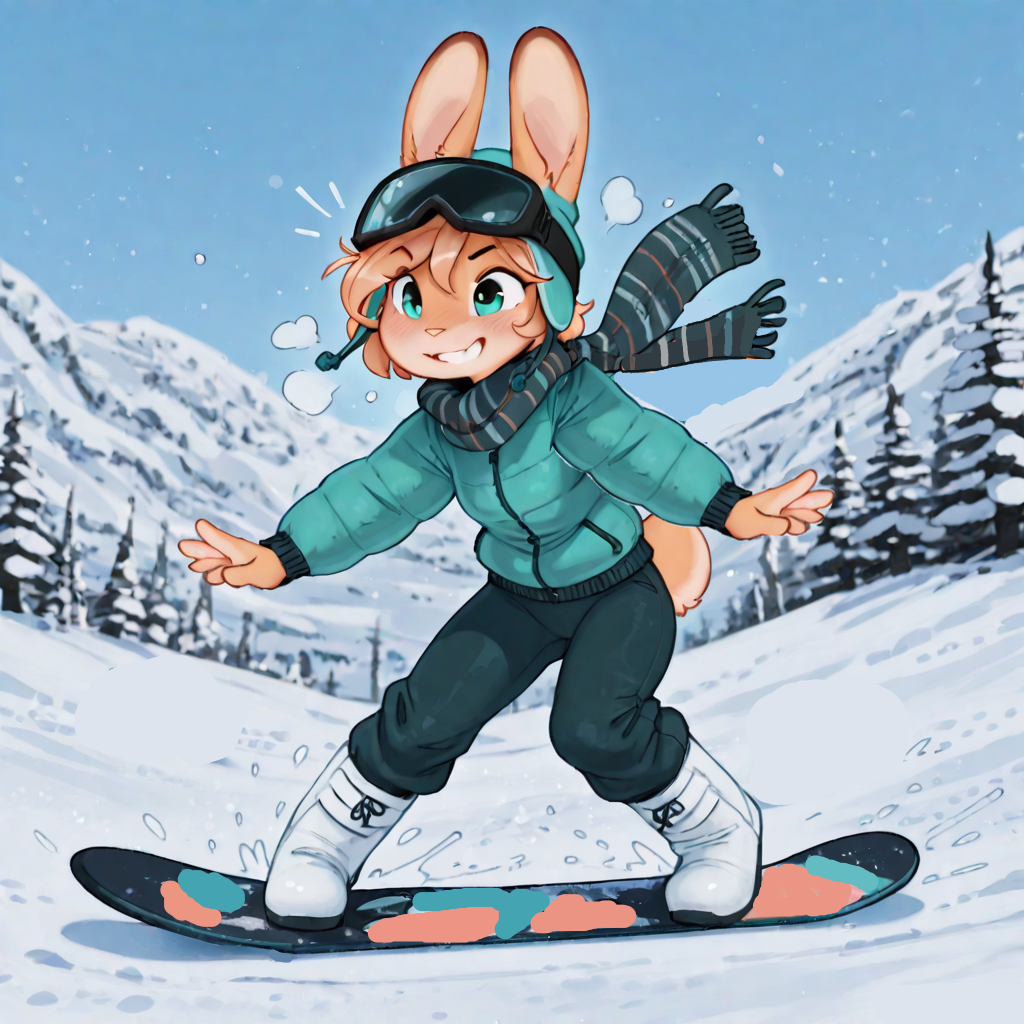
l edits on your basegen and can use the i2i upscale step to increase resolution, details and smooth in these edits at the same time. This section will show different examples of this step with a cherry-picked result. We will use this basegen:
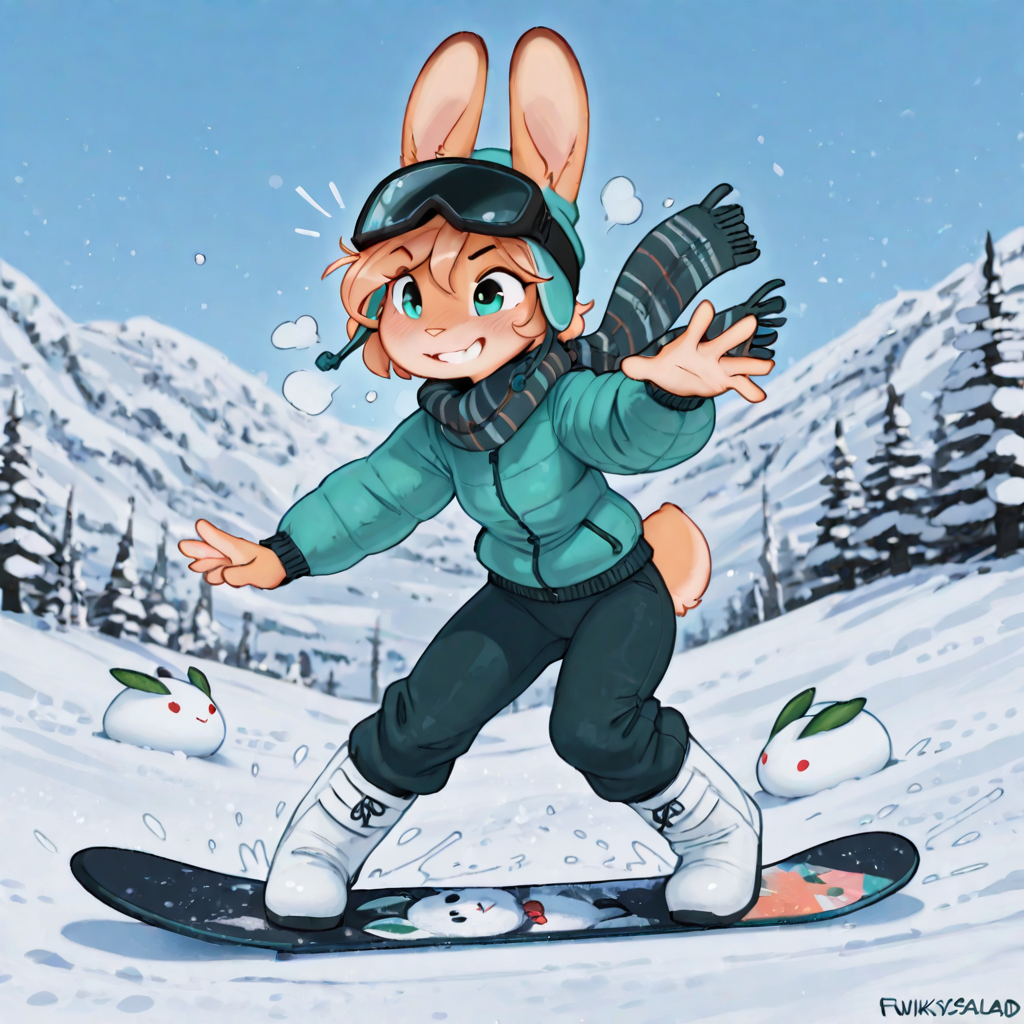
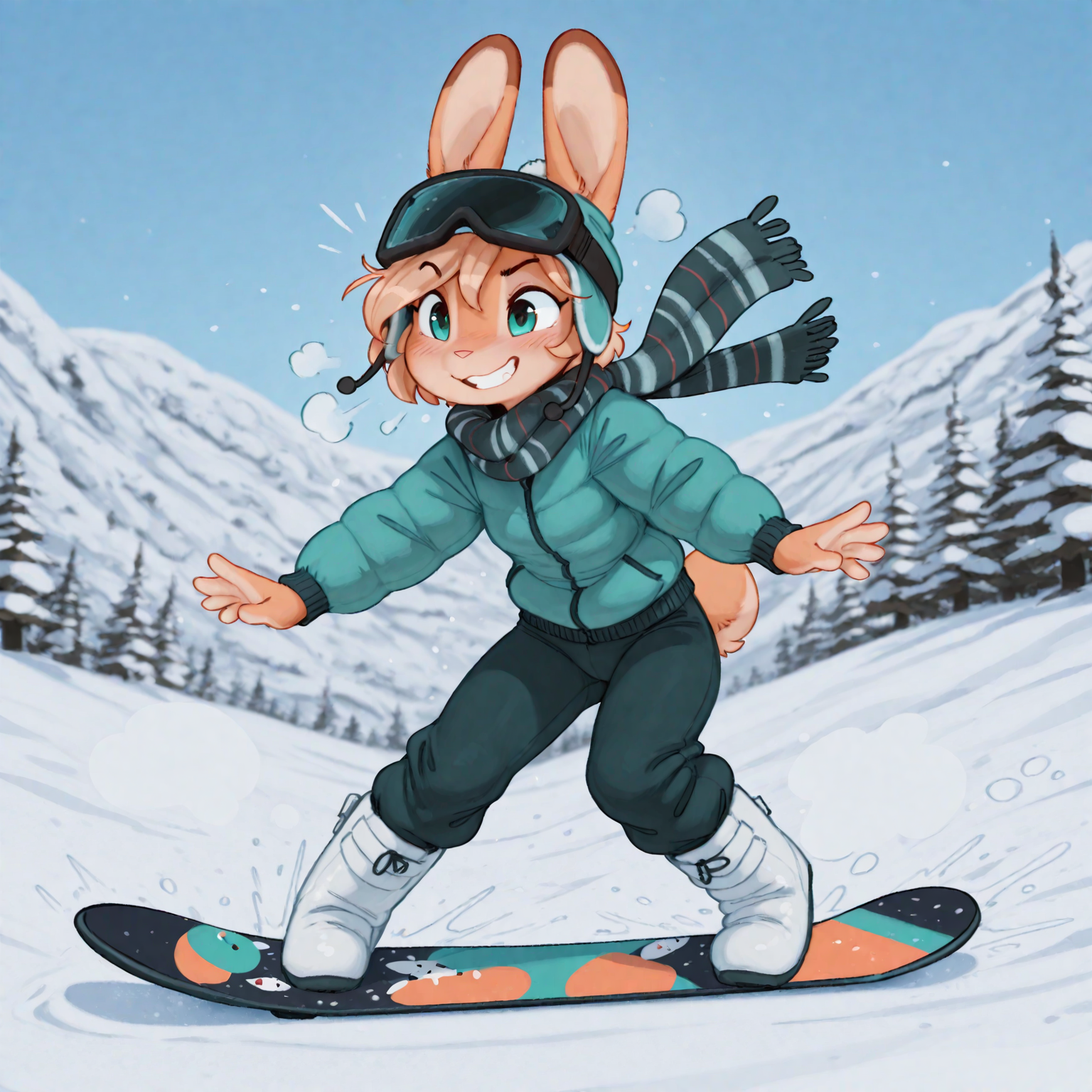
Have a good look at your result, if you feel there are too many changes generate more images until you find a satisfactory result, but if you feel that there is too much change on the upscaled image lower the denoising strength in 0.25 steps, if it looks too rough increase denoising strength gradually. Over time you will get a better feeling how much denoise is required for the model and sampler combination you are using. Sometimes you might have to go back into the image editor and do more minor changes to push the result into the direction you desire.
Example 1 - remove signature and gremlins
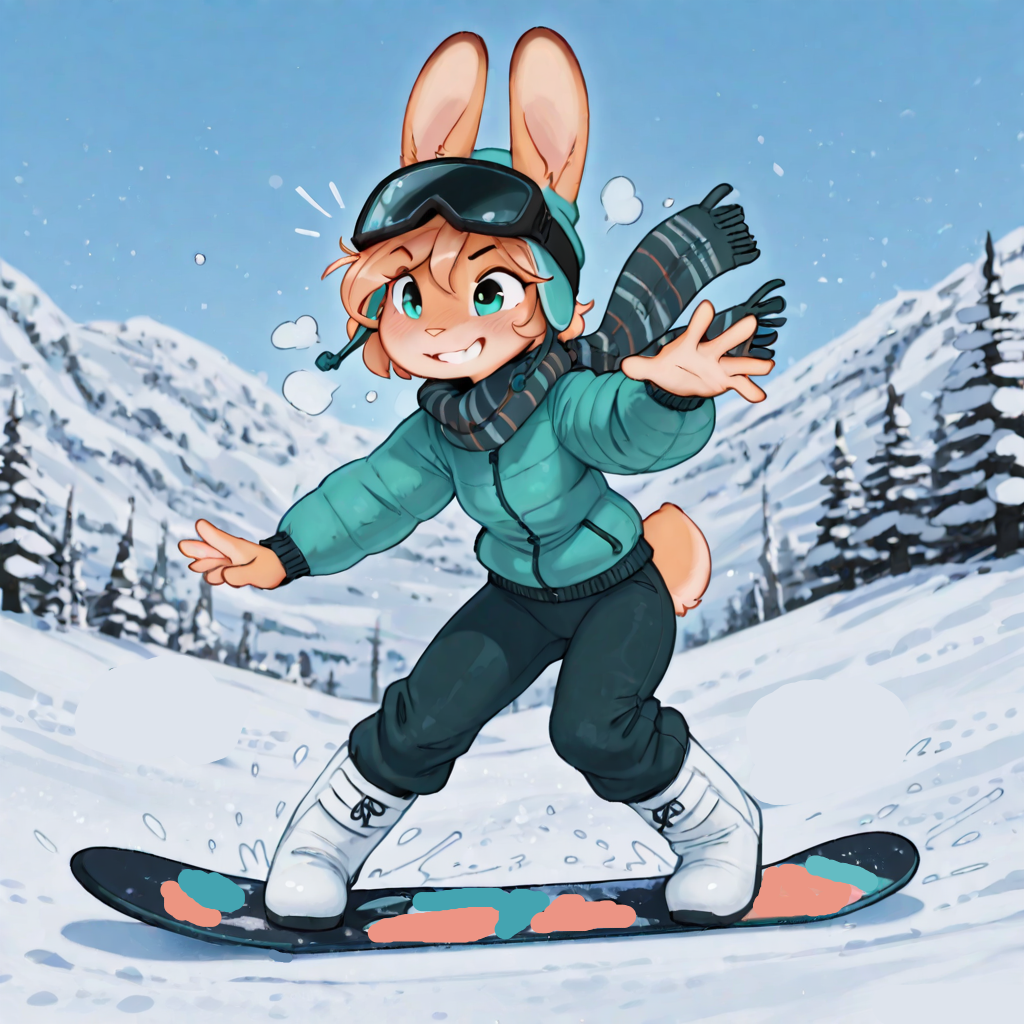
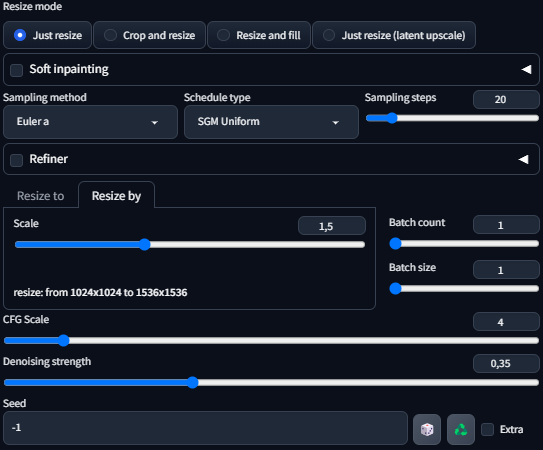
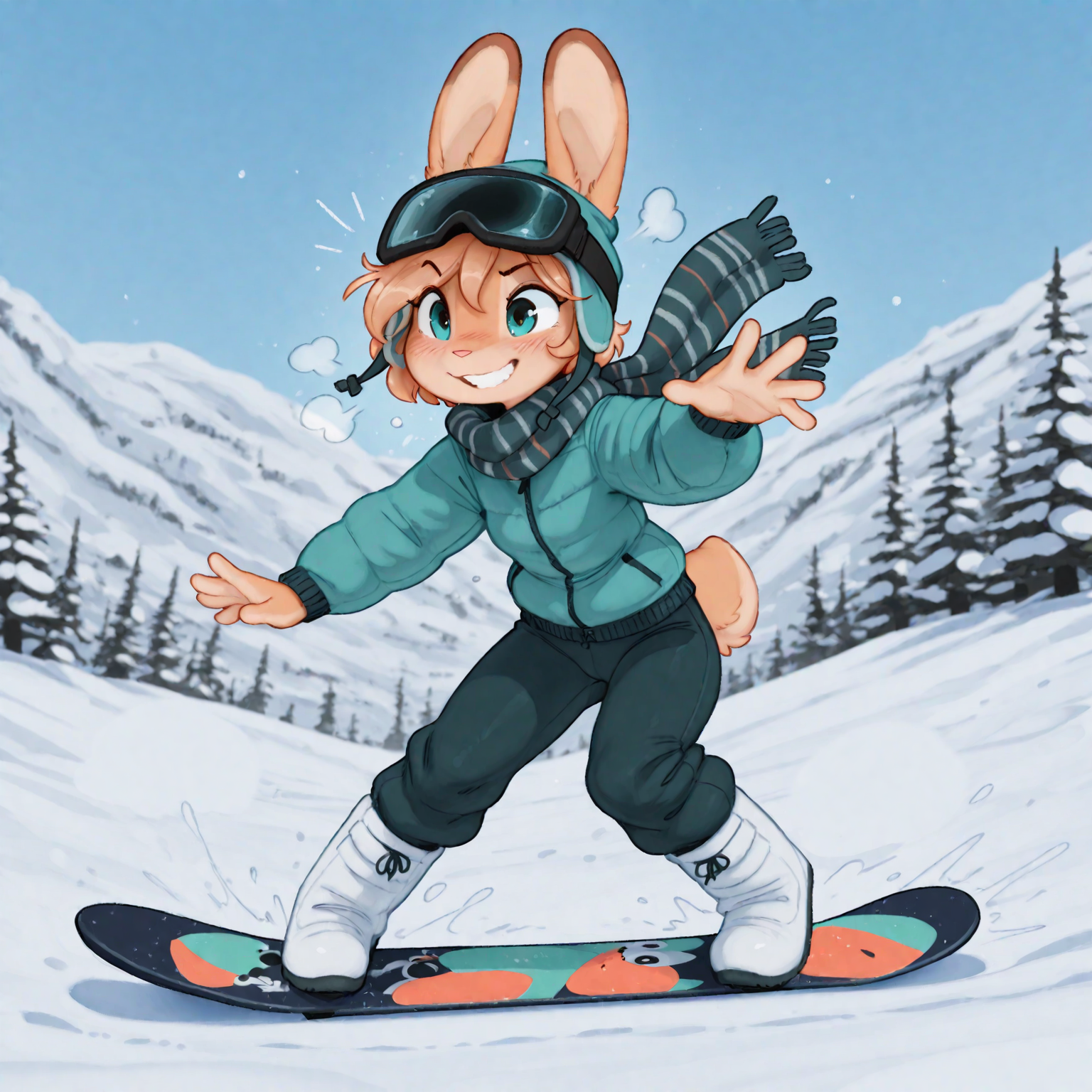
For an easy example lets take our basegen, load it in Krita (or any other image editor, even MSPaint will work for this) and roughly paint over the two gremlins in the background, the signature in the bottom right, and give the snowboard some splashes of color. Use the "Send to img2img" button from the text2img or PNG Info tab to send the undedited images metadata to the img2img tab, otherwise you will have to copy them manually. Use the following example settings and Generate a new image.
Example 2 - change colors
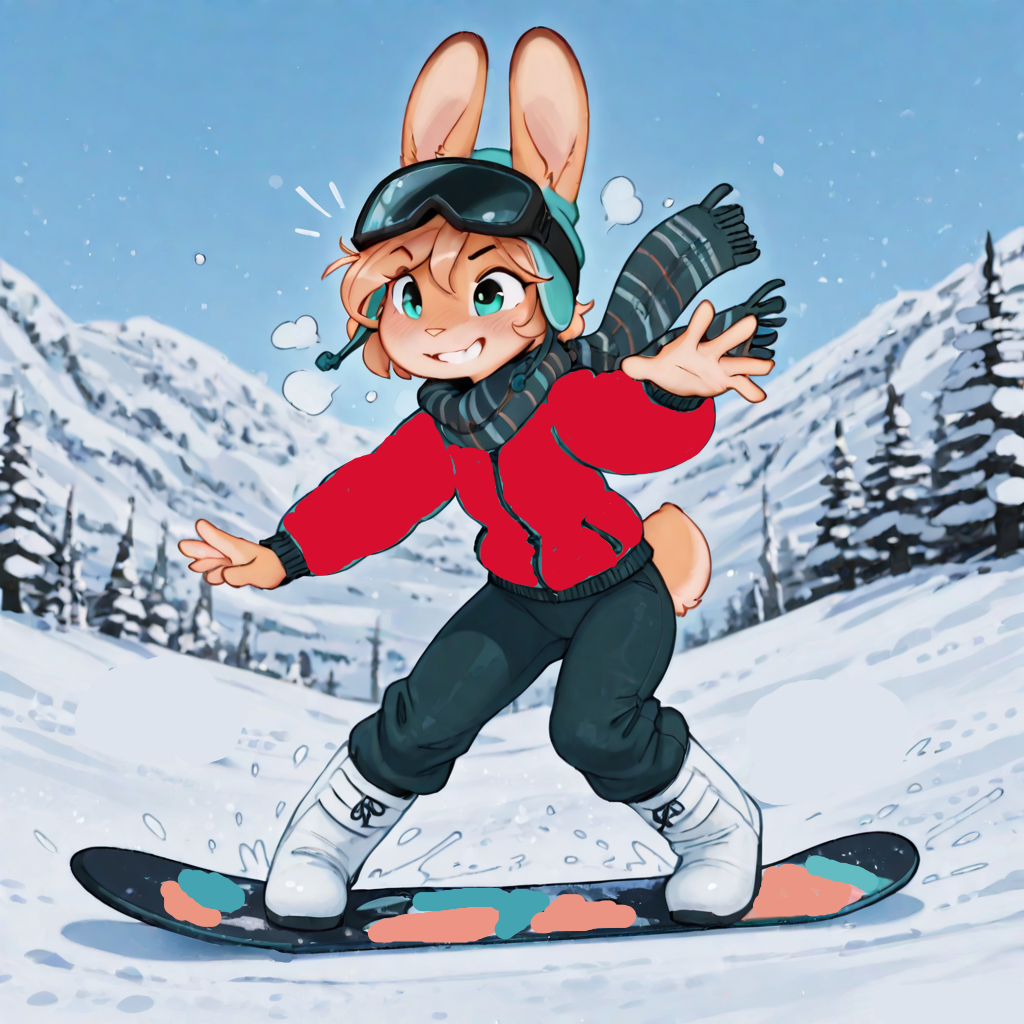
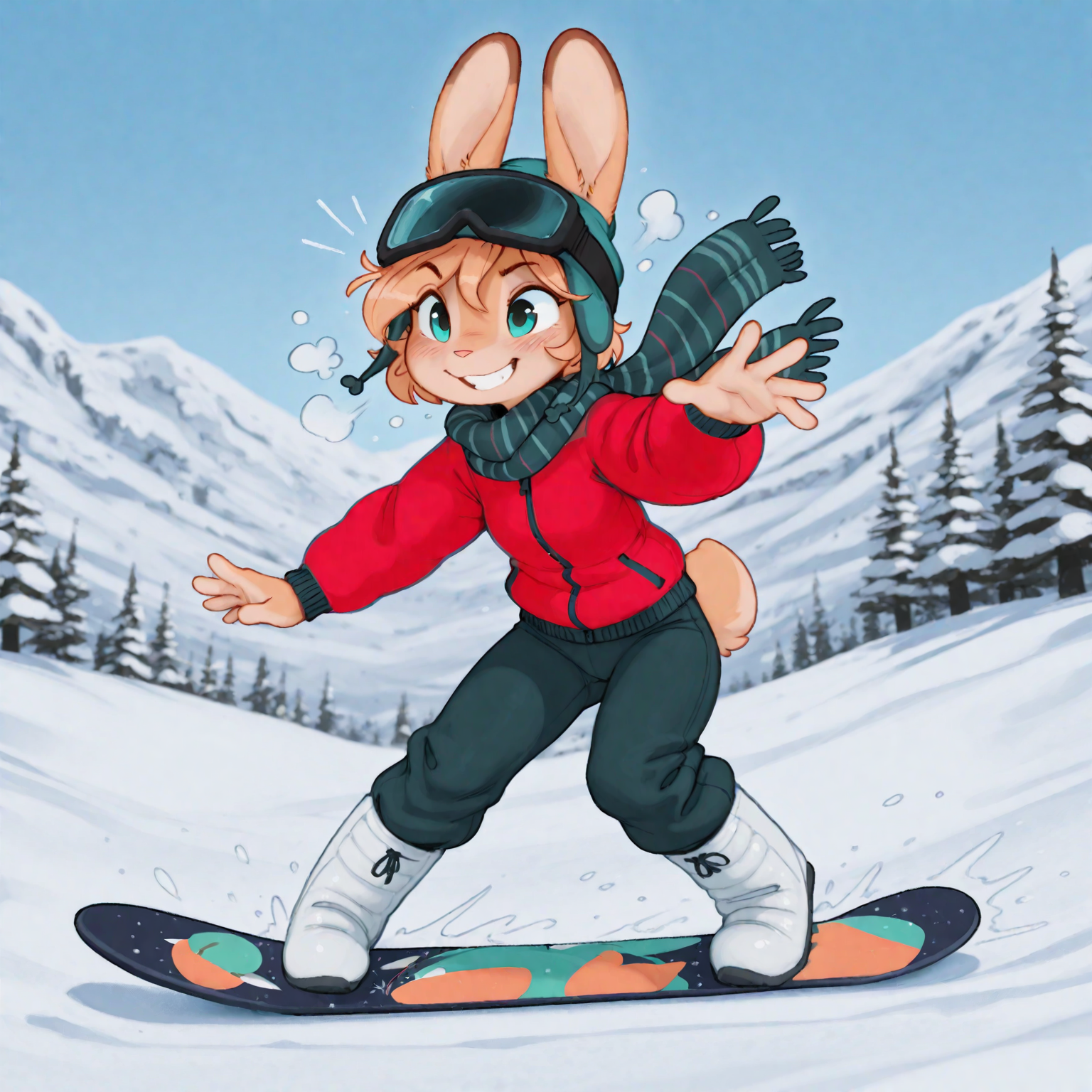
For another easy example we take the edited basegen from the previous example but also paint over the jacket with another color. Usually you don't need to care about wrinkles but it helps if you keep a few details like a zipper or pockets to better guide the model. On more complex setups it might help to add some shaded areas, or do some inpaint detailing on the edited basegen before the upscale. See the xyz section for more examples.
Example 3 - photobash
In this last example we want to change the right arm to look like the left arm and then use the i2i step to smooth it in. From our basegen we select the left arm with the freehand selection tool and copy it to a new layer. Then we flip that layer horizontally and move it over the left arm. Finally we paint over the hand and fix up the scarf a little bit to make it easier for the model. How rough or detailed you need to make these edits depends on many factors, especially the model and how well it understands what you are trying to do. See the xyz section for more examples.
You can use this technique to copy and paste parts from different gens together. It is a valid strategy to generate a larger batch of a specific prompt and if you don't find that one golden gen you can build one in Krita like shown in this example. For something like this it's strongly recommended to use an image editor that supports layers!
Here is a short video on how to do it with Krita, though explaining how to use it in detail is outside the scope of this guide. This was done by mouse, so for edits like this you don't need a tablet.
inpainting
Now if you looked closely at the results of the previous examples you will have noticed that the upscale did not fix the editing of the gremlins very well:
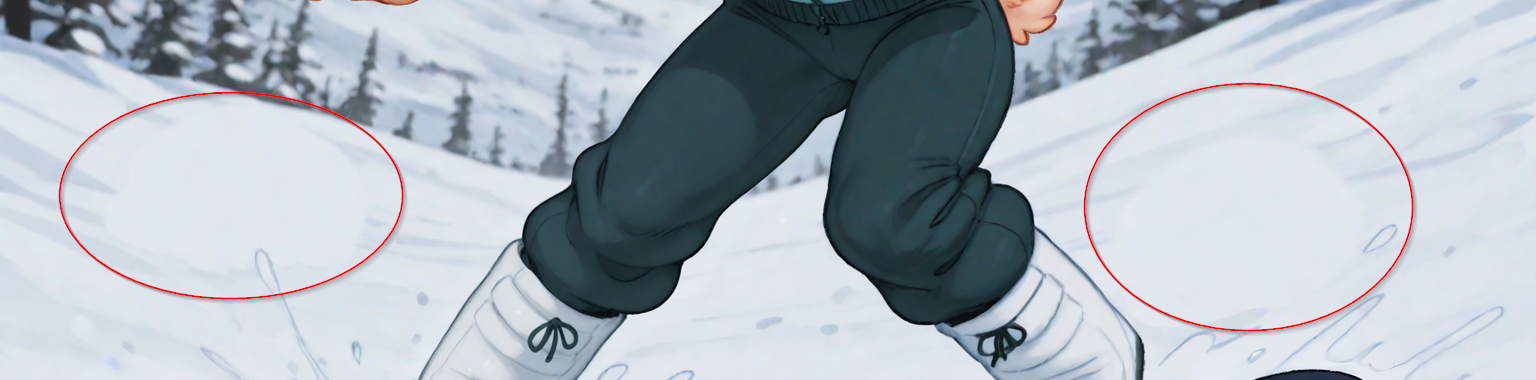
Areas that are fully filled with a solid color have a strong influence on the models to stay that way. As we painted over the gremlins with a solid white color it stayed like this on the upscale as well. One good option is to use example 2 and just paint some grey streaks into the white area before the upscale which likely will make it fit in with the rest of the area.
For this example we will use it to demonstrate basic inpainting, which means letting the model change masked areas of the image without editing it in an image editor before.
inpaint detailing
Inpaint detailing is the process of adding more details to your image by choosing (masking) a certain area and letting the model regenerate just this area it with denoise. In contrast to inpainting edits or sketches this is usually done with low denoising strength as you don't want to do major changes but just "sharpen" the details a bit.
While ADetailer or the Ultralytics nodes for comfyUI can automate this step somewhat, doing it manually in the inpaint tab gives you (more) control over the process and lets you easily play around with the parameters and values in multiple tries.
How much inpaint detailing you want or need to do depends on many factors so for this example we will do a few more steps for the sake of it.
Usually inpaint detailing is the last step in the overall process, but as mentioned in other sections sometimes you will do it before the final step as well.
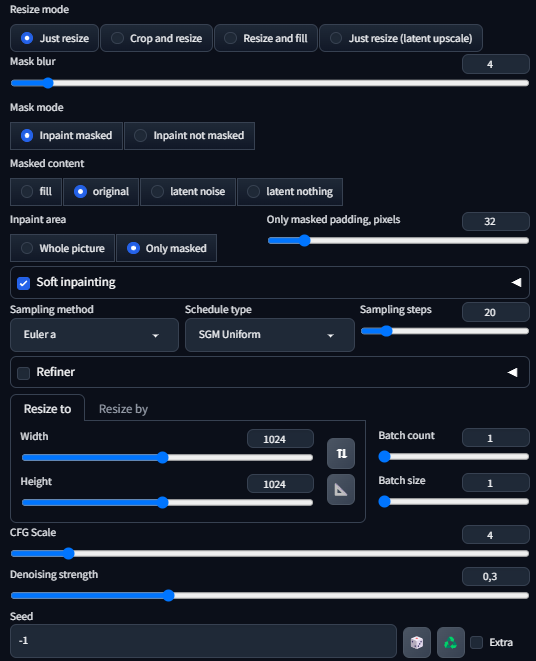
Let's take the upscaled version of the first example and load it into/send it to the Inpaint subtab instead of the img2img tab. Important! This will/may set some options to values that are not fit for the task at hand. Check these settings:
- Inpaint area: must be Only masked
- Sampling steps: should be less than your basgen steps. Depends on many factors, go for about 2/3 to half your basegen steps
- Resize to: must be set to a SDXL basegen resolution, recommendation is to set it to 1024x1024 by default
- Denoising strength: should be a bit lower than for i2i, in general something around 0.3 is usually sufficient
Mask
Generate until good
Click 
inpaint with image editor/sketch
2
img2img
3
img2img sketch
4
outpaint
on basegen before upscale
after upscale
masked outpaint

⬆️⬆️⬆️To the top⬆️⬆️⬆️
Xeno443