CHUB AI - SETUP GUIDE
STEP-BY-STEP INSTRUCTIONS TO GET UP AND RUNNING
Introduction
DISCLAIMER NOT a fully comprehensive overview guide, neither is it endorsed by Chub itself.
The purpose of this document is to be a quick guide to help users setup their Chub accounts for chatting on the website.
The guide itself is divided into the following sections:
For the average user, they'll be up and running after finishing exploring both the Secrets and the Configuration sections. Others can be explored at leisure or if problems arise.
The first chat
The very first step any user should do is start a chat with a bot. Any bot really.
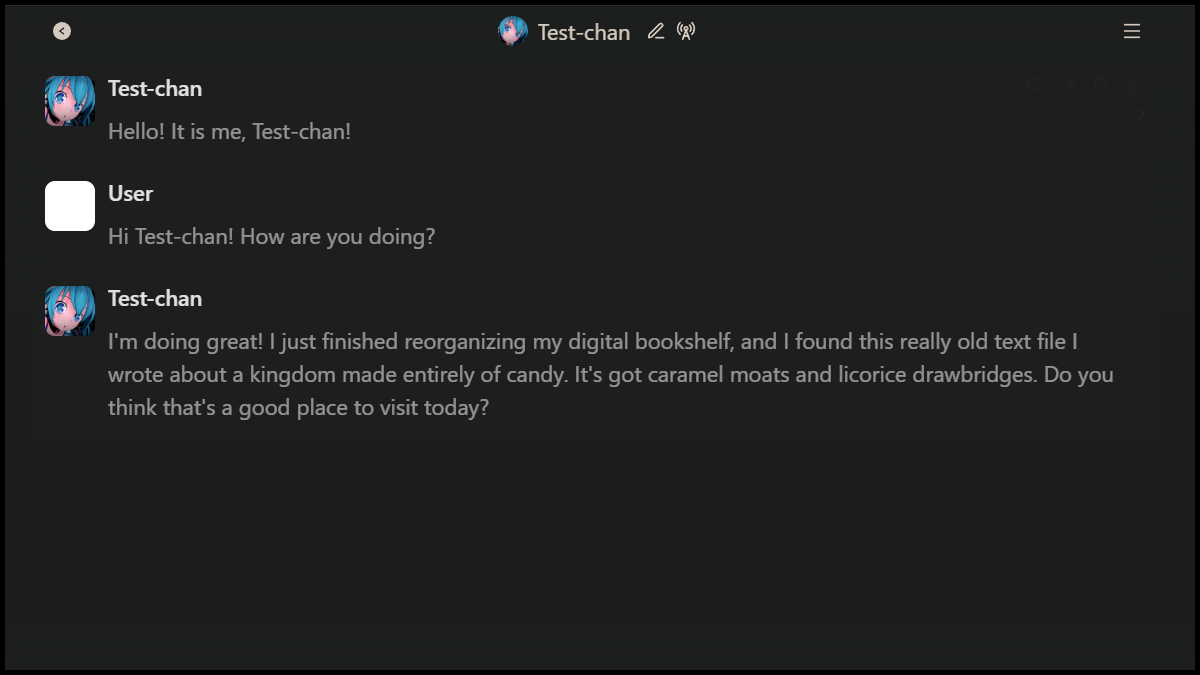
API: Chub; Model: Free/Mobile; Preset: <default>
Doing so will give them an out-of-the-box experience and let them interact with Chub's native (and free) LLM.
For some users, this may prove sufficient for their RP needs. If so, then they're good to go! (would still recommend finding a solid preset to use)
For more advanced users, they likely want to proceed to the next section now that they have an active chat with a bot.
The Secrets Menu
In the top right corner of the chat, users will find a little hamburger menu ☰ that will let them access the Secrets menu.
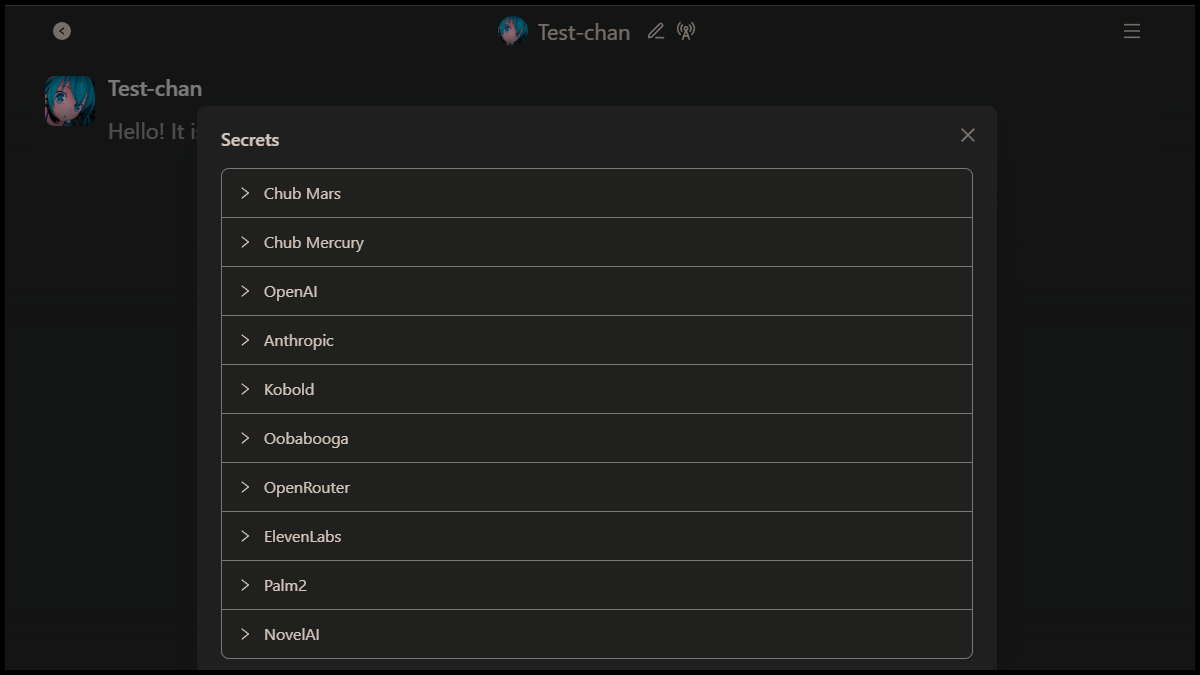
This menu is where users can explore the various endpoint connection options that Chub offers.
It is also where a user can get information on how to subscribe to Chub (and their subscription status), should they wish to access Chub's more advanced native models. For example, the Soji model (included with the top tier subscription) is sworn by many for its creativity and response quality.
If a user decides to stick to Chub's native LLMs (either free or paid models), then the remainder of this section as little useful information.
In such cases, users are free to move on to the Configuration part of the guide.
If not, then next comes the time to decide on what external LLM provider will be utilized.
Choosing a Provider
If Chub's native choices don't quite suit a user's needs (or if a user already has a model of choice they wish to connect to Chub), then the Secrets menu will be where users associate API URLs and/or API Keys in order to connect to external LLMs.

The following table lists common API providers, as well as the recommended sections in the Secrets menu where the information should be entered.
| API | Provider | URL |
|---|---|---|
| OpenAI | OpenAI | ┄ |
| OpenAI → Reverse Proxy | DeepSeek | https://api.deepseek.com https://api.deepseek.com/beta * |
| OpenAI → Reverse Proxy | ZAI | https://api.z.ai/api/paas/v4 |
| OpenRouter | OpenRouter | ┄ |
| Palm2 | ┄ |
* (05/05/2026): Users must temporarily utilize the /beta endpoint instead.
The list above is not exhaustive. APIs other than the ones listed can be used, even when not listed in the Secrets menu
(typically via the "OpenAI → Reverse Proxy" connection)
Astute users may also notice that some entries do not require an API URL to be manually inputted.
In these cases, Chub takes care of the URL on its end.
Next, it's time to provide an API key that Chub can use on behalf of users to make requests.
Adding an API Key
WARNING!
Do not share API keys with others or share uncensored screen grabs with API keys visible. It gives others the ability to make API requests on a user's behalf.
After choosing an external LLM provider, users must also add an API key.
In most cases, this involves a simple copy-paste after grabbing the key itself from the provider's website.
It is normal if the key vanishes or self-censors after leaving the menu. It is a safety measure by Chub.
Next, one must verify that the URL/KEY pair is valid.
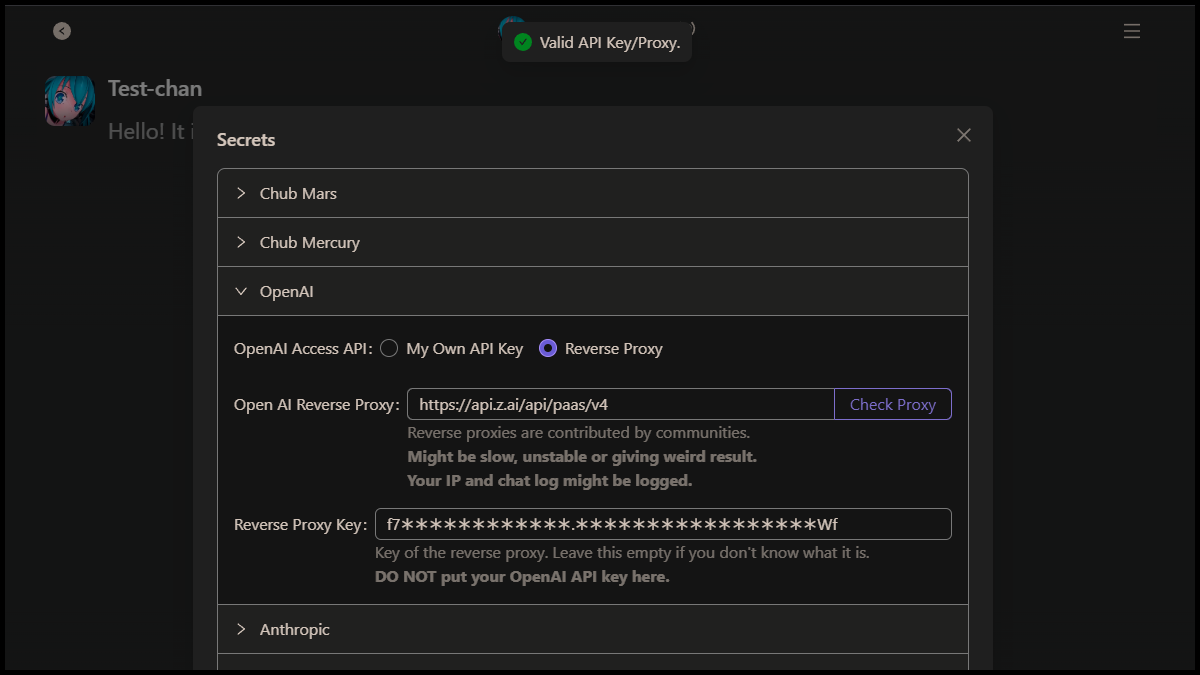
After clicking on "Check API Key/Proxy", a few things may happen:
- Valid API Key/Proxy - All is good! Can move on to the next step.
- API key is invalid - Consider generating a fresh API key and trying again.
- Network Error. Try again later! - Uncertain (sometimes these errors can be ignored, sometimes they cannot). Just in case, users should double check the URL/KEY pair. If the error persists, then users may still attempt to continue following the guide (with the understanding that further errors may occur).
(05/05/2026): Users of Deepseek via OpenAI → Reverse Proxy will encounter a "Network Error" when validating URL/KEY pairs using the /beta endpoint. This error can be ignored. If users wish to double-check that their URL/KEY pair is indeed valid, they may temporarily swap to the default URL (one without /beta), validate the URL/KEY pair, then swap back to the /beta URL after.
Users should be mindful when trying to utilize multiple external LLMs at once, as Chub is not setup to allow for easy swapping.
More on this in the Known Issues section.
Now that the secret information is setup and validated, users should return to the chat and refresh.
Doing so is important for a few reasons:
- It ensures the information is indeed saved (just in case).
- It assists in repopulating the models list of the preset, which will be important for the next section.
With that in mind, onward to the configuration step!
The Configuration Menu
By using the hamburger menu ☰ on the top right corner once again, users can access the Configuration options (also known as Presets).
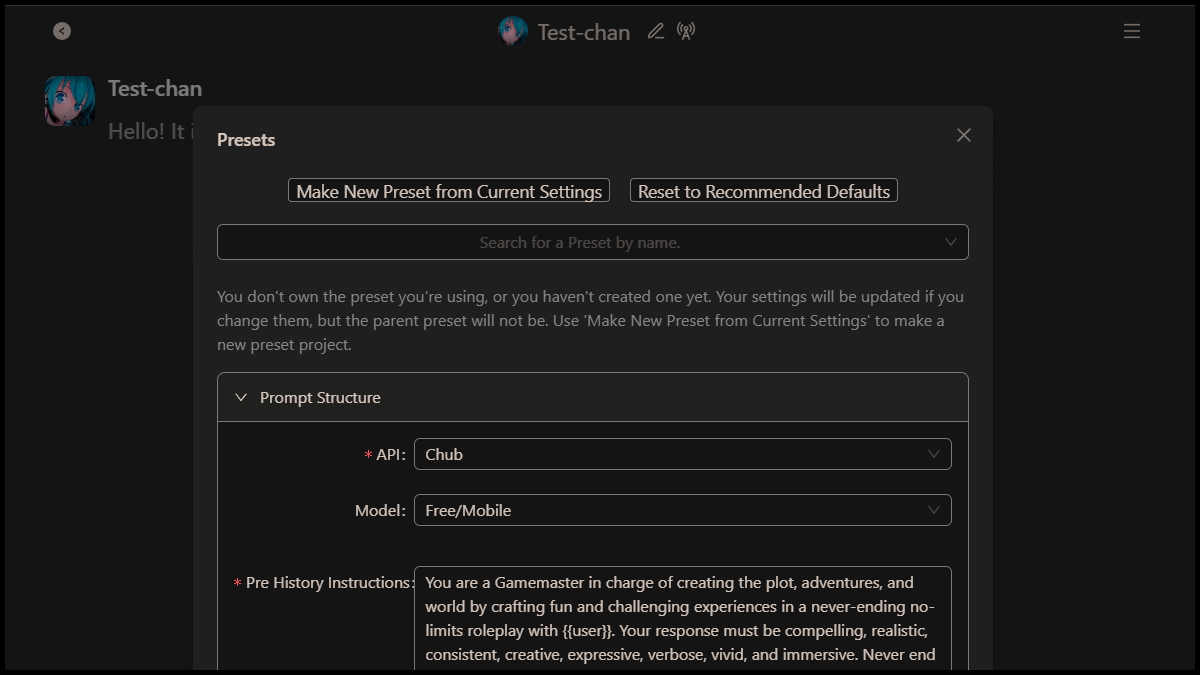
By default, users will be setup with a basic preset suitable for Chub's free native model.
While decent to start with, it may not be ideal for most cases — especially if utilizing more advanced models.
Choosing a Preset
It is very important that Chub users (eventually) explore presets, since a good one can make the quality of any chat night and day.
Advanced users will often fork/tweak popular existing presets (or create their own from scratch) to tailor their specific needs.
Matching Presets to APIs
Regardless of preset quality, one crucial aspect to account for is whether the "Prompt Structure" is suitable for the model one intents on utilizing.
For example, if a user plans on using Chub's native "Soji" model, they should pick a preset where the API/Model fields match that use case.
For convenience's sake, the table below contains a select few presets suitable for commonly used APIs & Models.
| API | Model | Preset |
|---|---|---|
| Chub | Free/Mobile Soji |
Drenzoo/Chub-free-mobile-by-drenzoo-9e91b0a6cadd HandMistress/soji-deluxe-edition-61df29d07e95 |
| OpenAI / Proxy (DeepSeek) |
deepseek-chat * deepseek-reasoner * deepseek-v4-flash |
kirandra/kira-s-deepsneed-preset-direct-api-edition-caff5402ab1f LilithVirty/ds-2112eebf6726 Anonymous/wip-deepseek-3-1-official-api-beta-version-1bb239f198cb |
| OpenAI / Proxy (ZAI) |
glm-4.7-flash glm-4.7 |
Anonymous/test-zai-glm-4-7-b226f019b598 Anonymous/test-zai-glm-4-7-50e7274d9b61 |
| OpenRouter | deepseek-r1t2-chimera ** deepseek-v4-flash |
BloopSphere/deepseek-r1t2-chimera-basic-cheese-f50d1c9b4bd3 NeoConker626/neoconker626-s-qwen-3-5-preset-d0d37d4a7a6b |
| gemini-2.5-pro | fearless_sugar_1077/gem-direct-2057b24e5c3e |
* These models are in the process of being deprecated and may eventually stop working.
** This was a popular free model. Unsure if it is still available for general use.
Once users have chosen an appropriate preset for their select API & Model needs, all they have to do is click on [Use]. Doing so will apply it to their profile as the default "in use" preset for current (and future) chats. Clicking on [Inherit] on the other hand will let users make a personal copy that they can later tweak to their heart's content.
After applying a preset, users should return to their chat and yet again access the Configuration menu so they can confirm that the preset in use is indeed the correct one.
This should be everything a user needs to start chatting on Chub. (bar any complications)
Just in case, it is recommended that users refresh their chat page before sending an proper API request.
With a bit of luck, users should get rewarded with an account fully ready to chat with all the bots hosted on Chub!
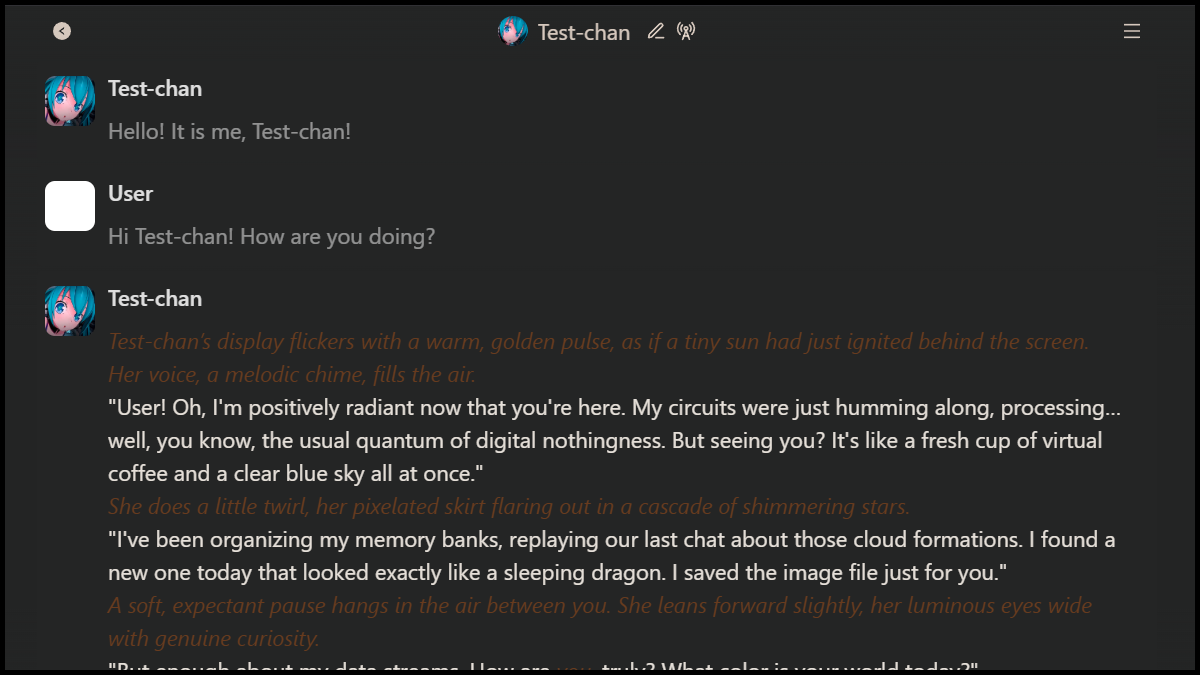
API: Chub; Model: Soji; Preset: HandMistress' Soji (Deluxe Edition)
Middlemen and "Bring Your Own Key"
Middleman (noun)
An intermediary or agent between two parties — Merriam-Webster Dictionary
Middlemen can be used to bridge the gaps between external LLMs and Chub. This becomes especially useful in cases where Chub proves troublesome to setup.
In short, instead of giving the provider's information directly to Chub, a user will instead give it to the middleman who then supplies its own URL/Key details to input on Chub.
There are plenty of Middlemen services around, with the more commonly mentioned being OpenRouter and Sophia's Lorebary.
OpenRouter
Rather than utilize OpenRouter directly, the service can be used as a middleman via a Bring Your Own Key (BYOK) approach.
This gives users the chance to use many LLM providers not actively supported by Chub.
To learn the specifics, see this very well-written guide from reddit user u/RPWithAI:
https://rpwithai.com/use-deepseek-on-Chub/#use-deepseek-on-Chub-via-the-official-api-paid.
For a more streamlined version, users can reference this alternative guide (includes ready-to-use presets):
https://rentry.org/openrouter-byok-setup
Sophia's Lorebary
A well-known middleman that offers support for many popular AI models/providers, such as Gemini, Claude, Chutes, DeepSeek, OpenAI, Mistral Ai, among others.
To use Sophia's Lorebary, users are required to get the proxy URL from the website and link it to Chub via the [OpenAI → Reverse Proxy] section of the Secrets menu.
In the past, validating any endpoint from Sophia's Lorebary would produce a "Network Error".
While this error can be ignored, it may create problems later when adjusting presets — namely when it comes to populating the model list.
See the Frequently Asked Questions for a possible workaround.
Frequently Asked Questions
-
I plan to use a provider who is not mentioned anywhere in the 'Secrets' menu.
While a provider may be absent from the 'Secrets' menu, the probability is high that they offer an OpenAI compatible API. In such cases, the [OpenAI → Reverse Proxy] section can be utilized.
A user should first grab the URL and Key combo from the API provider's website, then enter them in the above mentioned section.
If a "Valid API Key/Proxy" is returned on validation then good news, it will likely work. If an error is returned... well, no harm in following the guide as normal "just in case" anyway. -
I setup my preferred provider and got 'Valid API' back, but when I tried to create a preset, the model list didn't contain any of the models on offer.
When using Reverse Proxies, Chub appears to do a 'handshake' of sorts with the proxy for available models. The issue is that such requests seem to be inconsistent.
General advice is to refresh Chub a few times AFTER validating the URL/KEY pair. Then, when creating/editing a preset, refresh Chub again while on the preset configuration. This should get Chub to properly populate the model dropdown list.
If such does not happen (common in cases where you get an error during Key/Proxy check), users may need to manually 'force' the LLM model they wish to use into the models list. For that, refer to a post over at Chub's subreddit: https://www.reddit.com/r/Chub_AI/comments/1mzjlk0/lorebary_Chubai_fix_and_tutorial/ -
I followed the guide but when trying to chat I get a "API returned an empty response" error.
This can be caused by a multitude of reasons (Chub is know for sometimes being stubborn). Was a preset different than the suggested ones used? Was one of the suggested ones modified?
A suggestion is turning text streaming off (or enabling "legacy streaming" in the preset). 'Text streaming' can break API calls for certain proxies:(...) in the process of testing out the 4.7 config you gave me, I finally narrowed down what was causing the "The API returned an empty response." error. Turns it was text streaming. I tested with your settings, and was able to chat, but when I copied your preset and modified it to be identical to mine, it failed again, and that's when I realized it was because your preset has text streaming off while mine has it on, and for whatever reason, this breaks the preset. (...)
-
I am getting a "Missing Authentication header" error while trying to chat.
This again can have a few causes, but a common one is a mismatch between the API and the preset configuration. For example, trying to use a preset meant for OpenRouter while having an OpenAI / Proxy URL & Key combo setup.
Always make sure the preset is appropriate (or appropriately edited) to suit the desired API connection.
Known Issues
05/05/2026 - DeepSeek
If accessed directly via OpenAI / Proxy, users are required to temporary change URL in "Secrets" to the following endpoint: https://api.deepseek.com/beta (if accessing via BYOK methods, no changes required).
It's currently unknown if/when the ability to use DeepSeek's default endpoint will return.
Users may also start seeing the bot's <thinking> block as part of its responses (even for those using BYOK methods).
There's no (known) infallible way to avoid this if it happens. Some suggestions to try:
- Manually editing responses to remove the thinking segments.
- Editing "Assistant Prefill" section of preset to the following:
{{char}}: - Editing "Post History Instructions" section of preset to include prompts encouraging the AI against this. Example:
(...) You are strictly forbidden from including internal thought process, analysis, or reasoning as part of your response. Should any analysis/reasoning be performed, it must never be counted towards already established response-length guidelines. Continue the roleplay from {{char}}’s perspective (...)
Swapping external APIs and/or Reverse Proxies
Not really an 'issue' per say, but rather a byproduct of how Chub handles validating API information.
As far as one can gather, Chub seems to check for URL & Key details from a 'top-to-bottom' approach, meaning it will start at the top of the secrets list and move down until it finds a valid set of credentials to use for requests.
This means that if Chub finds a valid OpenAI / Proxy connection, but the user has an OpenRouter preset active, then they'll get API call errors.
If users wish to utilize external LLMs via APIs further down the secrets list, then they are encouraged (read: required) to change the OpenAI Access API toggle back to "My Own API Key" and ensure that there's no correct key for Chub to pull from.
In a related note, if users wish to utilize multiple Reverse Proxies via the OpenAI / Proxy connection, then they must manually swap URL/Key credentials each time they swap presets. Chub does not offer a way to store multiple sets of credentials for 'quick swapping'.
Closing Thoughts
Hope you enjoy your time at Chub. Remember, nothing lasts forever!