LOOK-BUILDER MODDING GUIDE
*Last updated: July 11, 2026 — game version 0.3.2c
What is this?
This is the official modding guide for the look_builder.html utility that comes with Harem Heaven. It contains detailed information on how to make your own character clothes and bundle them into mod files.
The mods are just a folder containing a JSON manifest + image/video files, zipped up and dropped into your mods/looks folder. No coding required — just image editing and filling out a few fields.
You will need:
- 🎨 An image editor, e.g. Photoshop/Krita/GIMP
- ✂️ Basic familiarity with layers and transparency (PNG with alpha)
- 🖥️ Graphics card with (ideally) 12-16GB of VRAM for generating images + like 20 gb hard drive space
- 🧠 A perverted mind
Installing Mods
- Download a mod from the Discord or use look_builder.html to build your mod as a
.zipfile
2a. Use the 'import' button, in the Talk About... > Wardrobe menu
2b. Locate your 'looks' mods folder:- Windows:
<game folder>/mods/looks - macOS:
<application folder>/mods/looks or ~/Library/Application Support/Harem Heaven/mods/looks/- download the game, it will come in a zip file
- double click the zip file to unzip it, the Harem Heaven.app file will plop out into whatever folder you're in
- move Harem Heaven.app to wherever you want it to live, I moved mine to "Home" (Go > Home)/Users/<mac username>/Games
- create a folder next to the Harem Heaven.app file and name it 'mods'
- create a folder inside of that folder and name it 'looks'
- download a mod and place the .zip in the 'looks' folder
- Android:
/storage/emulated/0/Android/data/com.example.haremheaven/files/mods/looks/
- Windows:
- Drop the
.zipinto the mods folder. - Launch the game and your modded 'look' will appear in the 'change wardrobe' menu. Mods are scanned automatically on startup.
LOOK INFO - field meanings
A Look defines a set of clothes that a character can wear.
| Field | Meaning |
|---|---|
look_id |
Unique internal identifier for this look. Must not collide with existing IDs. |
display_name |
Display name shown in-game. |
girl_id |
Name of the girl who owns this outfit. |
flavor_text |
Optional. Short statement that is displayed in-game when the outfit is selected. |
hairstyle |
Tells the game which built-in hairstyle to display. Jill's hairstyles are DEFAULT, PONYTAIL, and WET. |
version |
Optional |
category |
Optional, not used by the game |
author |
Optional |
DEPENDENCIES |
Optional. You can use "Load parent look" to select another looks mod to inherit assets from (only works if the parent mod is also installed). This is useful if you want to copy a look that's already in the game and only change a garment or two. body_mod_id, face_mod_id, and hairstyle_mod_id are unused for now. |
Notes:
- If the display_name or flavor_text are too long, they may not show up properly in the game.
GARMENTS - field meanings
A Garment is a single clothing item that layers on top of a Look.
| Field | Meaning |
|---|---|
id |
Unique internal identifier for this garment. |
in_default_config |
If true, this garment is 'on' by default when the look is selected. |
display_name |
Display name shown in-game |
SLOTS_FILLED |
Select which outfit slots this garment occupies |
SLOTS EXCLUDED |
Select any outfit slots that this garment doesn't fill, but should prevent from being filled |
slut_score |
0-10: not slutty, 10-25: kind of slutty, 25+: very slutty |
coverage |
Basically what percent of the body is covered by this garment: thong panties = 2, hoodie = 40, etc. |
covers_nipples/pussy/toes/ass |
Girls are less likely to agree if nipples/pussy/ass are showing. covers_toes hides toes on the paperdoll |
Notes:
- The Slot Display Order from highest to lowest is: Outerwear, Top, Bra, Bottoms, Shoes, Panties, Stockings
- If the clothing covers parts of the upper and lower body, SLOTS_FILLED should include one upper body slot and one lower body slot. Otherwise try to have each clothing item 'fill' only one slot.
Generating images
- all the art is made in Stable Diffusion. You'll want to have an okay graphics card, with at least 8GB of vram, then you would download a browser interface like A1111 or Forge: Forge Standard Install (this is what I use) | Forge Easy Install. There are lots of tutorials on youtube for how to set these up and do your first renders.
- For my art, I use the base model Newgrounds Mix which is based on a model called Illustrious (which is in turn based on SDXL). Illustrious uses Danbooru tags, so getting it to do what you want is usually a matter of figuring out what the associated tag is. So if I want a condom to be full of cum, I would have to add the tag used_condom_on_penis to my positive prompt. Play around with different tags and eventually you'll get a feel for what they do and when to use them.
- Once you get A1111 or Forge set up, you can drag one of the base renders (see the sections below) into the 'png info' tab and it will show you all of the settings I use, and you can press "send to txt2img" to have all of those settings applied to your txt2img tab so you can tweak it and make your own small changes without having to build your settings from scratch.
- If you want your renders to look like mine, you Must install my lora collection Download from HERE and unzip to webui/models/lora, if even one lora is missing, nothing will look right.
Tips for cutting out images
Removing Backgrounds:
- in the prompt, make sure to use the "simple background" danbooru tag so you end up with a solid blue or white background.
- Then take it into Photoshop (or equivalent) and magic wand select the whole background.
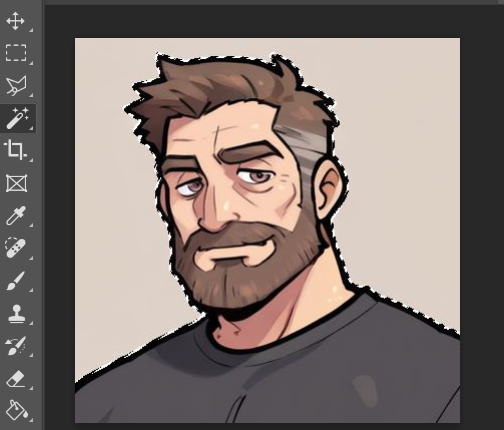
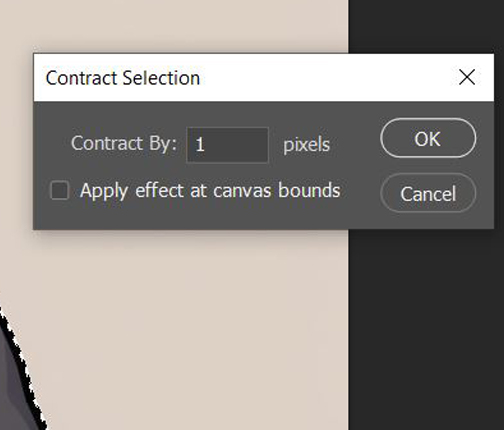
- Invert the selection (ctrl shift + I), then go to edit > modify selection > contract (1 pixel)
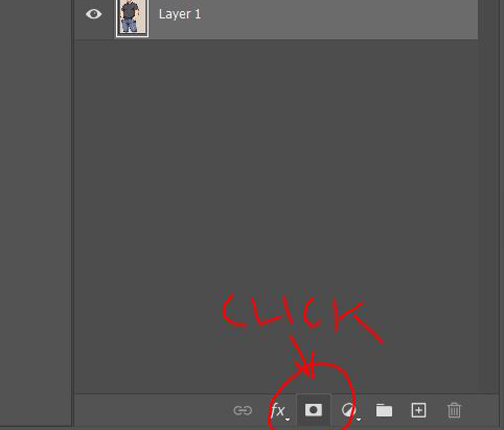
- Use the selection to create a mask that excludes the background (Layer > Layer Mask... > Reveal Selection)
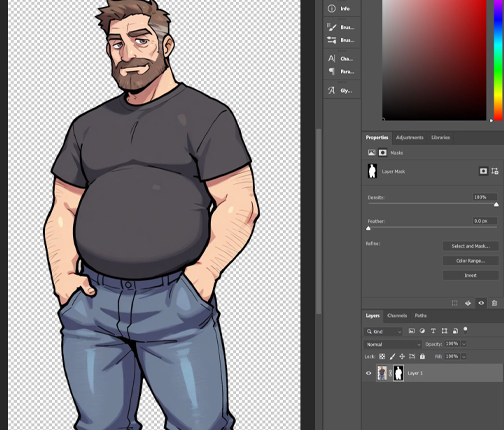
- Now you have a nice cutout with no traces of background!
Cutting Out Inidividual Clothes:
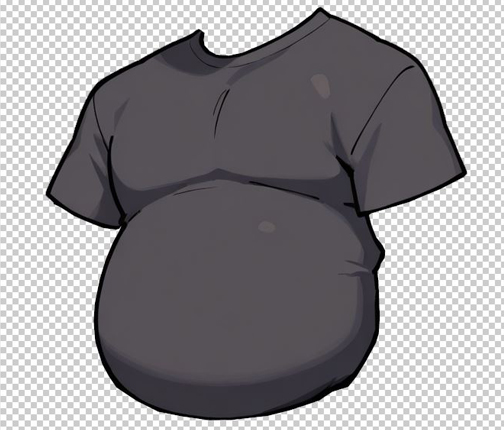
- I always use the polygonal lasso tool to cut out clothes

- Try to preserve as much of the black outline as possible without including any pixels from the skin or other clothes
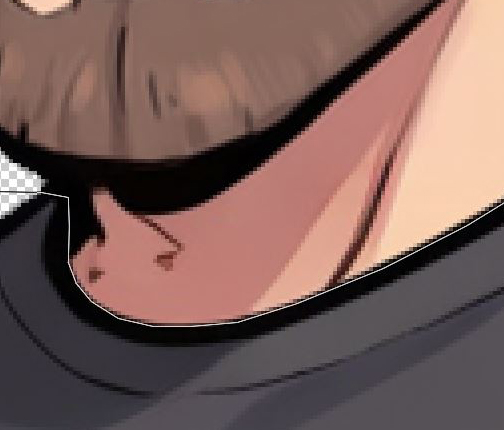
- Use the selection to create a mask just like when you removed the background
- Now you have a beautiful shirt (or whatever) for your paperdoll!
How to use ControlNet Templates
- Every paperdoll asset has a ControlNet Template image to keep the body pose and proportions consistent
- To use the Template:
- Drag an example render into the PNG info tab and hit "send to txt2img"
- Drag the template image into the checkered viewport in your ControlNet module. (If you're using sd-webui forge, then it will look like the image below)
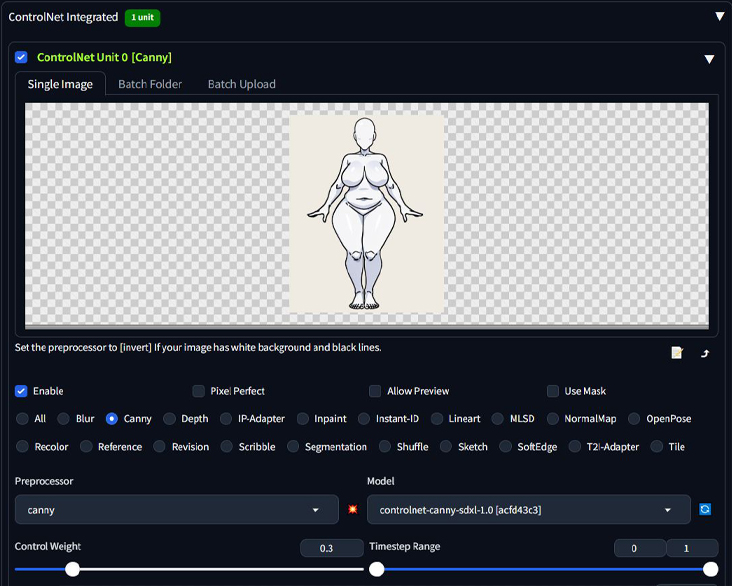
- Set the Preprocessor and Model to 'Canny' and turn the control weight down to 0.3
- Draw a mask onto the template image, covering any lines you want the AI to try to keep
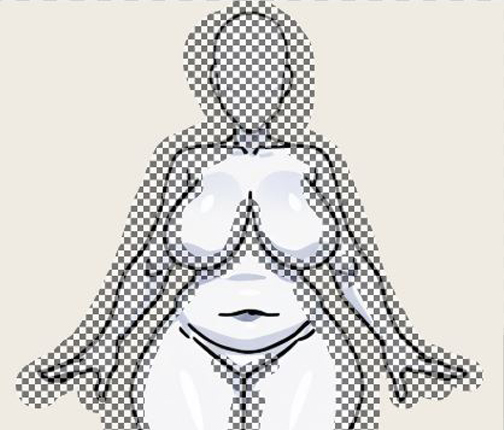
- Change the prompt to match the clothes you're trying to render
- If your outputs are not sticking close enough to the template, you can increase the control weight up to as much as 0.45 before it gets weird.
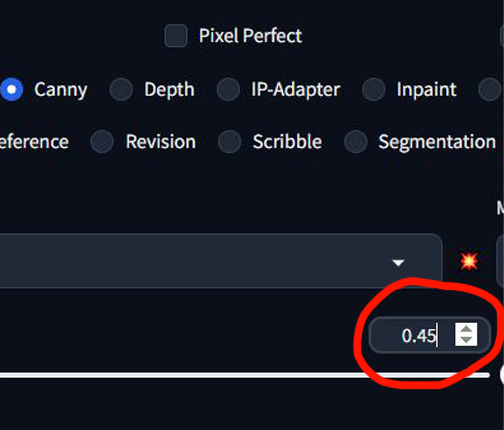
- tip: For best results, try not to change the seed from the example render!
PAPERDOLL ASSETS
A paperdoll is the base character render that garments and expressions layer onto. Each character uses several paperdoll poses, and each pose needs its own clothing assets.
mannequin
This is the faceless model in the sidebar that shows what clothes are being worn by the person you're talking to.
- Render dimensions: 896 x 1152
- Finished Asset dimensions: 672 x 1152
- Source Files (Jill): https://drive.proton.me/urls/G0V7QZS9HG#V0ihm9Q5Y52Z
solo-from_behind
This pose is used during actions like 'backrub'
- Render dimensions: 896 x 1152
- Finished Asset dimensions: 896 x 1152
- Source Files (Jill): https://drive.proton.me/urls/SQDE5E2NNR#d3A7CBvw6phN
solo-sleeping
This pose is used when you find a character passed out in their bed.
- Render dimensions: 1024 x 1152
- Finished Asset dimensions: 1024 x 1152
- Source Files (Jill): https://drive.proton.me/urls/KNJMN642T0#9TkQKpAyxcV2
- note: any upper body garments should also have a 'pulled' variant where the clothing is pulled aside baring the breasts.
solo-hug
This pose is shown during the 'make out' and 'hug' actions
- Render dimensions: 896 x 1152
- Finished Asset dimensions: 896 x 1152
- Source Files (Jill): https://drive.proton.me/urls/7N8WFJ4EXW#AiVI3T87dVbj
solo-all_fours
Shown during 'buttjob' and doggystyle sex
- Render dimensions: 1728 x 1968
- Finished Asset dimensions: 1173 x 1318
- Source Files (Jill): https://drive.proton.me/urls/D3D8H4C8C8#qwPfqXdms6pg
- note: this paperdoll is a holdover from the spine2d experiment, I will probably replace it with an 896x1152 one later in development.
solo-prone (not in-game)
- Render dimensions: 896 x 1152
- Finished Asset dimensions: 896 x 1152
- Source Files (Jill): https://drive.proton.me/urls/WETQXRK1ZC#S0259TwMjBmw
talkie-default / nervous / angry
Shown during normal dialog, each character has three body poses that share face assets.
- Render dimensions: 768 x 1600
- Finished Asset dimensions: 768 x 1600
- Source Files (Jill): https://drive.proton.me/urls/KRZ6FANG1C#wZYcaAW5NyFS
room_overlays
These are the poses of the character interacting with the world at different times of day.
- Render dimensions:
- Standing: 768 x 1600
- Sitting: 896 x 1152
- Sleeping: 1280 x 800
- Finished Asset dimensions: 1422 x 800
- Source Files (Jill): https://drive.proton.me/urls/NPGZK9V7Y0#nxyMkClRrQto
UI buttons
Buttons that show up in the outfit selection interface, based on the 'mannequin' assets.
- Render dimensions: 896 x 1152 (mannequin)
- Finished Asset dimensions: 120 x 120
- Source Files: https://drive.proton.me/urls/3BSY42529M#SIQzgiqCIgDr
CG ASSETS
A CG is a single-layer image, meant to depict a specific action.
vignette CGs (Optional)
Vignette CGs are the images that show when you perform an abstract social action like eating dinner with Jill.
- Render dimensions: (doesn't matter)
- Finished Asset dimensions: (Ideally around 768 x 768, can be taller or wider)
- Source Files: https://drive.proton.me/urls/23MM2M4DW4#q8wkY8M0PlKZ
modular CGs
In general, CGs are tied to a single piece of clothing. Which CG is shown depends on if the action is tied to the 'upper body' or 'lower body'. The CG is chosen based on the outermost garment slot that has clothes in it.
- Upper body selection flow: Outerwear -> Top -> Bra -> Nude
- Lower body selection flow: Bottoms -> Panties -> Nude
Examples of Big CGs: Flashing Bra (upper), Flashing Breasts (upper), Handjob (upper), Doggy (lower), Paizuri (upper)
Examples of Small CGs: Grope Breasts (upper), Rub Pussy (lower), Slap Ass (lower), Doggy Insertion (lower)
- Render dimensions: (Many)
- Finished Asset dimensions:
- Large CGs: Ideally around 1024 x 1024, i.e. 896 x 896, 896 x 1152, 1024 x 1152
- Small CGs: 500 x 500
- Source Files (Big CGs): https://drive.proton.me/urls/8ADFK1056G#v7nPLPXZ3LGK
- Source Files (Small CGs): https://drive.proton.me/urls/DQEV2REKCR#ZsmGw59iIycQ
ANIMATIONS (Optional and for advanced users, see note)
Animations are created in ComfyUI using Wan 2.2 image-to-video, based on a stable diffusion render. If you are familiar with ComfyUI, just download the [animation] PNG files and drop them in to see the workflow and the loras and models that were used.
Once an animation video is rendered, it needs to be cropped to 512 x 512 and converted to .ogv format (You can do this with ffmpeg, ask chatGPT to walk you through it). If there is interest, I'll post a custom tool I created for this purpose and instructions on how to use it.
*note: there are holders for still-images in the look builder for every animation. If you upload an image into the holder and leave the corresponding animation slot empty, the game will display the image during scenes instead. Not ideal, but good for placeholders until you get around to animating the stills.
- Finished Asset dimensions: 512 x 512 .ogv video
- Source Files (workflows you can drag and drop into comfyUI): https://drive.proton.me/urls/XQH3JAW948#L0YcuT4eVVJ2
- *If you have less than 24GB of VRAM, you must:
- Run comfyui with --disable-smart-memory
- Use the GGUF versions of the workflows and
- Download the Q5_K_M version of Smooth Mix I2V from here:* https://civitai.red/models/2299142/smooth-mix-wan-22-i2v-v20-gguf?modelVersionId=2587142