Ultimate Media Piracy Guide |2026 Update|
Foundational Terminology
- (Spatial) Resolution: Reference to the dimension and number of pixels/lines in the image. N x M, where N is the horizontal number and M is the vertical number. A higher resolution means that more visual detail could be captured (higher clarity), but it isn't necessarily going to be taking that to its full advantage if the shot is out of focus, for instance. Some get confused by the terminology, due to apparent conflicts in naming. The key thing to identify is that there are two systems at play here: The 'p/i' system (TV industry, vertical pixel / horizontal line count) and the 'K' system (cinema industry, horizontal pixel count in thousands). Standard Definition (SD) signifies 480 or 576 horizontal lines of resolution, High Definition (HD) signifies 720 pixels of vertical resolution (regardless of horizontal black bars), Full High Definition (FHD) signifies 1080 pixels of vertical resolution, "4K" according to the cinema standard signifies a resolution of 4096 x 2160 (roughly 4000 horizontal), but consumer UHD is 3840x2160, slightly narrower. 2K is a huge mess: According to the cinema standard it represents 2048×1080 (slightly wider than consumer FHD), the consumer 16:9 standard is 2560×1440 or "Quad HD" which is really 2.5K (but manufacturers don't like that), and some people call FHD 1920x1080 as 2K because 2K (2000) is approximately the same horizontal count as 1920. Why do I keep saying "lines" in addition to pixels? It is for representation of the legacy CRT format, where lines of light would literally be drawn across the screen.

- Bitrate: The amount of data being parsed per unit time (usually second). This is a more reliable method of quantifying video quality compared to resolution, but there are even better ways that we will discuss later. A 1080p movie with a higher bitrate than the same movie in 4K with a lower bitrate will generally look better, up to a certain extent, but other factors like codec and parameters are confounding factors. Amount of data is measured using bits; a 'bit' is either a 1 or a 0, a kilobit is 1000 bits, a megabit is 1000 kilobits, a gigabit is 1000 megabits. For context, a Blu-ray is generally around 25mbps (megabits per second), while a DVD is around 6mbps. There is an alternative method of measurement used for file sizes in particular, where we say that 8 bits is a byte (generally) and then you have 1024 bytes is a kilobyte (KB, capital) and so on; a 100mbps internet connection is 12.5 MB/s. Technically it is a misnomer to use 'kilo' prefixes etc for 1024, so Linux uses Kibibyte (KiB), Mebibyte (MiB), and Gibibyte (GiB) for that system, you may also see it used in certain Windows applications, but the file explorer remains with the KB/MB/GB scheme.
- Framerate (or temporal resolution): Refers to the frequency of complete images (frames) displayed on the screen per second. A standard rate for movies is 24fps, but video formats often use 23.976fps, we will discuss this later. Action movies can go beyond this (HFR format), even reaching 120fps. It is naïve to assume that a simple increase in this number is good, especially for non-action movies, as it can produce a nasty 'Soap Opera Effect'. Be sure to turn off the motion smoothing feature (inserts artificial frames) on your TV, as it can be enabled by default, in order to preserve the creator's intended temporal presentation.
- Compression artifacts: The tradeoff for reducing your file size with a lossy method of compression, the severity will vary with the aggressiveness of the compression. Artifacs include: Blockiness (macroblocking), blurring, color bleeding, distinct color banding (especially in dark scenes), ghosting, and glitches.

- Progressive/Interlaced: A progressive scan displays each film sequentially (standard today), from top to bottom. Interlaced material (indicated by 'i' instead of 'p'), often arises on earlier formats or TV to save bandwidth, and splits each frame into two fields, where field 1 contains all odd lines and field 2 contains all even lines. Field 1 & 2 belong to different times, so when viewed together will produce a combing effect (like jagged lines in moving areas), and details in the picture can flicker (interline twitter). The physical mechanics of interlacing were historically dictated by local power grids (50Hz vs 60Hz), and we will discuss this in further detail later. All modern displays are progressive, so such video is taken through a process called deinterlacing, there are different algorithms that depend on your personal preferences and how much time you wish to wait (ranging from 'Discard' up to sophisticated proprietary algorithms). A simple single field discard drops a field entirely and stretches the remianing lines, but you lose half your vertical resolution. 'Weaving' stitches fields together to maximise static reolution, though at expense of combing. Today's various algorithms use motion adpative techniques by performing pixel-level analysis, weaving static portions of the screen together for maximum sharpness, but applying 'bobbing' (rapidly interpolating and alternating single fields) on moving areas to prevent combing. Field Dominance is important info to feed your deinterlacer, whether the content is Top Field First (TFF) or Bottom Field First (BFF) - which depends on which field comes first in time, an incorrect input will result in garbage.

- Remux: In this context, remuxing simply refers to the process of copying video/audio streams from one container to another, without re-encoding (no alteration to quality). Multiplexing (muxing) is the process of combining streams into one file.
- Bit depth: This is quite a technical topic, so I will just translate all of that into what you need to know. The higher your bitdepth, the more shades of RGB you could access, meaning more colors and smoother graduation between them. The most common bitdepth is 8-bit (around 17M colors), content marked as 10-bit has over 1B colors accessible, and premium mastering formats like Dolby Vision support 12-bit (68B), but this is mapped down to 10-bit for consumer TVs.
- Bits-per-pixel (bpp): Sometimes provided in statistics. How much data is allocated to each pixel in a frame? A link between resolution, framerate, and bitrate - assuming same codec and similar parameters. For a UHD video the same bitrate as a FHD video, the data is spread out across a larger grid, so the bpp will be lower. For a high frame rate video, like 48fps vs 24fps, twice the bitrate will be required to maintain the same bpp. When bpp drops below a certain codec threshold, certain artifacts will start appearing. bpp equals bitrate (bits per second) divided by [resolution x framerate].
- HC Subs: Hardcoded subs are subtitles that are intrinsically part of the video itself (not as a separate hot-swappable file).
- Aspect ratio: The proportional relation between the width and height of the frame (W:H). Full frame is 4:3 (aka 1.33:1), present in pre-90s films and old TV broadcasts. A similar ratio 'Academy' (1.37:1, roughly the 35mm film ratio) was used in films prior to the 50s. 'American Widescreen' is 1.85:1, which is standard in US movies post 4:3. 16:9 (1.78:1) is another common ratio and is the sweet spot between both, for minimal letterboxing on HDTVs. There is the modern cinematically-associated ultrawide 2.35:1 / 2.39:1 ratio popularised by Panavision. 70mm Epics from the 50s-70s feature a ratio of 2.20:1, Ultra Panavision 70 applied anamorphic squeeze on 70mm film to achieve a super-vast 2.76:1 ratio used on films like Ben-hur. IMAX 70mmm has an immersive ratio of 1.43:1. An "open matte" is when a widescreen film shot with top and bottom parts that have been cropped is 'unmatted', revealing more vertical image and preventing letterboxing on 4:3 screens. Speaking of which, what is letterboxing? A letterbox is when black bars are present at the top and bottom of the image when widescreen is shown on a taller screen. A pillarbox is when black bars are on the left and right side, for when a taller format (like 4:3) is shown on a wide screen (like a 16:9 TV). What is quite rare is a windowbox: a combination of the two. Black bars are generally removed automatically when we encode (masters don't for compatibility reasons). A "pan & scan" is when a widescreen film is re-framed to fill a 4:3 one by cropping left and right then 'panning' to the action, so one should not assume 'open-matte' on the basis of aspect ratio alone, as the same aspect ratio can be of different area. Anamorphic widescreen is a technique used to squeeze a wide image onto a narrow film frame via an anamorphic lens (around factor 2), which can then be stretched out to normal proportions during projection; this process is no longer necessary, but some still seek out such lenses as an artistic effect: Bright lights create streaks/flares, a shallower depth of field (subject pops out more), straight lines at the frame's edge bend slightly.
- SAR/DAR/PAR: DAR = SAR x PAR is the formula. Storage Aspect Ratio is the ratio of the image (by pixel count) in the actual file; a North American DVD has a resolution of 720x480, which means its SAR is 3:2. Pixel Aspect Ratio describes the shape of the pixels themselves; modern displays use square pixels (PAR 1:1), but older formats like DVD used rectangular pixels. The Display Aspect Ratio is what you see on the screen. Following the DVD example with SAR 3:2, the widescreen PAR in NA is 32:27, so (3/2)*(32/27) = DAR 16:9 (fits widescreen).


Movie RELease Formats
- Pre-Release
- Workprint (WP): A leaked, unfinished cut of a film. Usually rough editing, placeholder effects, and original production sound are present (if applicable); often lacking opening titles and complete color grading. Used to be generated on non-linear editing systems using telecined footage from the original film reels. It will lack final ADR (Automated Dialogue Replacement) and may have watermarks for indexing specific frames/timecodes. Sometimes, there'd be rare leaks of material that hadn't even been assembled into a coherent timeline yet, usually just raw dailies or unedited B-roll; this is known as Pre-Workprint (PWP).
- Screener (SCR): A pre-release DVD/BD that is sent to movie reviewers and executives. It has a watermark/message overlayed that indicates the preview nature of the disc; or even unique identifying marks. Scenes are sometimes displayed in B&W (black and white). Often distributed during Award Season. Nowaday's the industry is shifting to secure streaming portals, leading to the 'WEB-SCR' format.
- Region 5 (R5): This is an older relic (maybe 00s / early 10s period). Due to heavy bottlegging in Region 5 (Russia, Africa, parts of Asia), studios would release very crude DVDs virtually straight off of telecine for them - weeks before the official Western release. Release groups would sync the HQ R5 video with English audio from the theatre, this would be distinguished with the tag 'R5.LiNE'. Color correction would be lacking, the picture would be often be very noisy. The Warez Scene tagged these as screeners prior to the introduction of the tag by the group 'DREAMLiGHT'.
- Theatre-Capture Formats
- CAMRip: Usually recorded in the movie theatre itself using a camcorder or phone. You can anticipate camera shakes, background noise from the audience, and poor framing. The audio is simply captured from the camera/phone's built-in microphone. Expect the crinkling of candy wrappers along the film's slightly-delayed soundtrack XD. Might be your only option if it is a film that has only just been released. If not recorded dead-centre, you will find the picture appears angled (keystone effect), and it may be subjected to lossy cropping in order to prevent people from coming into view. Similarly to R5, if direct theatre audio is muxed in (perhaps from a jack in the theater seat), you will get 'CAM.LiNE' or an LD tag.
- HDCAM: A theatre-capture source that has been 'touched up' a little using enhancement software (video and/or audio), may appear muddy due to this excessive DNR/sharpening, or just from a HQ camera.
- TeleSync (TS/PDVD): It is essentially a CAMRip but with a mounted camera; on a tripod on the cinema aisle, or in the projection booth. The audio is captured directly from the sound output. Expect a steadier image and actually synchronized sound. As for PDVD (Pre-DVD), bootleggers (particularly in Asian markets) would take a TS and and press it onto a DVD with rudimentary menus, then sell on the street - the ripped result from others is PDVD.
- Asian-Sub: Anyone who watches early CAMRips will be familiar with the Asian theatre captures, which often have hardcoded subtitles, moving watermarks, fullscreen adverts... These are releases which originate from bootleg rings sponsored by illicit online casinos (I can recall 1XBET, don't know about today).
- Web-Based Rips
- WEBRip: This is ripped from a DRM streaming service (like Netflix, Prime, etc), then re-encoded - expect noticeable compression artifacts. If it is a case of a poorly-done screen recording (WEB Cap), you could see dropped-frames and washed-out colors.
- WEB-DL (or WEB): A direct 1:1 download of the video & audio streams - usually remuxed into an MKV container.
I am including some common network tags later on, but I will briefly say: Not all WEB-DLs are alike, you cannot expect the same consistency as Blu-Ray, in terms of bitrate. I have found that ATVP (Apple TV+) and AMZN (Amazon) are top-notch, while NF (Netflix) and DSNP (Disney+) are slightly worse.
- Broadcast Rips
- TVRip: Captured from an analog capture card via coaxial cable/antenna. This is a legacy format, today is Digital TV, but you may find use for it in terms of older TV broadcasts. This includes digital source with intermediate analog conversion.
- SATRip: A digital Rip captured from digital satellite broadcast (DVB-S), a Standard Definition picture.
- PDTV (Pure Digital TV): A rip captured via digital methods from the original stream (not HDMI or other decoded output). Capturing the raw DVB-T or DVB-C stream directly using a PCI TV tuner card in a computer.
- HDTV: Captured source from a HD broadcast stream, exceeds DVD quality.
Network logos and adverts are visible (unless edited out by releaser).
- Analog media 'rips': Captured from the analog format and converted to a digital format. The most common options by far are VHS and LaserDisc (LD) captures, might come across Betamax. To keep it simple, digital means storage of discrete 1s and 0s, while analog stores info as a continuous physical signal - these are magnetic variations on VHS tape, and microscopic pits on a LaserDisc. This has a number of implications... You won't see compression artifacts like blocking (if watching straight from source or high bitrate capture), and the playback quality is heavily dependent on the quality of the player (unlike DVD or BD), a dirty tape head in a VCR (videocassete recorder) introduces artifacts. This means that for some archivists, it really is worth getting the best player out there to achieve signal transparency. The traditional method for 'ripping' is a digital capture card behind the player, but today many use VHS-Decode and LD-decode to capture the raw, unfiltered radio frequency signals straight off the tape or disc, decode to lossless FFV1, then transcode to a releasable lossy format. Generally expect a soft image with artifacts depending on the state (tracking lines, color bleeding...) and audio hiss. May be your only choice for certain old niche/obscure films or downright unpopular films that never got rescanned for a DVD/Blu-Ray release; or if the open-matte 'cut' of the film was only released on that format (not uncommon). In relation to LDs, a technology called MUSE exists, one of the oldest HD formats (1035i in the 90s!), no time to get into it here, but feel free to look up clips. D-VHS is also worth a passing remark, although it is a digital format; I believe LTT has a video on it.
- Video CD (VCD): A primitive digital format stored on compact disc (CD), prior to adoption of DVD. This was a much bigger phenomenon in Asia than the West, due to cheap players and resilience to humidity. Used the MPEG-1 video format, MP2 audio format, and around VHS-equivalent resolution. The bitrate was just over 1 mbps, so the compression artifacts were quite abysmal, but color seperation was better compared to VHS and it was a progressive format. Feature-length films often had to be split across multiple discs. XVCD / KVCD was the community's emulation of it, and releasers would use techniques like custom quantization matricies (discussed later) to push the MPEG limits for single/dual CD-R. Ripping the retail VCDs was done with software like VCDGear to deal with .DAT files in the MPEGAV folder and produce a .mpg file. SVCD (super-VCD) used MPEG-2 with a squarish 480p/576p resolution and support for multiple tracks.
- Digital Versatile Disc (DVD): This is essentially the most ubiquitous format out there. As the name suggests, it stores data digitally, meaning that it can be remuxed 1:1 from the disc and DVDs can be written to (burned). Usually uses the MPEG-2 format with SD resolution, although there exists MPEG-1 compatibility for the purposes of transferring Asian VCD materials. The format has programming support, meaning interactive menus for selection of audio or bonus material can (and certainly do) exist. DVD5 is a single layer disc, with up to 4.7GB capacity, while DVD9 is dual-layer with a capacity of 8.5GB. Sony released a premium lineup of DVDs called "Superbit", which sacrificed special features and nice menus in favour of superior video & audio. It can be either interlaced or progressive. Generally, the best viewing experience for DVD will be on a CRT display over a modern panel, for various reasons.
- DVDRip: A re-encoded rip of a retail DVD, becomes progressive. These were very popular back in the day and often compressed with early MPEG-4 codecs to fit into a CD (700mb, or dual CD 1.4G).
- DVD-Remux: A 1:1 extraction of the movie itself from the disc, but with menus, bonus features, and alternate languages stripped out, repackaged into an MKV container.
- DVD-R (or ISO): A complete copy of the DVD structure, including the menus and extras. This will either be distributed as an ISO image (like a DVD clone file), or a VIDEO_TS folder, which contains .VOB .BUP .IFO files. Same name even for DVD+R, which is a format that came out a few years after -R with things like better tracking and error-correction system.
- Telecine (TC): Essentially a film print capture from the analog reel to a digital format. The quality often comparable to that of a DVD (as it follows the same process to digitize film to DVD), but there are often frame instability and color issues.
A few movies were released on HD-DVD as their last format, so I'll briefly cover it too. HD-DVD (HD is for HighDensity) was Toshiba's failed competitor to Blu-ray. One major reason was the lower capacity (30gb dual-layer) comapred to Blu-ray. The Xbox 360 notably had a official HD-DVD addon. Despite the failure, it was superior in some ways in terms of programming, as it used Microsoft's lightweight and easy HDi format instead of the bulky BD-J. Like DVDs and BDs, these can be remuxed 1:1, extracted from the HVDVD_TS folder, wherein the .EVO files are the video.
- Blu-Ray Disc (BD): The most popular HD/UHD home media format. It can likewise be remuxed and burned, although there are notable variations in terms of design between ordinary BD and UHD-BD, which are elaborated on in the disc authoring section. A Blu-Ray rip of the same bitrate as the respective DVD rip will almost always look nicer due to superior source material for the encoder to work with; the most common caveat is when the colors are effed with in the BD, then people end up transferring the DVD colors onto the BD video, but that's a whole seperate discussion! You get an enormous range of sizes with BD, from m-720p (~2GB) all the way up to 4K remux (can exceed 100GB). BD supports AVC, VC1, and even MPEG-2 formats - UHD-BD supports HEVC; these will all be elaborated on in due course. Set ranges from 480i (yes, interlaced) to 2160p are supported. The Blu-ray standard introduced BD-J (Java) as a programming option, which lead to many cool features being introduced, although this is now trending downwards. BD comes as single-layer of 25 GB or dual-layer of 25GB each (50GB), while UHD comes as dual-layer of 25GB (BD-50), dual-layer of 33GB (BD-66), and triple-layer of 33GB (BD-100).
- BDRip: A re-encoded rip from a retail Blu-Ray disc.
- BRRip: A re-encoded BDRip. Rare these days, but were historically used for the CD sizes with a codec like XViD, similar to DVDRip.
- BDRemux: No compression from the BD in terms of video or audio, 1:1. No menus.
- (COMPLETE.)BLURAY: A complete copy of the structure, including menus and extras. Can also be an ISO image, or a BDMV folder, the videos are kept as M2TS files.
- BD5/BD9: Referring to Blu-ray structures stored on a DVD disc, DVD-5 and DVD-9 respectively. Allowing for superior AVC compression whilst utilising low cost legacy media.
Web is generally not up to the same standard compared to Blu-ray, with even ordinary Blu-ray often beating out 4K streams; although certainly there are even modern low-bitrate MPEG-2 BDs today that aren't up to par. With two notable exceptions: Sony Bravia Core (tagged BCORE) & Kaleidescape. BCORE can push up to 80mbps on certain titles, compared to the max of 40mbps on Blu-ray and ordinary 4K web sometimes at 15mbps lows. It can even be indistinguishable compared to certain UHD-BDs. Kaleidescape is based on the idea that you download from a catalog, then watch; the movies provided can have their own superior encodes compared to UHD-BD, from the studio masters themselves - though I am not aware of any Kaleidescape rips.
Digital Video Background
NTSC/PAL standards: This may be unfamilliar to the younger crowd, but It is important for all formats (except UHD-BD). Before HD, everything home video or TV was aggressively standardised into two analog standards NTSC and PAL (+SECAM, but will leave out), which dictated how VHS, LD, and DVD were authored, each with tradeoffs between spatial and temporal quality. NTSC was used primarily in North America and Japan, this gives us 480 lines (480i) of visible vertical resolution @ 29.97 fps (at speed of 23.976fps); PAL was used in Europe, Australia and parts of Asia, this gives us 576 lines (576i) @ 25fps. 50fps (PAL) or 60fps (NTSC) are also supported on BD as 720p. PAL is higher resolution than NTSC, but it is sped-up by around 4% (to fit a 24fps movie), so it runs slightly shorter and voices are higher pitched - though good groups would correct the pitch. PAL colors are also more stable than NTSC. For TV Shows, usually content originating from either standard should be watched remianing on that particular domain for the best experience. For LaserDiscs in particular... NTSC discs can have two digital and two analog tracks, whilst PAL must pick one set of either; NTSC discs use hardcode subtitles while PAL discs use dubbing.

Now, to discuss telecine. As we noted, motion picture is shot at 24 fps - however, analog TV was tied to local power grids: NTSC @ 60Hz (60 interlaced fields, 29.97 fps) and PAL @ 50Hz (50 interlaced fields, 25 fps). So how to reconcile? The process of bringing the film to those standards is called telecine, and back to the original is called inverse telecine. PAL is simple, you speed up slightly to get 25 fps, which easily divides into 50 fields, a 2:2 cadence with no duplicate fields created. For NTSC (3:2 pulldown), we require a 5:4 ratio from 23.976fps to 29.97 fps (59.94 fields), so frames are broken into fields that are distributed according to a 3:2 pattern. Film frame A gets 2 fields, B gets 3, C gets 2, and D gets 3: A1 A2, B1 B2, B1 C2, C1 D2, D1 D2. Due to the uneven duplication, you can encounter telecine judder during panning scenes and pausing on mixed frames BC or CD will reveal combing; inverse telecine involves indentifying which fields belong together, weaving to achieve progressive frames, and 'decimating' the duplicate fields to restore 23.976fps. Most Hollywood discs use soft telecine, where the progressive 23.976 is what is stored on the disc already, there is simply a flag "repeat_first_field" for the TV to generate 3:2 pulldown on the fly; re-encoding the video strips these flags, no specific filters needed. Hard telecine is possible too, and this means that the 59.94i video is baked in, so flags cannot be stripped and it need a dedicated detelecine/decimation filter. If the content in question was shot with interlaced TV broadcast cameras (for Soap Operas and such), there are no complete progressive frames to recover unlike film, so It must be deinterlaced destructively using the motion-adaptive algorithms. The greatest headache is hybrid content, often from older episodic TV: the live-action scenes would be shot on 24 fps film, but they were transferred to video tape before being edited and having 60i visual effects overlaid. This means that the 3:2 cadence breaks at every camera cut, and requires more-advanced tools for inverse telecine.

Raw/Uncompressed video from studio master files is far too large for home and theatre use and must be compressed. A video codec (co-dec, coder-decoder!) essentially govern how this raw video is compressed and decompressed (quality, size, and compatibility are important factors for us to look at). It is an extremely complex topic, but the most fundemental way to think about it is 'exploitation of visually redundant data'. We are much more observing of luminance (light) detail than chrominance (color) detail, so the chrominance resolution can be reduced significantly by the encoder with us barely noticing. Frames can have very similar content relative to each other, so we can encode change (looking at only the luminance component) as 'what happened between the two frames as a stretch, warp, rotation, etc?', rather than having to store each individual frame; that information can then be handled by the decoder from the player's side (which brings us back to raw RGB, though with loss from the original), with the processing requirements being dependant on the particular codec and parameters used. Chroma subsampling is what dicates just how much chroma information should remain - 4:2:2 represents a halving of the chroma resolution (with the popular ProRes 422 intermediate editing format, for example), whilst 4:2:0 represents a quartering of the chroma resolution and is standard for most consumer home video; this is also why re-encoding a video with something like AVC repeatedly will destroy chroma pretty fast. Compressed video is broken up into repetitive sequences called GOPs (Groups of Pictures), somthing like "IBBPBBPBBP...". "Open" GOPs allow inter-GOP references for better compression, but can cause issues with seeking speeds or splicing. "Closed" GOPs cannot reference one another, which is helpful for streaming or editing.
- I-frames (AKA keyframes) are anchors, they are complete pictures (like JPEG, not PNG because PNG is visually lossless), they do not require any other frames in order to decode them. Smart encoders will force an I-frame whenever a scene change is detected. You can losslessly cut on keyframes without recoding.
- P-frames look backwards at other I/P frames, they only store motion changes and residual data since the previous frame. Generally 1/2 the size of am I-frame. A 'skipped frame' is a P-frame identical to the I-frame.
- B-frames look both backwards and forwards. Because they reference multiple points they are highly efficent, but require significantly more processing power when decoding.

The codec doesn't process the whole frame at once, it is broken up into individual macroblocks, giving rise to the concept of visible macroblocking in comporession; it is also due to this reason that video resolutions shouldn't be set to odd numbers, as macroblocks use even numbers to break up the frame. But the idea is that you'd have information like "Block A moved 5 pixels to the left". Finally (for now 😉 ), there is a concept of buffer, but it is best to link it seperately.
We will start with the most ubiquitous family of codecs today: MPEG-4. The most noteworthy is AVC (Advanced Video Coding), AKA H.264. Why different names? ISO named it AVC and the telecommunications people (ITU-T) named it H.264. It is reliable for providing a broad range of quality at acceptable bitrates. The most popular encoder that implements it is the open-source x264 with many parameters (we will be discussing how to use it later), it has had very many developers contribute to it over the span of two decades, but the industry uses its own proprietary encoders like Sirius Pixels HDe; some individuals have even written their own. AVC is the primary format for Blu-ray Disc (and 3D BD), with a max bitrate of 40mbps. Dynamic HDR metadata is not supported. In the late 90's, Microsoft released an early MPEG-4 codec with restriction for their proprietary format, a French hacker cracked it and made it work inside .avi containers, naming it "DivX ;-)", he eventually commericialised it. When it went closed source, XViD (spelled backwards) was born out of rebellion, and it was quickly improved to become superior to DivX due to open-source contribution. Both were used in Gordian Knot / AutoGK by releasers to bring DVDs down to CD or dual CD sizes. Neither are supported by offical home media formats, but you can still find tiny rips with these codecs, especially for those with lower-end hardware (storage and processing power).

Moving out of MPEG-4... We have VC-1, another codec supported by the Blu-ray and HD-DVD standard, which is particularly found in Warner Brother discs from the late-2000s (could even name you a couple now: The Dark Knight, The Matrix Trilogy, Goodfellas, Orphan...), mostly because H.264 was still developing and was not fleshed-out enough for industry use at the time; VC-1 decoding is known to be rough at lower-clock speeds due to it being single-threaded - no open-source encoders for the advanced profile exist (not even with ffmpeg), though I'm currently writing a bare-bones one. Both AVC and VC-1 utilise solid native techniques for handling interlaced content, AVC uses MBAFF which preserves the genuine interlacing of the source video exactly where it's needed, while using progressive compression everywhere else. Although it is now practically dead, VC-1 certainly wasn't trash; in fact, one of the best Blu-ray discs Baraka that's considered reference-grade quality is a VC-1 encode from an 8K master. H.265 - aka HEVC (High-Efficiency Video Coding) - improves compression efficiency by up to 50% over H264, but at the cost of compatibility; It is the format used for UHD-BD and is used as 10-bit with dynamic HDR capabilities. The open-source software encoder is x265, and the one used in industry for UHD encodes is ATEME TITAN. The AV1 codec offers around 30% better compression for the same quality as H265, encoding & decoding require even more hardware resources, it is royalty-free, hence platforms like YT & Netflix and such have adopted it. SVT-AV1 does pretty well at the sub-4mbps mark for FHD, where x265 starts struggling. MPEG-2 is the primary standard of DVD, also supported by BD, and also standard for early digital TV broadcasts - it lacks advanced compression techniques, and low-bitrate MPEG-2 does not look great at all, but high bitrates of Blu-ray can sometimes make it look better than early AVC (AVC is complex and can introduce more sorts of artifacts, the primary artifact of MPEG-2 is macroblocking); the computational requirements for encoding/decoding are extremely low, even today's low-end minicomputers won't have a problem. MPEG-2 has another lesser artifact worth mentioning, which is mosquito noise, which appears like flickering ringing around edges, almost like insects.

FFV1 is an open-source lossless codec and is not intended for playback; it is useful for when you want to export a version of your video file to pass into another program, or for something like the ld-decode project that I mentioned earlier. If you are handling an image sequence from telecine, you will be working with image sequence formats like DPX, TIFF, and MotionJPEG - but this is beyond the scope of this post. It is worth noting that codecs can have limitations in terms of resolution and framerate; this differs between the levels of a codec. For example, H.264 level 4.0 Main profile can play 1920x1080 @ 30fps with a bitrate of 20mbps, although that would be 25mbps with the High profile. If you want to maximize compatibility, go for the lowest level/profile that supports your three components (resolution, framerate, and bitrate).
Containers are what you will be more familiar with. Essentially, a video container is a file format that can hold one or more of the following: Video, audio, metadata, subtitle streams - plus (potentially): chapters, menus, attachments (like posters or fonts)... Containers vary in their compatibility and feature sets. The Matroska format (.mkv, .mka, .mks) is extremely popular for RELeases and is a free/open format; it supports unlimited streams, chapters, attachments, and has great error recovery. The MP4 format is the most well-known format and is an almost universally supported container for both web and hardware devices; more flexible/compatible, but doesn't like certain formats like PGS subtitles and doesn't support embedded fonts. You may come across fragmented mp4 (fMP4), which is optimised for web playback. You may see some old RELeases using an AVI container, this is practically deprecated at this time; AVI does not have great modern-day codec support, does not support subtitles, and has poor error resilience - it is, however, great for legacy support. You may also encounter the QuickTime format (.mov), which is the direct ancestor of MP4, and lies between AVI and MP4 in terms of features - it is more ubiquitous on Apple platforms, it is great for non-destructive editing due to the nature of how it stores tracks. The MPEG Transport Stream (.ts, .m2ts) is what you'll often find for BDRemuxes or web streams; You may see that your file size has shrunk when copying from an m2ts to an mkv container, this is nothing to worry about, this is just packet overhead being removed - M2TS is designed for broadcasting, where signal may drop, so data is split into tiny packets with heavy headers for quick recovery, but MKV does not require this. Don't leave as M2TS, even if you have no care about space, TS files are known to have bugs with consumer playback in various ways (e.g. can't play subtitles with ts files in VLC). A container is not required and you may have elementary streams (like .264, .mpg, .vc1, etc) - they lack timing data and metadata wrappers, generally used as input for something like a disc authoring application. You may also see .PART files, which are formed before a file from your P2P client is completed - these can be played in robust players like VLC, this used to require a dedicated part file plugin back in the day, but this is no longer needed.
Related is the idea of manifest formats in web video. When watching/streaming over the web, video is delivered in slices, and there are multiple versions of these segments at different resolutions. A manifest file is the map given to determine what qualities are available, and where to find the segements. This manifest is read alongside the internet speed to make dynamic switches between qualities to prevent buffering. There are two major formats: HLS, which uses the .m3u8 file extension for plaintext playlist, there is a master m3u8 that lists qualities, and this links to individual ones that list the chunks; it used the .ts stream, but nowadays supports fMP4. Second is MPEG-DASH, which uses .mpd with XML formatting, developed to try and unify the various proprietary streaming formats and is codec-agnostic, it also utlises fMP4 segments and has string support for DRM protections. There is also "Smooth Streaming" related to MS Silverlight, but this is legacy. Nowadays, there can be two manifests for both standards that point to the same chunks.
Audio & Subs
- Channel layouts: Your audio track is mixed into discrete channels, which are intended for a different speaker/subwoofer. Generally: The more channels, the more immersive the experience is (with a tradeoff in size!). For example, a tag of "2.0" indicates left & right stereo channels (for headphones and basic monitor/TV audio); a tag of "2.1" is stereo + subwoofer introducing low-frequency effects (where that bass kick comes from); a tag of "5.1" is for your standard home cinema w/ surround sound - so a front left/right, a center channel for dialogue, two surrounds, subwoofer; a tag of "7.1" includes rear surrounds. With 9.1(+), you get Dolby Atmos/DTS:X, which makes it feel as though individual sounds are objects spatially positioned in 3D space (for instance, a helicopter noise would be coming from your front height speakers, to make it feel as though it is actually above you). What if you playback 5.1 audio with just two speakers? If only the left and right channels played, you wouldn't hear dialogue, so downmixing distributes the missing channels into what's available; the reciever/encoder uses a mixdown matrix from a certain algorithm to prevent clipping (getting too loud and distorting). Consider creating a downmix track for encodes being released.
- Audio streams are also encoded. One of the most common lossy (lost detail for lower file size) codecs is the AAC (Advanced Audio Coding), with excellent compatibility and small sizes, though note that you may experience noticeable artifacts at low bitrates; a high-efficency profile for streaming is available. Dolby Digital AC-3 (tagged as DD5.1) is a legacy standard codec for DVDs/BDs and is limited to 5.1 channels (surround). DTS features higher bitrates than AC-3 and you are unlikely to encounter it on web rips. Opus is considered a 'best of both worlds' codec, with great quality retention at low bitrates for stereo & surround. FLAC is a lossless codec, expect large sizes (one to two GB for a two-hour movie) - it is license-free, but has relatively low hardware support; ALAC is essentially the same thing, but for the Apple ecosystem, with fewer resources available. TrueHD is another lossless codec that can reach up to 4GB for BDs, up to 7.1 + Atmos. Note that Atmos/DTS-HD will fall back to their 5.1/7.1 core on unsupported setups. Similarly to video, you can also get elementary streams in audio (.aac, .dts, etc).
- Sampling rate: Comparable to the frame rate of video. Digital audio is formed by taking snapshots of the analog soundwave many times a second. It is said that to accurately protray a sound, the sampling rate should be 2x the highest frequency to capture - human hearing caps at 20,000 Hz (20kHz), so we should use 40kHz as the mathematical requirement for the range of human hearing. Audio CDs use 44.1kHz as a standard, 48kHz is the baseline standard for video, so for DVD, BD, Web... And 96 kHz / 192 kHz can be found on audiophile discs, though whether it's worth considering at that point is debateable, although it is important during production.

VHS audio can be mono (one channel) or stereo (2.0) and is prone to hissing. VHS hi-fi tracks can carry surround sound with only two channels, the prosumer reciever would decode cues to extract a central track and a mono rear surround channel - giving you pseudo(4.0). LaserDisc can go up to 5.1 and support many formats: Analog stereo for early discs, then uncompressed digital PCM, Dolby Digital, and DTS (though only one PAL disc had DTS). LDs notably often had the original theatrical audio mix - this and the uncompressed audio makes them sought-after by audiophiles. DVD audio is all digital with up to eight tracks, with the standard being Dolby Digital, with some having a DTS track (at the expense of menu/video quality). LPCM uncompressed stereo is also supported, but rare due to size. MPEG-1 audio (MP2) is also technically supported, but is quite niche and may not work properly on North American players in particular, mainly used with PAL. Some later DVDs used Dolby Digital EX to obtain a discrete 6th rear-center channel. Streaming is often using E-AC3 (extended, Dolby Digital Plus), which sits between AC-3 and TrueHD with greater channels and bitrate - when the service offers Atmos, E-AC3 is the carrier (DDP5.1.Atmos, lossy Atmos). Blu-ray with space for 32 tracks allows for up to 7.1 and used the two competing lossless formats Dolby TrueHD and DTS-HD, with both having a 'lower' core (Dolby Digital, DTS) for compatibility; while some early Blu-rays simply threw uncompressed LPCM onto the disc. As for UHD, it supports the same formats and number of tracks as Blu-ray, Dolby Atmos and DTS:X are simply additional metadata rather than discrete codecs themselves, but the focus shifts from channel-based audio to object-based audio; an extreme home setup could have something like a 11.1.8 channel setup, but you can have limitless objects in 3D space. You may come across the term DTS-XLL, this is simply DTS-HD MA; essentially, DTS-HD is made from a standard lossy DTS track as a core and an XLL extension (contains the difference between the lossy core and the Master Audio MA), if the hardware supports the extension then the uncompressed audio can be rebuilt. There is also DTS-HD HR (high resolution, lossy vs MA). You won't ever see an Atmos track and a DTS:X track on one UHD-BD, I only have one disc like that "Twilight Warriors: Walled in", and I doubt there are any more out there, would be interested to hear in the comments if anyone's got any 😄
- Bitrate: I'm not going to be specific here, as acceptable audio quality is an extremely subjective matter, depending also on your equipment and ears. However, I would not recommend anything lower than 128kbps for stereo audio encoded with the AAC/OPUS. As a rule of thumb: You should allocate around 64 to 96 kbps per discrete channel. So, to maintain similar per-channel quality when moving from a stereo track to a 5.1 track, you should aim for a bitrate between 384 and 576 kbps.
Subtitles have various formats too. There are two major categories: image-based and text-based. The most popular text-based format is SubRip Text (.srt), and is essentially just plain text mapped to start and end timecodes, meaning it is very lightweight and has excellent compatibility; formatting is quite basic though and may not even render on legacy devices. On the other end of text is Advanced SubStation Alpha (ASS, lol), and this was actually born due to the anime fansubbing community's need to translate on-screen Japanese text and signs without altering the video file; ASS has strong support for styling, can use custom fonts in containers, can use exact X-Y positioning/rotations, and even animations. ASS is rendered in real-time by the player, so it does have some computational overhead. You could encouter WebVTT (.vtt), as it is used by HTML5 web streaming and it supports some basic styling via CSS. There are many text formats out there, including highly-specific ones for certain applications like the Encore DVD authoring software. Moving onto image-based... the idea is that you have a sequence of subtitle images stored (with transparency for the rest of the frame) with seperate text instructions for timings. VobSub (.idx/.sub) is the DVD format, the color pallete is limited and they look jagged when played on a HD screen, as they were designed for SD. For modern HD discs (Blu-ray & UHD), Presentation Graphic Stream (PGS, .sup) is used, which look fantastic; for UHD, they can be delivered in the HDR color space and are scaled up from FHD. PGS subtitles can be quite a headache for compatibility though! Many browsers, smart TVs, and containers do not support them; playing PGS subs via Jellyfin/Plex on an unsupported device will cause transcoding of the video, taking up processing power and reducing quality. To get around this, Optical Character Recognition (OCR) software is used to scan the images and generate text subtitles, which may require manual correction. A little more terminology... 'Forced' subtitles are used when the movie is in your native language, but there are portions where other languages are spoken (like Alien), forced subs will only show translations for those moments; you can assign an entire short file as forced, or you can flag specific lines to display even if subs are turned off. Ordinary subtitles assume you can hear sounds just fine, just that you don't understand the language, SDH (Subtitles for the Deaf and Hard of Hearing) assume you have trouble hearing the audio itself, so they include speaker identification and non-speech sound effects (think "[footsteps approaching]"). CC (Closed Captions) is a legacy NTSC standard that embeds directly into the video signal / transport stream (the vertical blanking interval), rather than acting as a separate track; TeleText was the PAL equivalent. VHS had to either hard-sub or embed into the analog signal as Closed Captions; LaserDisc was the same case, aside from a niche standard used in Japan called LD-G (LaserDisc Graphics); up to 32 image subtitle streams are allowed in DVD; up to 255 PGS streams are allowed in BD and UHD.
RELease Structure
A typical RELease structure can look like: A.Movie.YYYY.RES.XXXX.RIPType.AUDIO.CODEC-GROUP.CONTAINER
The space for "RES" represents the resolution and whether it is interlaced (i) or progressive (p). "XXXX" represents the Network abbreviation (if applicable). "Group" represents the group that has released this file(s), groups and The Scene will be discussed in the file sharing post.
Many tags can be added on, and some people improvise their own. But some that you may see:
- HDR(10(+)): High Dynamic Range, will be discussed next.
- PROPER: Whichever scene group releases first 'wins', this tag suggests a fixed version (according to strict standards) of that release from another group, a proper to a proper is a REAL.PROPER.
- REPACK: A re-release of a file, after expunging errors, from the same group, before another PROPERs.
- UNCUT: Self-explanatory.
- NUKED: Stricken by The Scene.
- DoVi: Dolby Vision, will be discussed.
- V2, V3, etc: New release from the same group with better audio or video switched out.
- EXTENDED: Additional footage not present in the theatrical release included.
- RETAIL: Indicates proper retail version, rather than a screener.
- HARDCODED/HC: Subtitles that are part of the video itself and cannot be removed.
- MULTI: Multiple audio tracks (for different languages).
- WS/FS: Widescreen or Fullscreen.
- HYBRID: Mix of sources.
- DIRFIX: A title or structure fix.
- SUBBED: Soft-subtitles added.
- IMAX: Large format IMAX.
- NFOFIX: Just to fix the NFO file.
- DUBBED: Audio replaced with that of a different language.
- INTERNAL: Released on a group's own affiliates.
- READNFO: NFO file contains additional information about the RELease.
- 3D/HSBS/HOU/MVC: "3D" is the general 3D video indicator. "HSBS" is Half Side-by-Side, "HOU" is Half Over-Under, and "MVC" is Multiview Video Coding used in Blu-ray 3D.
- DIRECTORS.CUT: Can differ significantly in length and style from the theatrical version.
- COLLECTORS.EDITION: Self-explanatory.
- COMPLETE: For a series pack.
- REMASTERED: Digital enhancement/restoration for the image & audio cleanup/repair.
- DUPE: Duplicate RELease.
- FD: Foreign dialogues are present and HC subs are used for those parts.
- LIMITED: Limited theatrical run, less than 250 theatres generally.
- STV: "Straight to Video", for a film released directly to home video, or the Scottish Television tag :p
- Boutique Labels: You may see a name of a label like Criterion, Arrow Video, Vinegar Syndrome, etc added.
High Dynamic Range content
HDR is quite a mess, with many different naming systems to represent different things, but I will try to briefly explain everything in a concise manner.
- SDR, as defined by Rec.709 (or BT.709), was designed to target a peak brightness of 100 nits (candelas per square meter, one candela is amount of light emitted by a candle in one direction), and a black floor of 0.1 nits, giving a contrast ratio of 1000:1. The eye has an instant luminance detection range of around fourteen stops (16,384:1) and much higher when sustained, this cannot be represented by SDR and everything above 100 nits is 'clipped' to white. HDR encodes a wider range and provides metadata so that each display can tone-map according to its capabilities, and it goes with a wider color gamut/range.
- For SDR UHD, the rec.2020 space is used, and HDR builds on those primaries by applying the PQ or HLG transfer function to form rec.2100. No consumer display fully covers rec.2020, but some are close; in practice, UHD HDR content is graded to P3 space, not the full rec.2020, with rec.2020 used as a signal container. When inspecting video metadata, you will come across various parameters: "Mastering display" describes necessary characteristics of the display the grading happened at, allowing for a more faithful replication on your display; "MaxCLL" represents the brightness of the brightest pixel in the entire video to help set the tone-map ceiling, an incorrectly low MaxCLL makes displays think the content is too dim and exposes it too brightly; "MaxFALL" represents the highest frame-average luminance out of all frames, to represent the sustained brightness load. Metadata should be adjusted if cropping.
- HDR metadata comes in two forms: Static & Dynamic. Static (plain HDR10) is set at the start of the content (the values we discussed above). This can provide a sub-optimal experience as the tone mapping desisions are set without consideration for the entire content, and dynamic range can be wasted. 'Dynamic' is updated per-scene (or even per-frame, though rare as it can cause flickering) and allows for optimisation; this is used by HDR10+ and Dolby Vision.
- SDR gives 8-bits per channel (16.7M colors), which is satisfactory for 100 nits. 8-bit does not extend well to the brightnesses of HDR, you will see gradients in the sky breaking. So HDR mandates 10-bits, going up to 12-bits.
- The transfer function is what translates signal value (from 0 to 1) to a specific brightness. The PQ function gives you a range from 0-10,000 nits, is not backwards compatible with SDR, requires metadata, and is used by HDR10(+) and Dolby Vision for UHD-BD. The HLG function is backwards compatible with SDR displays (so used in Youtube, streaming, broadcast), does not require static metadata as the display will self-adapt, and is typically intended for mastering @ 1000 nits. Watching PQ HDR on an SDR display will result in a heavily washed-out (greyish) look. This also applies to PGS subtitles which were assigned to HDR for UHD-BD, they will appear grey.
- Dolby Vision is the most sophisticated format, it is proprietary and requires licensing from Dolby, mastering is done in suites like Nucoda. A structure called RPU (reference processing unit) is embedded in the stream and tells a Dolby Vision capable display how exactly to map everything using Dolby's algorithms. UHD-BDs that implement it utilise profile 7, which is made up by muxing two tracks in the m2ts: a basic 1000 nit HDR10 layer + an enhancement layer. The enhancement layer can either be minimal (only RPU) or full (allows for pseudo 12-bit and 4000 nit signal). Netflix utilises profile 5, which has no base layer fallback, you will end up with a purple/green mess if you aren't compatible. Streaming is also using profile 8, which is 10-bit single-layered with RPU metadata. Hybrid releases can be created by taking a simple HDR-10 UHD-BD with better quality, and applying the Dolby Vision profile from a WEB-DL.
- To watch HDR content on an SDR or limited-HDR screen, tone-mapping must be used. A simple linear scale makes things too dark, so you need a curve that preserves shadows, highlights and saturation; for this, you have several tone mapping operators to choose from (during playback or when creating a rip). "Reinhard" produces a natural look, but highlights can still appear slighly washed and may feel bright overall due to midtones being lifted. "Hable" gives a more cinematic look and is preferred for film content. "Mobius" tends to oversaturate and give a vivid look. "Hard clip" is also an option, and is also the most performant, as it simply clips values above the target peak to white - this is only realistic when the MaxCLL is close to the display's peak. These operators can be configured in players and encoders. On VLC, Tools > Preferences > Show settings (All), search "openGL", first click "output modules" and choose OpenGL, then click "OpenGL" under output modules and you can select your tonemapper there - if you choose "hard clip" then set parameter to 1.0.
- The video renderer madVR is commonly used with the MPC player on Windows for a great HDR experience - it utilises GPU-accelerated tone-mapping, color management and display calibration, giving more control than TV implementations. It can measure the peak luminance of each frame in real time and adjust the tone curve, to try and simulate DoVi/HDR10+. It is also possible to tone-map using an external look-up table, which can be generated from display measurment software. You may set the display's actual measured peak brightness, entering 100 nits will give you SDR output. madVR has an algorithm to recover luminance detail that would otherwise be crushed by the tone curve. You just change playback output codec in MPC to the madVR plugin.
 Without and with tonemapping

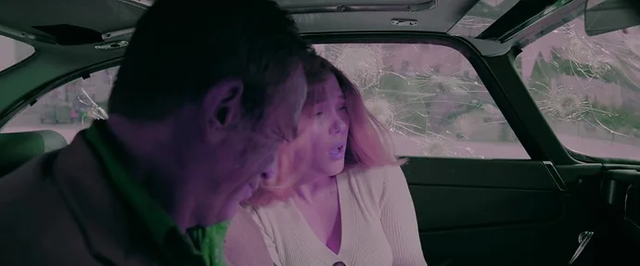 Profile 5 on unsupported device
Additional Terminology
- Region Coding: This is a form of Digital Rights Management (DRM). Discs are sold in certain regions and those discs contain a specific code that must correspond to the one in the player's firmware, otherwise the disc will refuse to play. This was mostly done to prevent wealthier regions from reverse-importing cheap discs, as well as due to scattered distribution rights. DVDs has a divsion of six commerical regions and Blu-ray a division of three. Region coding was dropped in the UHD-BD spec, though there are very few discs with region locks. DVD and BD players can be cracked to become region-free, this is more difficult with BD; region free discs are also possible. MakeMKV removes region coding from consideration when backing up a disc.

- Physical Film: Prior to digital cinematography becoming dominant in the 2010s, physical film was the primary material for shooting. Different sizes of film with different numbers of perferations exist, the 'texture' of film is broad and specific to each stock. 8mm film corresponds to a digital resolution equivalent of around 720p, 16mm gives roughly 3K with a remarkably finer grain and was often used for budget or stylistic reasons, 35mm was the standard choice and a pristine negative can correspond to roughly 6K, 65mm film corresponds to roughly 12K and was used in many grand epics (like Lawrence of Arabia), IMAX provides an incredibly vast image area and can correspond to about 18K. The 'first' film which is in the camera itself is called the OCN (Original Camera Negative), which is irreplacable, so there is a need to strike copies. An interpositive (IP) is printed to preserve original colors and act as a master backup, then an internegative (IN) can be created from it, and thousands of release prints can be created from IN (degraded by then). Sometimes boutiques will be denied access to scan the OCN for a disc release, and they'll give them a 'lower' copy, likely an interpositive. Film carries a natural grain structure and the film industry still seeks film emulation solutions for their digital productions, or embedded in shooting (ARRI Textures); emulation also involves simulating halation (an orange glow that bleeds around high contrast), gate weave (an organic result of physical scanning), and highlight roll-off (graduation of detail in whites). Grain is highly random and can ruin encoder efficency - It's often a case of either getting rid of it (denoise) or prioritising it in exchange for increased file sizes, although the video codec AV1 tries to deal with this by analysing the grain structure beforehand, denoising for efficency, then reapplying it during playback, which is a promising development. If interested, AV1 Film Grain Synthesis.
- Digital Intermediate (DI): Instead of using the intermediate print technique, the OCN would be scanned and brought into an intermediate digital format (2K or 4K), which is where most or all of the visual effects, editing, and color grading would happen. A 2K DI is a common source for a UHD-BD, it is simply upscaled, but the quality is often superb - for example, Pacific Rim is considered a reference-grade disc and it utilised upscaling instead of native 4K. A 2K DI cannot be considered equivalent to a 1080p BD, a BD only has a chroma resolution of 960×540 (due to the subsampling we discussed), while a DI has a chroma resolution of 2160×1080, which is actually greater than a UHD-BD's chroma resolution of 1920×1080. A DI also has a very high bitrate. Further reading: https://archive.org/details/the-quantel-guide-to-digital-intermediate
- Defects, aside from others discussed earlier: "Chromatic abberation" is color fringing/halos that can appear on high-contrast edges, it can be intentional. "Aliasing" appears as flickering/ripples when a high-frequency (many edges/details) area is in motion, primarily on things like nets, architecture, fabrics and grilles; also referred to by "moiré patterns". "Dropouts" are common on analog formats like VHS & LaserDisc, where a small section of data is obstructed/destroyed, and is seen as momentary streaks/dots, tears in extreme cases; should not be confused with dirt and scratches left over from film scans on digital formats. "Dot crawl" is another common analog format issue, and originate when luma and chroma information fails to be seperated correctly in the composite signal; 'marching ants' around edges, zipper-like boundaries, and shimmering patterns are common indicators. Film warping results in momentary bending/wobbling of certain image portions, this is unlike 'instability' where the entire image is bouncing. "Ringing" can occur with over-sharpening and it appears as a rough colorless halo around edges. Dead/zombie (on & off) pixels may appear in digital content due to sensor issues, where you can see tiny static dots of color, especially in dark scenes. "Poor compositing" can be used to describe situations where the actors don't fit their setting (due to hints of green screen, lighting inconsistencies, etc). "Crushed Blacks" and "blown whites" are loss of detail due to gradients becoming solid luminance (or lack). "DNR" is noise reduction and can create a waxy look, some may dispute it as a "defect"; on the opposite end we have excessive "digital noise", which is unlike film grain and can appear as nasty colored speckles in dark shadows.
 Aliasing
 Chromatic abberation
- Digital Cinema Package: I would recommend referencing this comment of mine: https://www.reddit.com/r/Piracy/comments/1op8pf5/comment/nn9xyw4
- Inpainting: The use of an algorithm that can obscure a certain custom portion of the frame. This can be achieved through various methods (AI these days, blending, or exemplar-based patching), with differing levels of success spatially and temporally. Most often used to remove things like network logos/watermarks, hardcoded subtitles, or for film restoration (like removal of static gate hairs or dirt).

- Dynamic Range Compression: In audio mixing, the dynamic range is the difference between the quietest and loudest sounds. Theatrical mixes often have huge dynamic range, so people frequently change volumes. DRC compresses this range, and some releasers use it in their encodes, some players can apply it too.
- Audio Passthrough (or bitstreaming): Relevant to home theatre setups. Instead of having the TV/player decoding a complex track (like DTS-HD) into PCM, passthrough sends the untouched audio directly over HDMI to the AVR or soundbar. The receiver then does the work of decoding it. Not to be confused with "passthru", which is a common expression used in encoding when you're encoding a video and would like to keep the audio untouched.
- IMDb: An online database/website for maintaining data on an enormous number movies/shows & actors. Provides dates, plot, cast, reviews, and even detailed technical shotting information in many cases. Useful on sharing sites as each movie (even with same titles and dates) will have a unique ID, as found in the URL.
- Very quick cinema terminology: "ADR" is the process of actors of re-recording their dialogue in a sound studio after filming on-set. "Dailies" are raw footage shot on the day. "Foley" is reproduction of everyday sound effects like clothes moving, footsteps, etc. A "J-cut" is an editing technique for hearing the next scene's sound before seeing it. "Center-Spot" is a technique where vaseline is spread on the lens to achieve a smearing effect around a clear spot, "vignetting" is the same but by lowering brightness in the edges instead. A LUT (look-up table) is used to apply certain stylised color grades to raw footage, like those popular teal/orange grades. Shifting aspect ratios in one film do happen (like jump from widecreen to fullscreen or IMAX), and they are annoying for releasers as it is standard practice to crop black bars. Power windows are masks used to selectively color grade certain portions of the frame; if tracking/feathering is done poorly or watched on a low-end display, the window can become noticeable.
Using FFmpeg and x264 - absolute basics
Now, it would be appropriate to discuss how to use the x264 encoder in order to create a rip. Much of these concepts can also be kept in mind when using other encoders for other codecs. I'd consider myself qualified to speak on the subject, as I have encoded for release groups before (most notably a helper of early YIFY, back in the day) and am closely acquainted with the theory behind video coding. Firstly, I will assume that you have access (ideally with PATH) to the ffmpeg CLI, and this can be investigated outwith of this post. I will only speak about software encoding, which is what x264 uses anyway, rather than hardware encoding, due to it being more appropriate for release encodes and more straightforward. But just FYI, there exists such a concept as hardware encoding, which instead of using your CPU, uses GPU chips designed specifically for encoding, it is much faster than software encoding, but at the expense of efficency. You will hear "NVENC", which is built into NVIDIA GPUs, and it is similar to a faster preset under x264. "IQSV" is another one found in Intel iGPUs. It can be useful for things like streaming or on-the-fly encoding.
The basic syntax structure for ffmpeg:
ffmpeg -i <input> [video/audio codec options] [muxing options] <output>
Encoding is all about a balance between three variables: Quality, encoding speed, and file size. Fast encode and low bitrate? Probably won't turn out too well for you! The aim for releasing (or self-use) is about reducing to a certain comfortable size, everything else implicitly revolves around this. Bitrate can either be assigned as constant or variable. Constant bitrate for x264 is 1-pass ABR (average bitrate), you feed the encoder a target size and it will aim to hit that by the end of the file; I would not recommend unless you are doing something like streaming, as bitrate will not be assigned in an intelligent manner (high-action scenes may be starved, static scenes may waste bits). 2-pass VBR (variable bitrate) will analyse the video for the first pass to determine appropriate allocation; this gives you a known size, but unknown quality. Another form of variable bitrate encoding is 1-pass CRF (constant rate factor), where you select a value for 8-bit between 0-51 (lower is better) and the encoder aims to keep quality consistent across the video (but size won't be known); a CRF of 18 is considered visually transaparent to humans, a good range is 17-28. CRF values change file size exponentially, a change in +/- 6 CRF corresponds to a change in bitrate by around a factor of 2. An important thingto consider is that the same CRF value gives approximately the same quality for different sources - but only as long as you do not change other influential settings! Otherwise you'll be comparing apples to oranges.
Related to CRF is the quantization parameter, I will very briefly cover it in an oversimplified manner. Modern video compression relies on a concept called rate-distortion optimization, which is involved in the decision of which macroblocks to compress more than others. A formula is used: J = D + λR, where J is total cost of encoding decision (trying to minimise), D is the distortion (how worse compared to the start), R is the bitrate, lambda is the lagrangian multiplier, which balances it out. If you lower the QP (quantization parameter), then distortion goes down and bitrate goes up. Lamdba values are not understandable for us to quantify properly, so there is another formula λ = 0.85 * 2QP - 12/3, which gives us a helpful QP (q) value ranging from 0 to 51 from a large range of lambda, lower means less distortion (at an objective mathematical level). CQP (constant QP) is the CRF equivalent for hardware encoding, and it locks the q at a set number throughout the entire video, regardless of content. CRF takes into account human perception and targets a set visual quality, rather than a fixed mathematical compression, therefore the q value will change throught the video, and you can see this in action in ffmpeg (there will be a "q=" that updates), it is generally around 5 points higher than the set CRF. While speaking about constant... the vast majority will be CFR (constant frame rate), but there can be WEBRips which are VFR (variable frame rate) due to screenrecording, and this needs to be dealt with specifically, because a simple CFR encode of such footage by itself will result in out-of-sync video.
There are a number of speed presets, ranging from "ultrafast" to "placebo". Applying a faster-end to a setup with a target bitrate will result in a lower-quality result, but with the same file size as expected. Applying the same preset to a CRF setup will result in closer quality to slower presets, but the bitrate will become larger to compensate. You should ignore the "placebo" preset, as it is just not worth it whatsoever, "veryslow" is the realistic minumum. There are also number of tunes that x264 provides to optimise for certain types of content. "Film" should be the go-to for, you guessed it, film content. There is also a specific "grain" tune for films with visible grain, this helps prevent nasty smoothing of the grain, note that bitrates for a specific CRF value will jump noticeably with this tune. "Fastdecode" allows for easier decoding/playback on very low-end devices, at the expense of file size. The presets/tunes act as macroswitches for specific x264 parameters, but these can be individually overwritten as needed using the -x264-params option. For the speed presets, what's changing between them is the number of reference frames kept in memory, the particular motion estimation algorithm used, number of b-frames, and so on. As for tunes, I can give particular examples: "Film" lowers the deblocking filter strength to try and preserve more details; "animation" boosts deblocking (as there are many flat areas) and increases reference frames (as repeating static frames are often used); a little-known tune called touhou is designed for ultra-high motion objects.
So, an example of a command:
ffmpeg -i input.mkv -c:v libx264 -crf 19 -preset slower -tune film -x264-params ref=4:bframes=5 -c:a copy output.mkv
The "-c:a" part is regarding audio, and the "copy" is just saying to keep it the same (passthru). You could do something like "-c:a libopus -b:a 128k" to obtain Opus audio with a bitrate of 128kbps. You could also encode only the audio and keep the video "-c:v copy". You can also see how the custom params being modified are seperated by a colon. For a two pass method, you need to run two commands one after the other
ffmpeg -ss 500 -t 10 -y -i input.mp4 -c:v libx264 -b:v 5000k -pass 1 -an -t 60 -f null NUL ffmpeg -ss 500 -t 10 -i input.mp4 -c:v libx264 -b:v 5000k -pass 2 -c:a aac -b:a 192k output.mkv
The "-y" parameter allows overwritting a previous log file. NUL is the term we use to discard video output and keep the log file for pass 2. As you can see, the audio codec AAC was used this time. "-an" strips all audio for the first pass, as it is not needed. "-ss" seeks ahead 500 seconds into the video, "-t" gives a duration of 10 seconds from then on, this allows for testing before commiting to a full encode. I will go into a few further details specific to x264 (and x265) in the disc authoring section.
FFmpeg gives you many helpful filter options, here is the list: https://ffmpeg.org/ffmpeg-filters.html
Filters intercpet the raw video after it has been decoded from the input, but before the frame reaches x264. You use the flags "-vf" and "-af" for video and audio respectively, for when you have one input and one output (like cropping a video). You use "-filter_complex" for multiple inputs/outputs (like mixing audio tracks). A comma separates filters in a chain. The output of the first feeds into the second. A semicolon separates independent filter chains. Remuxing (copy) is not longer possible. Order does matter, e.g. if you are cropping and scaling down 4K, then crop first to require less processing for scaling (which builds up for video, believe me). An example of just that:
ffmpeg -i input_4k.mp4 -vf "crop=1920:1080:(iw-1920)/2:(ih-1080)/2,scale=1280:720" output_720p.mp4
"1920:1080" gives the size of what's being cut out. We get center position with "(iw-1920)/2:(ih-1080)/2", iw/ih is input width/height. We then use the comma to pass the cropped output to "scale=1280:720" for the final 720p output. As for a complex filter example, here is a 2x2 video collage, for fun :p
ffmpeg -i top_left.mp4 -i top_right.mp4 -i bottom_left.mp4 -i bottom_right.mp4 -filter_complex "[0:v][1:v]hstack=inputs=2[top_row]; [2:v][3:v]hstack=inputs=2[bottom_row]; [top_row][bottom_row]vstack=inputs=2[final_video]" -map "[final_video]" -map 0:a output_2x2.mp4
Four videos are indexed as 0-3, can be accessed by [number:v], or "a" in place of "v" for audio. "[0:v][1:v]hstack=inputs=2[top_row]" takes the first two videos into horizontal stack (hstack) and creates a row out of them called "top_row". The semi-colon seperates another filter that creates another horizontal row out of the other videos. Both top_row and bottom_row are then merged using vertical stack (vstack) into "final_video". The mapping tells ffmpeg to encode final_video. Then the audio from only the first video is mapped using "-map 0:a". Beautiful, eh?
Some popular filters for quick touchups are denoisers, deblockers, and sharpeners - I'd advise researching them independently. But be wary about compatibility, to avoid getting into situations like: https://www.reddit.com/r/ffmpeg/comments/1rzmcwd/comment/obmxrat/ - you can also get niche filters, like earwax for audio, which makes stereo audio sound as if it is coming from in front of you instead of inside your head when using headphones, requires 44.1KHz audio first ""aresample=44100,earwax".
A scenario is that you have an MPEG-2 interlaced source and you'd like to bring it into lossless ffv1 for compatibility with a certain application, so you'd like to maintain interlacing for the time being. To achieve this, simply add "tff=1" or "bff=1" to your command (depending on whether the content is Top first or Bottom first, which can be determined from MediaInfo). NTSC detelecine is simple, but be advised that it doesn't work for broken cadence (you'll need something advanced like DVO Three Two):
ffmpeg -i <file in> -an -sn -vf "fieldmatch,decimate" -r 24000/1001 -c:v ffv1 <file out>
"-sn" ignores subtitles. "fieldmatch" brings interlaced fields together as needed for progressive frames, "decimate" removes the duplicates. "-r 24000/1001" forces a rate of 23.976 fps.
Sometimes you might have salvaged a corrupted video file with damaged/missing parts, or you have an interrupted download, you just want to be able to see what's usable. You can use this base command:
ffmpeg -err_detect ignore_err -fflags +genpts -i input.mp4 -async 1 -c:v libx264 -c:a aac output.mp4
"-err_detect ignore_err" will ignore fatal errors and push on with encoding. "+genpts" generates new timestamps. "-async 1" adapts audio to the video runtime. This will give you what's left, the problematic parts will appear very damaged, but everything else should be fine.
FFmpeg goes way, way deeper, but this should be enough of a basis to help you continue on (alongside what is written in the authoring section). Sometimes FFmpeg by itself doesn't get you far enough in terms of serious video work for complex repair or adjustment scenarios, both in terms of features and in terms of trouble with non-linear work, and I don't think this guide could go by without mentioning... AviSynth - yes, we are going to cover it too!
AviSynth / Frameserving
The whole basis behind AviSynth is an idea called frameserving. Normally, to complete complex work independent of an encode, you'd need to create an enormous intermediate file with it applied. Instead, a frameserver can act as a middleman. When the encoder/player opens a .avs (avisynth script), avisynth applies the effects on the fly to an uncompressed frame at a time in RAM and delivers them directly. So, a similar concept to ffmpeg filters, but you can create enormous and complex scripts with logic (loops, conditions, variables, etc). We discussed .AVI (audio video interleave) in the video containers section, but it is of relevance here; crucially, Windows allows avisynth to masquerade as an uncompressed .avi file (which are notably required as input for certain encoders like Gordian Knot). A .avs script can be used as an input file in ffmpeg. Here is an example of what a very basic script looks like:
# You use "#" to make comments that aren't executed
# Load the entire video
source = FFVideoSource("movie.mkv")
# Slice the video into three variables using the frame numbers
part1 = source.Trim(0, 20000) # The beginning
part2 = source.Trim(20001, 25000) # A very grainy scene
part3 = source.Trim(25001, 0) # The rest of the movie
# Apply heavy denoising only to part 2
part2_fixed = part2.HeavyDenoiseFilter()
# Stick them together in order using "++"
final_video = part1 ++ part2_fixed ++ part3
Return final_video
You can download advanced plugins (.dll) that other people have wrote, but be advised that certain other plugins are often listed as dependencies. Here is a particularly advanced plugin example: https://github.com/introspected/AutoOverlay - the AviSynth Wiki is worth taking a look at. To write/modify scripts, the best editor is considered to be AvsPmod, you can test scripts (with real-time slider variables even) before you send them to an encoder. VirtualDub is another option, some old-timers may remember it. A little recap from earier linked in... RGB is used to display images on a screen, but video files themselves almost never do, they instead use YCbCr (or YUV). Y(luma) is the brightness, Cb(U) chroma blue is the blue color difference, Cr(V) is the red color difference. We are sensitive to light contrast, but less-so color, so the color components can be subsampled. Avisynth makes you manage the formats that follow on from this. YV12 (4:2:0 YUV) is the standard for DVD, BD, and web - chroma is halved vertically and horizontally. YUY2 (4:2:2 YUV) is used in professional broadcasting, where color is halved horizontally. RGB24 / RGB32 is uncompressed color (with/without a transparency channel). And there are others like Y8 for monochrome. Some Avisynth filters are labelled as only working with a certain set of these, and so you may need to use commands like ConvertToYV12() or ConvertToRGB() in the script first.
 YCbCr
YCbCr
Let's do a practical example. Noise in a video is often predominantly located in the blue channel. What is a channel? You can think of a channel like a black and white image, the more brighter a section is, the more of that color will be present; when you combine the RGB channels you get your ordinary image, and there can also be the alpha/transparency channel. Anyway, let's say you've inspected the three channels independently and found minimal noise in the red and green channels (which may actually provide nice details anyway), but the blue channel has noise that is not productive to the image quality, it would be wise to target that channel specifically rather than all of them. Let's use FFT3DFilter with the plane=1 (chroma U, blue) parameter, though many additional paramters to tune for an optimal result are also available, as you can observe on the respective wiki page.
source = FFVideoSource("C:\video.mkv")
clean_video = source.FFT3DFilter(plane=1)
Return clean_video
 RGB Channels
Many other clever techniques like this that you'll learn if you start delving into video processing, but that was a simple taste, I thought. VapourSynth is considered a modern alternative and uses Python scripting, though Avisynth remains important due to the enormous plugin library for niche circumstances.
Now that you have your encode, how do you compare it to the original in as objective of a manner as possible? Beyond using your eyes to detect obvious failures, there are various metrics out there. The most well-known is probably PSNR (peak signal-to-noise ratio), but it is too mathematical in a sense (calculating mean squared error of pixels between both), and not very human-representative; but FYI, if you see a score of 35 dB+, that is great, and higher is better. SSIM (structural similarity index) goes further and observes changes in luminance, contrast, and structure for an output value between 0-1 (1 being true lossless, 0.9+ being transparent). The gold standard today is VMAF (video multimethod assessment fusion), which was developed by Netflix, it actually evaluates data against a model trained on thousands of subjective human viewings. You get a score from 0-100, where 80+ is good. You can run tests with ffmpeg, but for an easy process: https://github.com/odddollar/VMAF-GUI
Web Ripping
Let's start with (relatively) unprotected content, meaning non-DRM.
The most popular choice is the open-source yt-dlp, which is a CLI tool. stacher7 is a GUI option that uses yt-dlp under the hood, I'll discuss soley the CLI tool. The utility is capable of downloading content from sites like YouTube, Vimeo, Reddit, and thousands more; if the site serves cleartext DASH or HLS streams then It'll work. It is unable to extract playable video from protected sources like Netflix or Amazon. yt-dlp operates with the following structure:
yt-dlp [OPTIONS] [URL]
Make sure your URL is surrounded with quotes. The URL can also be a playlist. You can check what formats are available using:
yt-dlp -F "URL"
This will give you a list of options with a certain ID associated with each one. You can combine IDs, ffmpeg will deal with that part, for example:
yt-dlp -f 137+140 "URL"
There are some helpful parameters for dealing with playlists.
yt-dlp --playlist-start 5 --playlist-end 15 --match-title "XYZ" "PLAYLIST_URL"
This will start from item 5 and end at item 15, and only videos matching that keyword.
The best quality video and audio are not necessarily available in the same file, so there are formatcodes to express your needs. "bestvideo" and "bestaudio" give you the best independent formats for both, "best" gives you the best already-combined option, "bestvideo+bestaudio" can perform a merger. You can set certain rules:
yt-dlp -f "bestvideo[height<=1080]+bestaudio" "URL" # limit to FHD yt-dlp -f "bestvideo[vcodec!*=av01]+bestaudio" "URL" # avoid the AV1codec
yt-dlp -f "bestvideo[ext=mp4]+bestaudio[ext=m4a]" --merge-output-format mp4 "URL" # prefer MP4
Slightly more complex:
yt-dlp -S "+size" -f "best[filesize<100M]" "URL"
This uses "-S "+size" to sort by size, which changes the definition of best to the smallest file, if it is larger than 100MB then it'll fail. You can download the full metadata package with:
yt-dlp --embed-metadata --embed-thumbnail --embed-subs "URL"
Can download subtitles using "--write-subs --all-subs", and this can be restricted to a certain language. You can use SponserBlock to create chapter markers for sponsored segments using "--sponsorblock-mark all". If you need to login for video access (perhaps for premium content), you can pass in cookies from your closed browser "--cookies-from-browser X", where X is any of the supported browsers (e.g. "chrome"). Some sites can get suspicious if you rapidly download content, so you mahy want to use a delay "--sleep-interval 5". Finally, I have a command to archive an entire channel:
yt-dlp --download-archive channel-archive.txt --write-info-json --write-thumbnail --embed-metadata --embed-thumbnail --write-subs --embed-subs -o "%(uploader)s/%(upload_date)s - %(title)s [%(id)s].%(ext)s" "CHANNEL_URL"
This can be run repeatedly, things won't re-download due to "--download-archive". This is a basic introduction, enough to get you going with most things.
Another option for unprotected videos is "TubeDigger". This is technically a paid product, but there are ways around that, I'll leave it at that! This is a GUI tool, it can act as a network sniffer or as a recorder (for DRM). It does well with downloading from obscure sites with rarer obfuscations, where yt-dlp may not have a specialised extractor. When loading in a page, the videos are detected via the built-in browser, then all the formats are listed out. What's particularly interesting is that it is sometimes capable of obtaining premium streams. yt-dlp can't grab premium bitrate streams from Youtube, but TD has been able to do so on numerous occasions for me.
The most simple form of a rip of protected content is a screenrecording, using something like OBS; you have options like capture cards, disabling hardware acceleration, and even recording from behind a VM (virtual machine). Problem is that you aren't capturing the actual data itself, just your decoded result.
Now, moving onto actually capturing DRM protected streams themselves. The DRM of most interest to us is Google's WideVine, which comes as L1 (hardware-level), L2, and L3 (software-level). L1 by streaming services to protect the highest fidelity content (UHD, Dolby Vision). Processing occurs in secure hardware in the device called Trusted Execution Environment (TEE), the data is not exposed to the OS itself, which complicates cracking significantly; I will not provide further information on it as the L1 process is strictly guarded by groups, and for good reason. L3 decryption happens at the software level and this is more vulnerable to attacks, these are usually capped at HD/FHD. There is a pricey paid program called StreamFab which makes the ripping process pretty simple (compared to other manual methods), it appears to work through spoofing certain devices and actively implementing new exploits - there is a certain module to purchase per site. Occasionally it is able to grab UHD content from some lower providers, but it is not consistent, and can go as low as SD, when DRM gets updated. I am going to share a method for obtaining L3-protected streaming content:
You will need the FireFox browser. Download the latest XPI from the WidevineProxy2 repo releases on GitHub. Navigate to "about:addons", click the settings icon and choose to install an addon from a file, select the downloaded file. For remote CDM, save this JSON file, open the extension on firefox, click to choose the remote.json, and select this one. Set device type to "Remote CDM". Download the latest win-x64 release and extract. Download latest win-x64 release and place in the same folder as the previous extraction (N_m3u8DL-RE), rename the file to shaka-packager.exe. To use: Load the target site and play the video (it doesn't need to actually start, you just need the intercepted link and keys), then press the (+) button in the extension, copy the generated CMD command. Open the folder containing N_m3u8DL-RE and shaka-packager, right click and press "open in terminal", paste and enter. Use up and down arrows to select desired stream, press enter, it will download, decrypt, and mux into MKV for you.
If you are curious about how that works... Browser DRM is handled through the Encrypted Media Extensions standard, the site asks the browser's Content Decryption Module to generate a challenge, which is then sent to the provider's license server. Widevineproxy2 extension injects scripts to hook onto the EME interface. It intercepts the communications between the website's player and the Widevine server, it captures the license challenge and the server's response. To decrypt the stream, you need content keys. The browser's own CDM uses its hidden keys to unlock this response and get the content keys. But people have managed to extract the private keys from various L3 CDMs, like older androids, and we can use a remote CDM (via the .json), the extension routes the challenge through a compromised CDM, which solves, unwraps license, and exposes the raw keys in plain text. N_m3u8DL-RE simply downloads the encrypted streams. shaka-packager is originally a Google tool for encryption, but it can be run in reverse if correct keys are given, the tool can strip the protection away with the provided keys. Then the stream is muxed into a DRM-free container.
Let's discuss media servers. The basic concept behind this is that you're building your own Netflix of sorts, but self-hosted. You store your files on hardware like a NAS device or old PC, then the software scans it, downloads metadata (posters, summaries, etc), and organises it into a streaming-esque interface. You install a client app on your smart TV, tablet, etc to stream from your server. The main decisions are "which server software?" and "how do I obtain the content?". Plex is the most polished option, and has very good cross-platform app support, but it is a commerical product. There is a free tier, but things like hardware transcoding for smooth playback of certain formats and offline downloads are behind a paywall (Plex pass); you also need to authenticate through their cloud servers to access your media. Jellyfin (a fork of Emby) is an open-source and free alternative, although it is a more technical setup process and isn't quite as polished. Of course you can manually obtain content through means discussed in the other post, but there are automations or convinient options. To conveniently obtain the movies themselves as an on-demand streaming experience without storage, you can use an aggregator like Stremio. By itself, it is just a plain catalog of media, you need to engage with add-ons. When you select a movie, it will check the installed add-ons for sources; you can have certain add-ons link to a P2P network (like Torrentio, built-in Debrid support) or Usenet (via NzbDAV), meta-addons like AIOStreams can be very helpful - note that direct connection to P2P networks can cause throttling or warnings, this is where Debrid services can come in. A Debrid service (like Real-Debrid) may already keep a popular file in its cache, which can be delivered to you rapidly as a direct stream from high-speed servers; if uncached, the service will join a swarm on your behalf using a provided magnet or .torrent, which you download from directly too. Debrid services also provide access to premium hosters (like Rapidgator). Note that Debrid should not be used with private trackers. Instead of manually searching for files, you can use the arr suite for automation. "Radarr" is used for movies, "Sonarr" for shows, "Prowlarr" manages your usenet indexers and torrent sources. When you add a movie to a watchlist that Radarr is monitoring, it will query Prowlarr scanning (now private trackers are okay) for your prefered quality from certain rules, then deliver to the download client. Radarr can send an NZB to a newsreader, or a torrent to a client like qBittorrent, which would be running on the server behind a VPN (with port forwarding, I hope!), which then organised into your storage by Radarr and is picked up by Plex/Jellyfin. Alternatively, you can avoid local storage and use your Debrid account as a virtual drive (look into Zurg, rclone, Decypharr), which Plex/Jellyfin can pickup. For setting up your *arrs: https://trash-guides.info/
Disc Authoring
The concepts behind this may be important if you're wanting to 'repack' certain disc structures with your own modifications (like removal of warning screens, adding subtitles, swapping out video, adding extras, etc) or transfer things like WEB-DLs onto your own blank discs. I'm going to focus on the theory for this topic, rather than "how-to", as the background theory is quite troublesome information to gather online as is, and the process itself will need to be learned through lengthy manuals/videos either way (depending on what you are doing). The core idea of disc authoring is packaging legal elementary streams into an interactive structure. Usually as follows: Warning screens Main menu Sub-menus Video(s) Pop-up menu. The main menu contains sub-menus that allow for selection of things like certain audio or subtitle tracks, or certain extras to play, sometimes authors placed in some navigation eastereggs ;). Menus can contain animations for buttons and motion video backgrounds. During video playback itself, a pop-up menu can act as a fancy interactive layer in front of the playing video for audio/subtitle selection. Menus are generally designed using certain design conventions (for layer names) in Photoshop and the PSD files can be imported for programming, or a plugin can deal with the import.
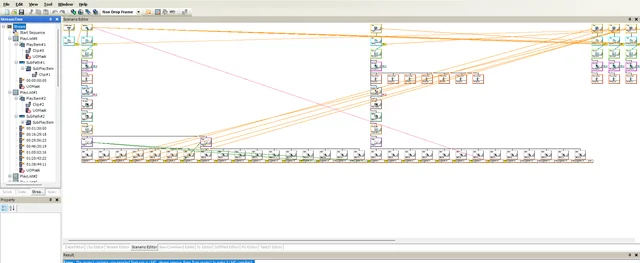 Authoring in Scenarist
Briefly covering DVD: Inside your VIDEO_TS folder you have video objects (.VOB), each broken at the 1GB mark due to legacy limitations. You have an IFO info file, which describes the structural logic and attributes of the disc, each video title set has one. BUP represents backups of the IFO files, in case of damage. DVD uses a simple programming model where navigation commands embedded in the IFO files control playback; commands can set registers (small memory that tracks things like the selected stream or subtitle language), respond to remote button presses (these are programmed to map onto certain buttons), jump between titles, and so on. Menus can be still or MPEG-2 video with a highlight overlay on top - unlike BD, DVD has no concept of independent layers of interactive graphics that sit above playing video, menu items are rendered into a single video stream. Button subpictures define how a button changes across the "normal", "selected" and "activated" states - this is quite rudimentary with DVD, BD expanded on it. Due to the simplicty, very many tools for working with DVD structures have been developed (though majority are abandonware these days). DVD (NTSC & PAL) is best authored through Encore, even though it is abandonware; I would recommend Media Encoder "MPEG-2 Blu-ray" or TotalCode Studio MPEG-2 Blu-ray presets to obtain compliant streams, it is also possible via ffmpeg. Concept only If familiar with basic linear algebra: You will likely need to use a custom quantization matrix for MPEG-2 best results. Briefly, lol: encoders use DCT to convert blocks of pixels to frequencies (low frequencies are smooth things like a sky, high frequencies are fine things like grain or hair), the matrix dictates what frequencies are to be discarded (high destroyed first). The default matrix was crap at standard DVD rates, but 20th Century Fox engineers designed something for when higher rates were available, which preserved sharpness much better - the Fox matrix (and variants have been created). Using it on low rates would result in heavy macroblocking and mosquito noise though, that was the tradeoff. If you can recall the quantization parameter (q) discussion from earlier... you can think of the matrix as dictating the ratios between high and low freqs, while q (which changes) multiples the matrix and scales compression across the board whilst respecting the ratios. We don't need to worry about custom matricies for MPEG-4, they are dynamically modified for optimal results.
Blu-ray: The structure is called BDMV (Movie Video) and you will find several folders. "STREAM" contains the transport streams carrying the muxed video, audio, and graphics data (for menus), usually in an order of 00001.m2ts upwards. "CLIPINF", each .clpi clipinfo file corresponds to a respective .m2ts and defines their properties. "PLAYLIST" contains .mpls files that define assembly order of clips, defining in/out points within them and Playlist marks (chapters). "BACKUP" is the same concept as DVD's BUP. "META" optional data like thumbnails. "AUXDATA" sound data for buttons and font files for text subs. "CERTIFICATE" contains protection data, but will be absent from what you download. index.bdmv is the master index, assigining the first playback/top menu and list of titles. MovieObject.bdmv provides the navigational logic. These sections can be interacted with directly using a program like BDEdit, but it is quite a technical process, and you can also instead demux the BDMV, re-author everything, then mux, as demonstrated here.
There is a strict hierarchy, from the bottom up: Clips are the building blocks, each clip can reference to several elementary streams in one .m2ts file, which can be referenced by multiple playlists. Playitems are playlist entries that reference a clip, it can set certain cuts of the clip (so not the entire thing), and movement between items is seamless to the viewer, as the disc pre-buffers from the next clip. Playlists can also have sub-playitems, which can run independently, and this is how PiP (picture in picture) functionality is derived; playlists also define chapter points and what players use to display their thumbnail images. Movie objects are scripts of navigational commands and link between playlists (and respective chapter marks) as well as other objects, without interupting video; they can set/read register values, and you have over 4000 registers available on BD as an author. Titles are the outermost layer, each title points to an object which starts a cascade of actions, and every navigable section of the disc (bonus features, main video, etc) is its own title; the viewer moves between titles to trigger movie objects. You may have wondered how discs are able to keep both the theatrical and alternate cut of a movie without sacrificing quality, this is achieved through a technique called "seamless branching" (relevant later). Let's say for simplicty that only one scene is additional. The movie could be cut into four clips: A for the common start, B for the theatrical scene, C for the alternate scene, D for the common remainder. You just need a theatrical playlist (A->B->D) and an alternate playlist (A->C->D), the laser jumps between m2ts files so fast that this isn't noticed.
BD has two programming modes available. HDMV is the simpler one and standard. It relies purely on the movie object scripts mentioned prior with a simple set of commands for jump, link, set register, enable button, etc. The interactive portions of HDMV are defined using Interactive Graphics (IGs), button graphics assembled in a separate stream and overlaid above the video; this is sufficent for the vast majority of discs. Certain fancy discs (you'll know when you see them) utilse BD-J, where actual java applications compiled to BD's subset of it can be used (as signed JAR files), this allows for some advanced features like network connectivity and highly stylised navigation. You will find content in the "JAVA" folder if it has been implemented. Playback of Java discs can be troublesome.
One of the great advantages of BD over DVD is the use of three HDMV image planes. The movie plane carries video, the presentation plane carries 8-bit Presentation Graphics (PGs), where subtitles are stored and composited as images over the movie plane, this independence allows for seamless toggling; for UHD-BD, PGS subtitles can be delivered in the HDR color space, the resolution of which remains 1920x1080 (as they are simply upscaled, same with menus). The interactive plane carries IGs like menu buttons and their highlights/animations; this plane allows for stationary multi-page menus, navigating between menu sections just swaps which page of an IG is displayed. BD-J has its own full-color graphics plane. IGs are constructed from PNG graphics with a normalised color palette (256 colors), then all directional navigation and sounds are hooked up in the authoring application. For ordinary BD, you may use Encore or Scenarist BD for authoring; Encore has a much easier learning curve, but is limited in terms of features, Scenarist gives you access to the entire spec and guarantees playback but with an extreme learning curve. UHD-BD requires the use of Scenarist UHD. Scenarist BD projects can be imported into UHD, it will prompt you to replace certain content as needed.

Elementary stream compliancy is a very strict matter. It exists to ensure compatibility with hardware implementations of players, as well as to ensure a certain degree of quality reliability. There are various professional encoders out there, some available though certain means, but ffmpeg can do the job just fine too. I'm going to go over encoding (apologies that it needs to be quick), as it isn't covered in authoring manuals. If you already have an MKV with content that you know is disc compliant (as it is a remux, not an encode), you can extract elementary streams using the "demux" mode in tsMuxer, this can be done for audio too, these can be imported into the authoring application. Hardware encoding should not be used. If you need to encode... here is what I suggest for Blu-ray:
ffmpeg -i input.file -c:v libx264 -an -pass 1 -b:v XXXXXk -preset veryslow -tune film -maxrate 40000k -bufsize 30000k -level 4.1 -g 24 -color_primaries bt709 -color_trc bt709 -colorspace bt709 -vf setsar=1:1 -x264-params "bluray-compat=1:open-gop=1:slices=4" -f null NUL
Firstly, note that it is 2-pass, this is necessary for ensuring compliancy, and you will need to swap out the pass parameter for a second run, leaving the '-an' as this is an elementary stream, and setting the output as a ".264" file. "bluray-compat" is a macroswitch for several assertions (like maximum 3 B-frames allowed). To determine what should go in "level", refer to the table below. For "g", this represents maximum GOP pictures, you may change this to 48 (2 seconds) if your max bitrate is less than 15mbps; or 25 and 50 respectively for PAL. The maxrate permitted for BD is 40mbps (max overall 48mpbs with audio), you may lower it if you're looking to fit into BD-25 (which is 23.3GB) and BD-50 is 46.6GB for reference, keeping in mind around 7% overhead for m2ts container. Regarding bufsize, I linked an explanation to the meaning earlier, and buffer needs to be less than or equal to the maxrate, up to a maximum of 30mbps; this is because the max buffer delay on BD is 1 second. If you are encoding with level 4.1, you need slices 4 or greater, otherwise you can ignore this; slices are cuts of each frame to process independently, and this will allow the work to be distributed across cores in the player for larger 4.1 content. "Bitrate" is your target average bitrate. An avisynth script may be used as input. The video is required to be one of the aspect ratios listed in the table, if it isn't then you need to add black bars. The speed preset does not have to be veryslow, and the first pass can be faster. If you have a grainy film, switch tune to "grain", and I don't recommend going below 20mbps for ultrawide active content and below 30mbps for 1.78:1 active content. If you are using seamless branching, switch "open-gop" to 0. For a more obscure 576i PAL (secondary stream!) example:
ffmpeg -i input.file -c:v libx264 -an -pass 1 -b:v 4000k -preset veryslow -tune film -maxrate 8000k -bufsize 8000k -level 3.2 -g 25 -keyint_min 1 -color_primaries bt470bg -color_trc bt470bg -colorspace bt470bg -color_range tv -vf "setfield=tff,setsar=16/11" -flags +ilme+ildct -x264-params "bluray-compat=1:pic-struct=1:aud=1:tff=1:ref=5" -f null NUL
Color space was adapated SD PAL standard which is bt.601 (bt470bg in ffmpeg), setting as bt.709 would result in color shifts and washing out. tff=1 was passed into x264 params for interlacing (could be bff, check), -flags +ilme+ildct and pic-struct was used for the same reason. "-g" is 25 now, since one second is 25 frames. We no longer have sqaure pixels, so SAR is set at 16/11 for widescreen and 12/11 for fullscreen 4:3; note that SAR in ffmpeg is "sample aspect ratio", which represents PAR from earlier! Resolution and level is lower, so more memory is available for increased reference frames "ref=5" for increased efficency.
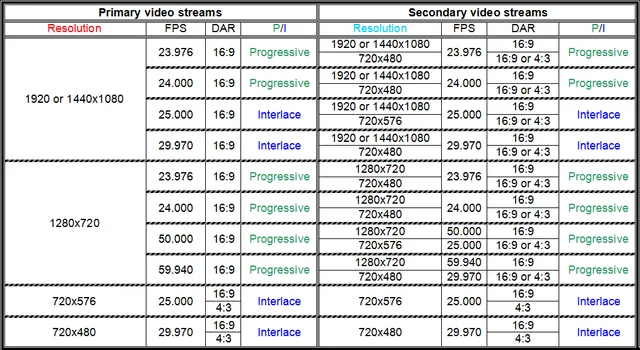


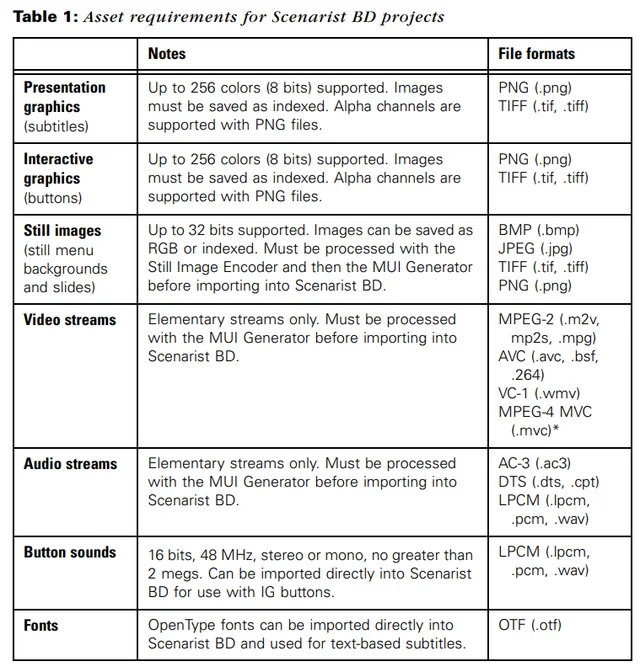
For UHD-BD HDR, we need to use x265 for 3840x2160 23.976fps:
ffmpeg -i "Input_File.avs" -c:v libx265 -preset medium -tune grain -profile:v main10 -b:v 50000k -maxrate 64000k -bufsize 64000k -g 24 -keyint_min 1 -pass 1 -pix_fmt yuv420p10le -x265-params "uhd-bd=1:level-idc=51:high-tier=1:aud=1:sar=1:hrd=1:repeat-headers=1:open-gop=0:ref=5:temporal-layers=0:overscan=show:wpp=1:interlace=0:range=limited:chromaloc=2:colorprim=bt2020:transfer=bt2020-10:colormatrix=bt2020nc:max-cll=1000,400:master-display=G(13250,34500)B(7500,3000)R(34000,16000)WP(15635,16450)L(10000000,1)" -f null NUL
"-pix_fmt yuv420p10le" is used to indicate 10-bit, and can technically be used for x264 too (just don't do it for BD). Crucial assertions are made using "uhd-bd=1" this time. "master-display" provides mastering display color volume information, and the values given assume a certain monitor used to grade the HDR, don't touch unless you know what you're doing. You should modify "max-cll" (represents CLL and FALL respectively) with values that you've derived. If it is a HDR10 encode, change "transfer" to "smpte2084". "overscan=show" forces no cropping of image corners. "wpp=1" enables multi-threaded decoding. The profile "main10" is the HEVC 10-bit profile. "temporal-layers=0" disables temporal scalability, which is a trick where one video has multiple frame rates embedded (like 60 and 30fps) and certain frames can be tagged for skipping by older devices. "repeat-headers=1" repeats SPS, PPS, and VPS headers for every keyframe for faster decoding after seeking. Max bitrate allowed is 100mbps. Unfortunately, consumer burned BD-XL does not play reliably on UHD players (except few), so you will need to stick to BD-50 limits, unless playing off your PC drive.
Once you've obtained your elementary streams, you should check compliancy (or skip and risk finding out after burning). Scenarist's MUI Generator, is the most reliable tool for this, if you don't have access to Scenarist then your authoring suite should have something similar (but perhaps not to the same standard). You could also test with a reliable disc software player once everything is muxed. The authoring software will automatically set breakpoints for disc layer transitions when muxing. After authoring is complete, you'll be left with a VIDEO_TS/BDMV folder, which can be burnt onto optical media using ImgBurn. Just as a final tidbit as part of the main post, thought it would be nice to mention this in-progress LaserDisc authoring project: [https://www.reddit.com/r/LaserDisc/comments/1iurrpl/laserdisc_production_this_next_year]
Software Options
Now that you have your movie/show files, what relevant applications are available? I will simply list applications and their purpose, you can find detailed guides online or on here perhaps. Note that some may require powerful hardware, not all of these will be applicable to you. Cracks can be available for paid applications. I will only recall applications already menetioned in the main post if there is additional info to add.
Perhaps the most simple would be "7-Zip". This is a file archiver/compressor. You can encrypt your video files for sharing on file hosters. WinRAR is another option.
- MKVToolNix is a tool to inspect and modify Matroska files. There is both a GUI and command line interface included. You can: Split your mkv file into parts (or merge), modify the presence of certain subtitle & audio tracks, create a file from multiple tracks, change metadata, repair - and so much more. A must-have.
- MediaInfo is a tool for extracting comprehensive technical data from a video file, which can easily be copied for when making a RELease. Things like: Codec, bitrate, frame rate, bit depth, aspect ratio, etc are all covered. The same devs wrote QCTools, which is more like a video analysis program (values depend on position), allowing for anomaly detection.
- Players: MPV & VLC are considered the major choices. Both are excellent video players that can play virtually any video format and damaged files. Usually, MPV is considered superior in terms of playback quality, but it is quite bare-bones and needs configuration to get started. IIRC, SMPlayer can function as a user-friendly frontend for mpv, so you may want to check that out. MPC-HC (or -BE) is discontinued, but is still widely recommended. You can take screen captures of the film, or create thumbnail grids for use in constructing a RELease; though dedicated tools like MTN (movie thumbnailer) are available.
- SubtitleEdit / SubtitleWorkshop: Crucial for subtitle work. The creation and adjustment of many text and image subtitle formats and conversions between them. Can apply OCR on image subs, SubRip is also specifically dedicated for that. Can be used for subtitle translation. You can use the powerful speech-to-text model Whisper. BDSup2Sub is worth having for disc subtitle work.
- PowerDVD: The best player for emulating a hardware set-top player, very reliable Blu-ray playback, for Java discs too. UHD support is only in older versions for certain CPUs, use PlayerFab for that instead. TotalMedia Theatre is similar, but discontinued. Scenarist QC could also be used for testing in particular.
- Neat Video: Available as a plug-in for video editing applications. Allows you to reduce excessive noise in videos.
- qaac / fdkaac: Very solid AAC audio encoders, considered better than ffmpeg's offering.
- MeGUI / StaxRip: GUIs often used for encoding frameserver input.
- Adblocker: Find an adblocker for browsing sites. Helps you avoid pesky pop-ups and excessive adverts. Also to prevent you from clicking on a wrong link. I recommend uBlock Origin on Firefox.
- After Effects: Do basic color work and audio editing. Remove watermarks from things like a TVRip using the content-aware fill tool.
- Lossless Cut / Video ReDo: Used for accurately cutting/splicing video files without encoding(note that splicing requires identical properties), stream repair, and can be used to create a sample mkv (good practice for a release). The owner of VideoRD has passed away; rest in peace, Dan.
- NVIDIA ICAT: Reliable video/image quality comparison.
- Premiere Pro or Davinci Resolve: Complex video/audio adjustments. Complete color correction options. Plugins can be installed for further functionality.
- Topaz VEAI: Allows for enhancement of video via certain models. You can upscale, sharpen, fix compression artifacts, and introduce new details in regards to the image. You can increase the framerate using interpolation. You can 'convert' from SDR to static HDR using their Hyperion model (via inverse tone-mapping) - this increases color depth, contrast, and peak brightness. You can stabilize the content within the frame. NOTE: Private trackers generally don't allow for AI-enhanced movies/shows (except for a dedicated one, like "UpscaleVault"), but public trackers accept just about anything; just make sure to clearly mark the RELease. Success is dependent on experience and personal taste. I would advise against, but it is something to be aware about.
- Scaling filters: Implemented in software packages. Allow for upscaling/downscaling video purely using mathematical formulas to decide what the new pixels will look like, with an aim to reduce artifacts in connection with sharpness and detail retention. Lanczos and Spline are a good bet.
- DIAMANT or Phoenix: Professional film restoration suites. You can apply dustbusting, scratch removal, stain removal, frame OR content stabilization, denoising, de-warping, color-bleeding/chroma fixes, artifact removal, and much more via automatic, semi-automatic, and manual processes. You break up the film into individual shots and manually fine-tune everything, you can apply repair to specific RGB channels. This requires serious dedication, it is not a quick solution like Topaz.
- A couple DVO tools in Phoenix have been ported as video editor plugins, particularly the content enhancement ones (like sharpen, decompress, etc); these are very powerful with over 30 years of proprietary research behind them. and preferable over ffmpeg's equivalents. DVO Brickwall's diagonal cut-off filter is worth mentioning due to how it can strongly improve the efficency of MPEG encoding - the details behind why could not be covered in this short post, but the related topic is Discrete Cosine Transform.
- iZotope RX: The gold-standard program for audio repair/restoration. If your film has a very noisy track, excessive background noise (difficult to hear dialogue) from a rolling camera or crowd, or has random glitches (crackling, humming, clicking): This is the way to go. There is an automatic repair assistant to provide suggestions via AI. You can isolate dialogue, rebalance music (vocals, bass, drums, etc), restore missing high-frequencies with spectral recovery, and apply ambiance matching.
- JDownloader: A very popular download manager for file host materials. Will automatically handle download restirctions as appropriate, automatically extract, reliable parallel downloading, intelligent clipboard monitoring, can be paired with Debrid service, and more.
- Photoshop: Neural filters can be applied to a still frame to colorize it (with manual adjustment) to provide a reference frame to propagate color across a shot during colorization. Could work as a restoration program for video repairs. Can be used for designing disc menus and IGs.
- eac3to: Powerful audio extraction and repair software, often included in other applications, but appears standalone. UsEac3to is a GUI wrapper.
- FFMetrics: Aside from that dedicated VMAF package I mentioned earlier, this is worth using for access to multiple metrics under a GUI.
- Bulk Rename Utility: Intelligently rename large numbers of files/folders. You WILL find a need for this tool, eventually. FileBot is similar and designed for movie/show organisation in particular, and references online databases.
- BDEdit: Allows for very advanced edits and inspection of the BDMV structure. Only advisable for strongly technically-inclined users.
- dovi_tool: A CLI utility for working with Dolby Vision metadata; transfer, modification, generation.
- BDInfo: Helpful for grabbing information for a BDMV release.
- VirtualBox or VMWare: Virtual machine programs that allow you to test suspicious files or compatibility, or screenrecording without detection.
- TinyMediaManager: Movies/Shows organizer, very neat and convenient.
- PowerISO: Allows for ISO image mounting, conversion of obscure formats to ISO, drive emulation, and burning.
- IMGBurn: For burning CD / DVD / HD-DVD / Blu-ray via ISO or folder.
- tsMuxer: Allows for demuxing of elementary streams and construction of barebones BDMV folders.
- Handbrake: A popular GUI for encoding videos. You can set things like: Container, codec (level, tune, speed preset), bitrate, CRF, subtitles, chapters, and filters (like detelecine). Shutter encoder is another popular choice (I believe the owner runs the respective subreddit). I demonstrated the basic theory behind ffmpeg and video encoding instead of one of these, as that information will easily transfer onto whatever GUI you want to use (though you have less flexibility than CLI!).
- Voukoder: A plugin for popular video editors, allowing for use of ffmpeg encoders with additional control compared to native export options.
- DVD2BD express: If you would like to burn DVD folders on BD media, you can accurately convert VIDEO_TS to BDMV with this tool.
- Restream: A legacy application to modify MPEG-2 without re-encoding, things like framerate.
- Additonal Avisynth advice: Use L-SMASH Works as your source filter for loading in video, or DGDecNV for an NVIDIA GPU. QTGMC must be mentioned in this guide, it is legendary for its strong deinterlacing results.
- DVDShrink: Abandonware, but can be useful for DVD manipulations. If you'd like to keep a menu without video, you could even do that.
Ripping Discs
Surely some people now shouting, "where was MakeMKV?!?!" I did not mention it because this final short section is about ripping DVDs/BDs! LEGAL DISCLAIMER: You should only rip a DVD/BD in a country where the law allows you to do so without commercial distribution. Just for the record ;) The first key concept to understand is that retail optical discs use encryption to prevent unauthorized copying. This protection needs to be bypassed in order to access the usable data. You'll just need MakeMKV and maybe MKVToolNix. You will need a drive with enough space to store a remux (at least temporarily). If you are ripping a UHD disc, you should buy one of these recommended drives and flash the required firmware patch (or buy pre-flashed): [https://forum.makemkv.com/forum/viewtopic.php?t=19634] Launch MakeMKV and select the drive icon. Scan for titles, usually choose the largest one for the main movie. UHD can often use title obfuscations, so you should research which title to choose for your movie. Click on the title to reveal the tracks and select the audio/subtitles that you want. I would recommend turning on Expert Mode (Tools Options General -> Expert) to be able to change the track names for future distinguishment. Set your output folder and "Make MKV", you can also create a "Backup" (complete BDMV folder with menus). You can open the MKV with MKVToolNix to organize tracks, their metadata, chapters, or cover art.
Common Network Abbreviation Index
| Notation | Network |
|---|---|
| ABC | American Broadcasting Company |
| ATVP | Apple TV+ |
| FREE | Freeform |
| CR | Crunchyroll |
| AMZN | Amazon Prime |
| CC | Comedy Central |
| CW | The CW |
| PCOK | Peacock |
| DSNY | Disney Networks |
| DSNP | Disney+ |
| PMTP | Paramount+ |
| HULU | Hulu Networks |
| iP | BBC iPlayer |
| MAX | Max |
| LIFE | Lifetime |
| MTV | MTV Networks |
| iT | iTunes |
| CN | Cartoon Network |
| NBC | National Broadcasting Company |
| NICK | Nickelodeon |
| DISC | Discovery |
| NF | Netflix |
| YT | YouTube Premium |
| TF1 | TF1 Network |
- Internet Relay Chat (IRC): Amongst the older protocols for text-based internet communication. You run a client and connect to a server with channels (chat rooms) run by ops. Bots can sit in channels and respond to commands. Common clients are mIRC and HexChat.
- File Transfer Protocol (FTP): Used for moving files between a client and a server. It runs on top of TCP (Transmission Control Protocol), the system used to deliver ordered/reliable streams; a TCP connection is identified via an IP address (the machine) and a port number, which are like doors that allow for hosting multiple services (port 80 is HTTP, port 22 is SSH, etc). FTP uses two TCP connections, one on port 21 carries commands (like login) and another randomised for the file contents. Plain FTP is unencrypted, FTPS utilises a TLS encryption layer, and SFTP is actually a different protocol which utilises an encrypted remote access protocol called SSH. Common clients: FileZilla & WinSCP. A "dump" is an FTP server where releases are stored, usually faster and larger than regular servers.
- HyperText Transfer Protocol (HTTP): Powers the WWW, used whenever loading a page or fetching an image. It is also built on TCP, HTTP uses port 80 and HTTPS uses port 443. The client (usually browser) sends a request like GET or DELETE + URL + headers, and the server sends back a status code - such as the well-known 404 not found - and a body of data. The requests are independent and the server doesn't remember previous ones, so mechanisms like cookies were introduced to handle logins and such. HTTPS is simply HTTP wrapped in the aforementioned TLS encyption layer, which prevents monitoring and verifies authentic communication via certificates.
- Network Address Translation (NAT): IPv4 only has 4.3B addresses available to hand out, which has long ran out. The workaround is NAT, your router gets a public IP from your service provider (ISP) and devices get private IPs from a reserved range (you've proabably seen 192.168.x.x before). Problem is that it's assymmetrical, outgoing is fine as your specific device is communicating, but for unsolicited incoming the router doesn't know for which device (an issue for P2P sharing, where the other peer is also behind NAT). Port forwarding configured through the router (arrival @ port X goes to this device) was an option, nowadays UPnP can allow applications to request a mapping automatically, and there is also "hole-punching" where two NATed peers linked by a 3rd party can create outbound connections to each other.
- Carrier-Grade NAT (CGNAT) & IPv6: You can imagine CGNAT as an apartment version of NAT. The public IP is shared by multiple households behind a carrier-grade router, you cannot access port forwarding rules and hole-punching is messed-up. IPv6 addresses fix most of this mess, there are enough to give each device a unique address, the router simply acts as a firewall and director, though note that IPv6 is a work in progress in the P2P development space. If you are behind CGNAT, you could ask your ISP for a static IPv4 address (will usually cost you), or you'll need to use the later technique.

- File hoster: Used in relation to DDLs (Direct DownLoads). You upload a file on the hoster's site and can provide others a link to download it from. Commercial solutions like GDrive or Dropbox are usually for limited personal cloud storage with a side-option of public sharing. The ones used for DDLs are hosters like Pixeldrain and Gofile, which are designed entirely around sharing; you can upload large files, potentially unlimited upload (usually download throttled after a certain amount, unless paying), and you can be anonymous; there are many such hosters, but with varying degrees of file retention, max file size, and free unthrottled download. There are also aggressive hosters like Rapidgator and Nitroflare, which pay commisions to uploaders for hosting content with them - downloads are often deferred for long periods, progress at a slow pace unless you're paying their ludicrously expensive subscription fees, and create split archives; If downloading from those hosters, it is highly advisable to use a Debrid service (discussed in the other post).
- Checksums/Hashing: A hash function reads all the data (as 1's and 0's) of a file and compresses it down into a fixed-length text called a hash or checksum, this is a fingerprint for that particular file, the exact file should always produce that particular hash, even a miniscule change will cause an avalanche effect. Different algorithms have differing tradeoffs between speed and security. The CRC32 is extremely fast and produces an 8-character output, but isn't cryptographically secure - meaning a malicious file could be forged to have the same hash. You will likely come across MD5 & SHA-1, which are becoming retired due to vulnerabilities, but are great for file verification as they'll avoid accidental collisions. The modern standard for integrity is the 64-character SHA-256.
- Split/multi-volume archives: It is common to split files into multiple pieces using software like 7-zip. This can allow you to bypass max-file restrictions. You'd recieve an output like file.7z.001, file.7z.002, etc; then if the reciever has all the files, they'll be able to bring them back together. At the same time, encryption can be applied, then you'll need a password for the reversal. An SFV file (just archive names next to their CRC32 checksums in plaintext) can be supplied alongside such a release; you just use a package like QuickSFV which calculates and comapres the hashes, if there are any issues then that file will be pointed out, you just need to redownload that one.
- Crack: I'm going to assume that most are familiar with this, but just in case: Cracked software is software which has had its licensing requirement protections circumvented by means of patches (following inspection from a disassembly tool like IDA Pro) or keygens (serial number generators) or some interception of the online activation process. Such software distribution is deemed "warez". This may be relevant when searching for certain related applications, particularly for the other post.
- NFO files: A plain-text iNFOrmation file, which features technical release information, instructions if needed, shoutouts, and even recruitment annoucements.
- 0-day: Uploads of material released on the same day it goes public, also associated with The Scene.
Unlike directly downloading a file from a hoster, P2P (peer-to-peer) networks are either inherently semi-decentralized (like eDonkey2000) or can have total decentrilisation capability (like BitTorrent). Users hold the file locally and can share it with others.
Why use P2P?
- Reduced chance of single-point failure: You never know what could happen to a file that you've uploaded to a hoster for others. Perhaps the hoster will remove it due to copyright infringement, or maybe the hoster itself will go down. However, with P2P, even when one computer goes down, the other sources can keep providing the file. The person downloading the file can pause the interaction and resume it without issues, this can be hit or miss with traditional downloads (although dedicated download managers solve this). Ensuring that the file stays up for as long as possible.
- Security: P2P protocols embed a hash for each file piece; when downloading, the client checks the hash, and it is discarded if it does not match (preventing sabotage, and corruption too). P2P clients support encryption/obfuscation of the protocol so that ISPs/third parties don't identify P2P traffic.
- Convenience: The same files can often be found on multiple sources (for BitTorrent); a unified search option for eDonkey2000. Rather than having to individually scour sites to find various DDLs.
It should be understood that the client and the protocol are distinct things in the P2P ecosystem:
- The Protocol: Keeping it simple... The specification for how peers can discover each other, exchange metadata, transfer files, verify integrity, and handle errors/corruption. The protocol governs how files are described / 'pointed to'; for example: info-hashes, torrent files, magnet URIs, ed2k links, etc. The most ubiquitous protocol today, by far, is BitTorrent.
- The Client: An application that implements the P2P protocol - or even multiple protocols, like the MLDonkey client. It parses the messages defined by the protocol and manages the connections, timeouts, error handling... It features a GUI or CLI (command line) interface for adding files to download or share, or even for searching the network; progress bars, and peer lists are often implemented. Piece selection management (sequential, rarest-first, preview-pieces-first), share ratio enforcement, queuing, and backlisting are all potential features included.
We will first cover the BitTorrent protocol, starting with some very basic terminology:
- Torrent: Method that uses the BitTorrent protocol to share files.
- Seeder: A peer that has the entire file and is uploading for others.
- Leecher: A peer that is downloading pieces of the file from the seeder(s). Often the leecher will be sharing pieces that they already have with the other leechers.
- Swarm: The collective group of all peers sharing a particular file.
- Info-hash: A unique identifier of a torrent file. A hash of the info dictionary of a torrent file.
- Tracker: A server that keeps a list of peers in a swarm. When you initiate, your client shares an announcement with the tracker, including its IP/port and the info-hash - the tracker then responds with a list of peers in the swarm. The tracker website will host uploads made by members, you can see how many seeders/leechers a particular torrent has.
On a tracker website, each upload will have either a magnet URI OR a .TORRENT file to download - or both.
Magnet URI: A way to share the info-hash. As a URI, it can easily be distributed in chats, though there can be a delay while it performs the torrent metadata lookup.
magnet:? xt=urn:btih:<encoded info-hash> &dn=<filename> &xl=<file size in bytes> &tr=<tracker URL> &as=<source URL, like HTTP> &kt=<keyword topic> &mt=<torrent file URL>
Only the xt parameter is technically strictly needed.
- .TORRENT file: Such a file (typically KBs in size) is essentially a container for file metadata, it tells the client everything necessary to find, verify, and assemble a file(s). Requires a hosting site, meaning it can be taken down, but there is very low initial latency.
A VPN wraps your P2P traffic in an encrypted tunnel to a third party. The benefits:
- IP address obscured: Your actual IP address is not disclosed to the rest of the swarm, they will see the VPN server's IP instead.
- 'Geo-Shift': You can access tracker sites which are blocked in your country. You can appear as present in a country, with faster connections to localised swarms.
- Avoid ISP throttling: The VPN encrypts traffic between you and the VPN endpoint, so your ISP will not see BitTorrent handshakes or piece requests.
Things to look for in a VPN:
- No-Logs policy: To ensure that no record of your P2P activity is kept.
- P2P allowed: Some VPNs don't allow such traffic, or restrict such servers to paid users.
- Split Tunnelling So that only P2P traffic goes through VPN, while you can browse with your 'normal' connection.
- Port forwarding: No need to get too technical here. It essentially allows a leecher and seeder who both have closed ports to make a connection. It benefits the swarm, boosts download speeds and can even start a stalled torrent. Much better than messing around with port forwarding on your router like back in the day.
I recommend either AirVPN (what I use), Proton Premium, or PIA. AirVPN is convenient in that it keeps the open port static, while Proton dynamically changes it when you connect (check UHAXM1/Quantum on Github as a convineient solution). AirVPN is cheaper and still has great speeds with a large variety of servers.
Let's start with the setup process!
You are spoiled for choice in terms of BitTorrent clients. For a beginner (and it works perfectly fine for a veteran), I recommend qBittorent. This free client has no adverts or bundled software, It sits between the clients that have every feature imaginable and those that are as simple as possible. It is available on: Windows, macOS, and Linux. For Android, I'd say choose between Flud or LibreTorrent; Flud is better IMO as it allows for VPN binding. I will be using qBittorent on Windows for demonstration, but you should be able to follow along with a different client and OS as appropriate. Installation is intuitive, just follow the wizard. You can download from here: https://www.qbittorrent.org/download
 Flud
Flud
You can download a skin/theme of your choice from here (note that they are unofficial): [https://github.com/qbittorrent/qBittorrent/wiki/List-of-known-qBittorrent-themes]
To apply: Press "Tools" in the top menu, then navigate as follows: Options Behaviour Interface and enable the custom UI theme option - select the .qbtheme file that you downloaded and restart the program.
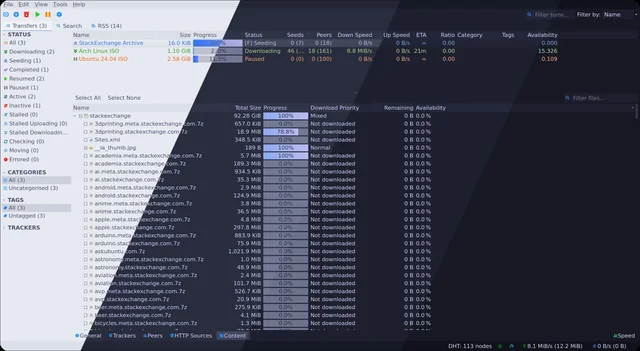
You may want to install search plugins for ease of searching. Note that plugins are essentially a Python script, use at your own risk. Download from this page: [https://github.com/qbittorrent/search-plugins/wiki/Unofficial-search-plugins]
Click on "View" -> "Search Engine" in the top menu, this will activate the "Search" tab beside "Transfers". Head onto the new tab and click on the "Search plug-ins" button on the bottom right, press "Install a new one", press "Local file", then navigate to the .py file that you installed earlier. You should now be able to search multiple trackers at once. You can sort by seeders or size. Clicking on an option will take you straight to the torrent prep page.

For this next part, I'll be configuring AirVPN. Purchase your plan, they accept cryptocurrency (I recommend Monero)! Download the client from the official site (click to support :p): https://airvpn.org/
Then head over to https://airvpn.org/ports
Create a new port by pressing the + button, leaving the settings as they are. Now, re-enter qBittorent to do some more configuration work. Connect to the VPN, note that the client may 'disappear' and enter the tray; just open the tray and right-click the cloud icon, then press "show main menu". On qBittorent: Tools Options Advanced -> Network Interface, select "Eddie" (or whatever applies to your client, you may need to turn your VPN off and on to identify), and click "Apply". Now, switch from "Advanced" to "Connection". Change the "Peer Connection Protocol" to simply "TCP". Change the listening port to the port number that you generated on [airvpn.org/ports] earlier. DISABLE UPnP / NAT-PMP and uncheck the connection limits. Go to "Downloads" and change your save path to whatever you desire. If you have a restriction on how much you can upload/download per month, feel free to change things like seeding limits and rate limits.

You are now all set up! You can use the built-in search engine that we configured earlier, or you can navigate to a specific tracker website - such as 1337x.to:

I recommend checking the comments before downloading, doesn't hurt. You can use either the magnet link or download the torrent file.
You will now reach this screen:
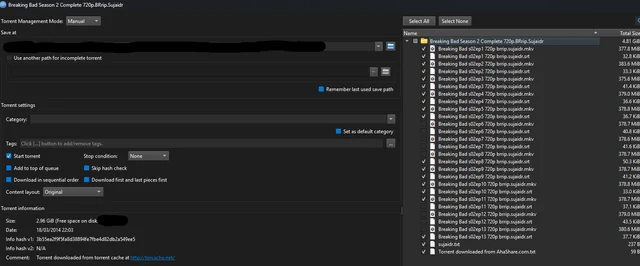
I can provide two protips here:
- You can select what files you want to download on the right-hand side. This is useful for circumstances like: You only need a certain episode(s) from a torrent that contains an entire season, or you don't want to download a large number of subtitles bundled with it.
- I would recommend selecting "Download first and last bits first". This is because the very beginning and end of a video file contain necessary metadata for certain structures - you should make sure to grab those pieces straight away. If the torrent stalls when some pieces are still missing, the video may still be able to play.
Press the "Okay" button and you should be good to go! qBittorent has some helpful buttons near the bottom of the screen. "General" will help you see what pieces have downloaded, your seed ratio (what you've uploaded back relative to what you've downloaded and more); the "Content" button allows you to see how particular files are progressing (you can remove some during the process itself!). If you have no download/upload consumption limits, I strongly recommend giving back to the public tracker community by leaving the file(s) to seed to a ratio of at least 1.0 (you've contributed back with what you took). It will automatically remain seeding until you disconnect or right-click to terminate.
To create your own torrent: On qBittorent: Go to Tools -> Torrent Creator. Select the file/folder that you wish to share. Do check "Start seeding immediately". Paste your tracker announce URL from its upload page after sorting out the upload qualifying process.
Go ahead and create the torrent, and choose where to save the file. Head over to your tracker's upload page and fill it in, some will have more requirements to publish (like multiple captures, an NFO file, and so on). Check out other torrent 'listings' or site rules to learn the best ways to format (use of spoilers, attaching a short mkv sample, spec layout, movie database link, etc).
 TorrentLeech
An alternative to using a local client + VPN is to use a seedbox. A seedbox is essentially a remote server dedicated to uploading/downloading from a P2P network. It usually has a ton of storage assigned to it (depending on your payment plan) and very high bandwidth (up to 20 Gbps). Once a file has been downloaded to the seedbox storage, you can simply download it directly to your PC, as if it were an ordinary download. This is obviously great for those who live in an area with serious legal concerns in terms of P2P sharing, especially for seeding. With a seedbox, you can seed 24/7 with no issues in terms of anonymity or leaving your computer overnight. The ability to seed consistently makes seedboxes very popular with private trackers (next section!). The drawback is the high cost of some seedbox plans. The process is dependent on the service, but the basic structure goes like this: After you signup with the provider, you will receive an email with your credentials; many seedboxes can be accessed via a browser; to start a torrent, just add the torrent file to your client, the seedbox will continue to torrent this file after you close down the client. Upon completion, you'll be able to download it from the seedbox on the browser via HTTP, or through FTP software. Some seedboxes will allow you to simply stream your media files, it is worth checking if the provider/plan offers this first. I'll also add that some seedbox providers do not support public trackers because these are monitored for illegal activities.
A brief look at private trackers... Semi-private trackers like RuTracker (RuT) only require you to register with them to access their site and torrents, while fully-private are usually available in four ways: An invite (from staff or member of certain user rank), an interview, an offer/payment, or through an open signup event. Private trackers are typically dedicated to a particular area of interest (eBooks, foreign films, HD films, music, programs, academic material, etc). You will find that private trackers have a significantly greater selection available for their niche compared to public trackers, this is because they will encourage the perennial seeding of more obscure content that will often have little to no seeders on their general public counterparts. Quality control is extremely high, there are strict rules, and members/staff review everything. You can expect greater security assurance too, copyright trolls usually direct their attention to public trackers. You may only have one account over your lifetime, and staff have tools to try and detect repeat sign-ups. Messing around on PTs can result in not just your account being terminated, but the rest of the invite tree too. Here is a great visualization to demonstrate how much content there is on these trackers relative to streaming services:

That one at the top of the movies section is PassThePopcorn (PTP), an infamous general movie tracker and notoriously difficult to get into, and the series equivalent is BroadcasTheNet (BTN); both are considered members of the cabal, which is like a connection between the adminstrations of the top trackers - get in trouble with one, you'll can be screwed with the rest. The data above is a little outdated, PTP has around 1M torrents and close to 400K unique titles. A little below that you can see TorrentLeech (TL), an excellent general tracker that has a seedbox offer in exchange for membership, and is likely to serve 90% of the average user's needs. If you want to 'get right into it', I suggest studying for the Redacted (RED) IRC interview: [https://interviewfor.red/en/index.html]. Once you've ranked up on this tracker, the invite forum for other trackers (even cabal) is incredible, likely the BEST. RuTracker is a great semi-private tracker, it holds content that sometimes can't even be found on private trackers! Use a translation addon to read. PTs have userranks which come with perks (like immunities, upload rights, increased invite forum access) that update depending on your tracker commitment, and this differs between trackers, but generally relies upon account age, ratio, and upload statistics; there is also often a VIP rank, subject to membership or staff appointment. Many trackers provide bonus points as you seed more, or due to completing certain milestones/achievements, these can be exchanged for upload credit to boost your ratio - this is done to incentivise seeding content which no longer has to be seeded. Trackers are mainly split between ratio-based and ratio-less, ratio-less don't care about ratio as long as a certain seeding time is reached - or hybrid. Certain content may be marked "freeleech", or there may be freeleech events, these do not impact your download (or at least a percentage doesn't), but you can gain upload, and you can cross-seed it on another tracker where it isn't freeleech. A certain niche of PTs called WDMA trackers exists (like Wigornot), and these are essentially just small mediocre general trackers with some occasional exceptional internal releases, the main factor of interest is the very strong community element, it is extremely difficult to get invited and is likely not worth it, unless you're a goon!
Each tracker has their specific upload requirements/preferences, I will give some random examples from KaraGara (KG), a PT dedicated to arthouse/rare material. General preference is x264 in an mkv container, with certain minimum encode settings. BDRemux is not allowed, only BDMV for untouched. FHD rips are recommended a bitrate between 8000-17000 kbps, outside this range is trumpable, meaning a superior version would be welcomed. UHD and x265 are not permitted. Custom DVD authoring is permitted, provided the authoring software is specified. DVDs follow a certain spec template to fill out, for example:
Martial Raysse - Les Films / The Movies (1/2) : Le Grand Départ (1971)
Source DVD
Rip Specs DVD Source: MK2 - DVD5
DVD Format: PAL
DVD Audio: Stereo
Program: Shrink
Menus: Untouched
Video: Untouched
Audio: Untouched
DVD extras: Untouched
Video Attributes:
Lenght : 1h11'00''
Video compression mode: MPEG-2
Aspect Ratio: 4:3
Source picture resolution: 720x576
Frame Rate: 25
Bits-per-pixel ratio : 0.617
Bitrate: 6,39 Mbps
Audio Attributes:
Audio Coding mode: AC3
Sampling Rate: 48kHz
Bitrate: 192 Kbps CBR
Number of Audio channels: 2
Number of Audio streams: 1
/RAYSSE1/
VIDEO_TS/VIDEO_TS.BUP 12.00KB
...and so on under VIDEO_TS
But where do the files themselves come from? There are two sources. First are those individuals and release groups based purely in the P2P/web space, filling requests and uploading their own material. However, a significant portion of pirated content (albeit with less significance these days) originates independently of this via "The Scene", a decentralised, secretive non-profit confederation of topsites and groups, which predates all P2P sharing. Topsites are hidden, high-bandwidth file servers (pretty much always independently owned) accessed via FTP wrapped in SSL/TLS, and communication happens over private, invite-only IRC channels - public-facing sites are not allowed. For each release category there is a strict ruleset (for codecs, resolutions, packing, naming, etc) drafted and agreed on by the biggest groups in that category, acting as councils. These rulesets are periodically revised by the councils, with scene notices released. Data moves extremely fast between topsites with scripts racing releases from one server to another. Couriers rapidly move data into lower tiers, their incentive is upload credit, which gives them download allowance at ratios set by the site's owner (similar to private trackers); you may be privilledged enough to use a leech slot from a site operator. The transfers themselves use FXP, which puts two FTP servers with their enormous bandwidths in direct contact so the file doesn't go through the courier's own connection. Topsites that operate unfairly stop being uploaded to. No space to get into it here, but getting involved in this isn't straightforward.
One release of a source is allowed (there can be releases in different formats, like SD vs HD), so it really is a race for each scene group. Due to the speed, mistakes against the super-strict standards happen, such a release is nuked and upload credit stripped. The original group can fix issues themselves with a REPACK (or DIRFIX/NFOFIX), but another group can issue a PROPER release to take the credit, which itself can likewise be REAL.PROPER'd by another group! If a different group didn't notice the first release and issued a pre seconds later, that release is a dupe and is nuked. Groups upload to multiple of their affiliate topsites (across regions). A command then moves the release into the main area on each affiliate site and announces it as a "pre" in the topsite's IRC channel via a bot. Monitoring bots carry the announcement across pre channels and into public pre databases (there is no single master database, but see for example predb.net), and that's where the couriers start operating/racing to provide for topsites without the release, with bottlenecks often forming as many of them fight for credit on the same release. The Scene hates P2P, as their content ends up leaked there and draws attention and they are not interested in broader public distribution; though there are internal traitors who let material trickle out, often onto private torrent sites (eventually some reach public) and Usenet within moments of the pre. Certain private trackers are dedicated to Scene releases, like SceneHD.
P2P release groups (can be a single person) obtain material and distribute it on the network, and can even run their own website. Each group has a particular style and generally aim for consistent quality which matches their target audience's preferences, even checking for artifacts at the frame-level. Back in the day, there was an infamous releaser called aXXo, who specialised in CD-R sized DVDRips, and the tag would be a mark of authenticity for people, you'd straight up search "X movie aXXo"! Another well-known OG release group (no longer same group) is YIFY, which targeted sizes a tenth of the BD release using x264; they are only really acceptable for watching on a phone these days after our eyes have been spoiled by BDremuxes! Internal release groups treat a certain private tracker as their home base, they release there first and it trickles across from there. For example, the group "WiLDCAT" is internal to Blutopia (best shot is there really, I don't see many even on PTP), and is considered to put out the best remuxes, alhtough they don't have many releases - they have talented individuals with strong industry knowledge on audio/HDR mastering. Release groups often provide their own highly elaborate ASCII (text) art in the specs/NFO.
Now, onto UseNet. Usenet actually predates the WWW and was intitiated as a decentralized network of servers used for text based boards. Over time, it was figured that you could encode binary files as text, upload them to said servers, then decode at the other end. And nowadays it is yet another file-sharing ecosystem. This is a client-server model, unlike P2P.
- Newsgroups: Think of them like subreddits. They use a hierarchal naming scheme, like "comp.sys.mac.x" would be for text discussions regarding Macintosh computers, "alt.binaries.movies.x" (start often abbreviated as "a.b.") for video, and so on.
- Articles: The data uploaded. As Usenet was designed for text messages, a large file can't be uploaded at once, it is split into tiny articles.
- NZB files: The equivelent of a .torrent. A tiny XML file directing where each piece of the download can be found on servers.
- Provider: Usenet servers hold enormous amounts of data and deliver at high bandwidth, and thus require funding. Providers charge a relatively low amount as a subscription, you can also buy a block, meaning a certain set amount of download that does not expire. The most important factors when choosing a provider are: Retention, download limits (some unlimited), server regions; I would add "check that downloads are over secure SSL", but it's very common these days, if it doesn't have it then that's a red flag.
- Indexer: Like a search engine. Raw usenet by itself is an unsearchable mess, as file names are cryptic (to avoid takedowns). Indexers scrape usenet and decipher this mess, giving you an online interface similar to a bittorrent tracker. You search the indexer and obtain the NZB file. The great indexers are behind an invite system, similar to private trackers, and have VIP fees. Those indexers open at times in the year, save two, you can check out r/UsenetInvites. Those two which cannot be named (really, don't ask me to name them) are closed these days, only offering invites occasionally through cabal trackers, and content found can rival PTs. Searches can be automated through the *arrs.
- Newsreader: Like a torrent client. You feed in the NZB file and it'll collect the pieces, verify/repair, unrar, and provide the result. I recommend SABnzbd, or NZBGet as a lightweight alternative. Uploaders provide PAR2 (Parchive) parity volumes for large files, which can mathematically reconstuct missing pieces through the reader, as long as the total missing data is less than the parity data.
Why would you consider paying for usenet access over (or alongside using) bittorrent? You are downloading from servers and will experience great speeds, you can saturate a gigabit+ connection. A VPN is not required, you download over SSL encryption and your ISP will not see what's going on. There is no such thing as seeding at all. Retention can get very high, the provider Eweka for exmple offers a retention of around 17 years - outside of storage failures or takedowns - unlike bittorent where even PTs will experience many dead torrents in such a period, and I've personally found this useful many times. The main downside is that providers must comply with DMCA takedown requests, and the top PTs do noticeably beat out even the hidden indexers (although you do get sometimes find content that wasn't on trackers), at least for my experience and my interests. Reagrding takedowns, some follow this technique: You have your primary unlimited monthly account, with a top provider (has close to 100% pieces), and a secondary block account from another server backbone (be careful, different providers may be resellers of the same backbone). If your primary download fails due to parts removed via takedown, you can switch to the block account and download the rest, as the other independent server may not have teken the parts down yet (especially if one uses DMCA and another uses NTA). Unfortunately, I'm only really seen the unnamed indexers consistently display Mediainfo for files, you will pretty much always have mediainfo for PTs.
I will now cover P2P sharing on the eMule client via the eDonkey2000 (ed2k) & Kademlia (Kad) protocols.
Firstly, why? Why cover this additional protocol(s) after the protocol that is practically completely associated with P2P file sharing? The primary reason? Extremely niche content. There is content on the ed2k network that can be found absolutely nowhere else. I have found files that weren't even available on PTP or KG many times, take it from me. This used to be the dominant protocol back in the 2000s, with up to two billion files at its peak, there are still millions of users today and millions of files. Bonus perks: The search feature is very powerful, you can search the entire network via the in-built search. You can message your peers via the client, to request that they keep seeding, for instance. It is useful to have "in your back pocket" when BitTorrent trackers aren't cutting it for something, but many in certain countries (like Spain, Italy, France, and China) some people use this as their primary P2P network. You can also find more diverse encodes for totally mainstream movies/shows that aren't available elsewhere, especially on the lower end.
The ed2k network is extremely strong for sharing:
- Sharing a file is as easy as placing it in your designated sharing folder, eMule will automatically hash it, and then anyone can access it over the search.
- ed2k links that you generate will ALWAYS be the same for the same file, unlike magnet links. This allows you to access all the seeders for that file, even from one link on a specific board.
- There is a built-in credit system that rewards uploaders. Peers who've uploaded more in the long term get download priority. You can also provide one 'friend slot' for someone on your friend list to ignore the queue. Repeated leechers are punished by being throttled with lower priority. This encourages seeding.
An ed2k link complete format: ed2k://|file|<Filename>|<FileSize Bytes>|<FileHash MD4>|h=<AICH RootHash>|p=<PartHashes>|s=<HTTP SourceURL>
The last three sections are not required. The ed2k network divides files into 9500 KiB chunks, and an MD4 hash is calculated for each chunk; if the file is larger, the individual chunk hashes are combined and hashed again. This will identify files even with different names and verify the integrity of the downloaded chunks. AICH root hash and parthashes further enhance corruption handling and are optional. An HTTP source(s) can be added to work in parallel with P2P and enhance download speed, especially with low seeders (like when first RELeasing a file), the client will still verify the integrity.
Public ed2k servers hold indexes of filenames, sizes, and file hashes - they do not store files. When you search a server, it returns a list of peers who claim to hold the file. The Kademlia (Kad) network has no central servers, it relies on a DHT; essentially, files and peers are mapped in a decentralized address book. eMule hashes your search term/file hash to generate a key, it then asks nearby nodes for peers holding that key, and the queries spread out till you find sources. Usually, Kad and ed2k are used simultaneously.
Start by downloading the installer: https://github.com/irwir/eMule/releases/
Go through the installation wizard with the default options. I will walk you through the initial setup wizard:
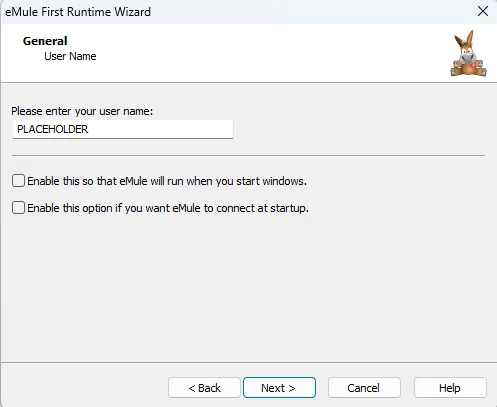
You can change your nickname that people will see you as, so don't make it anything personal. You can add [XXX], substituted with a community using ed2k that you are a part of.
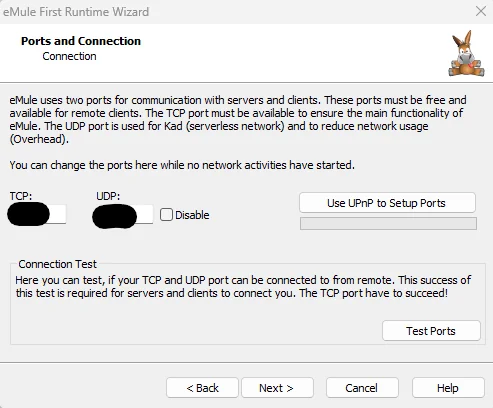
Here you should add the port number that we configured with AirVPN earlier, and make it the same for both. Test your ports, keep note of if it fails.
Leave the next two screens regarding management and obfuscation as default.

I recommend turning Safe Connect on. Click next...😴 And that's this part done!

Now, make sure you are on the "Servers" tab. On the right side, you'll see the text "Update server.met from URL", paste this link right here: http://upd.emule-security.org/server.met and press Update.

Let's repeat this, this time click "Kad" beside the servers icon. On the right side of the app, you'll find text that says "Nodes.dat from URL", paste this link into the text box right under it and hit "Bootstrap": http://upd.emule-security.org/nodes.dat
Now for the very last step, adding in an IP filter. Click on the orange cog icon named "Options" and click on the "Security" tab. Once you're there, find the text saying "Update from URL: (filter.dat- or PeerGuardian-format)" Paste this link into the text box right under it and then hit "Load": http://upd.emule-security.org/ipfilter.zip
Note that eMule may enter the tray when minimized, just follow the same steps as mentioned with AirVPN to restore it.
If your port testing failed earlier: For Windows users, if you're using Windows Firewall head to your control panel, then click on "Windows Firewall", or something to that extent. There should be an "Exceptions" tab, enter a name for the exception, "eMule" for example, then type in your port number. Do this for both TCP and UDP.
Some settings I recommend changing in Options: Go the the Display tab and check "Show percentage of download completion". Go to the "Directories" tab and select your incoming folder (where your files download) and your sharing folder (things placed here will be available on the network). Head over to the "Files" tab and tick "Try to download preview chunks first", then set your video player as the .exe.

There are still ed2k communities out there, such as Sharing-Devils, eMuleFuture, VeryCD... You can inspect ed2k links from those communities at ed2k.shortypower.org:

The above example shows that the file is mainly on eMule Security, so I will select that server on eMule and click the lightning icon on the top left to connect. I can run a search:

Then download.

There are other P2P networks out there, like Limewire, Gnutella, DC++, and such. But I would advise staying away from those in particular, as they contain significant illegal materials these days, way worse than ed2k.