Windows equivalent of LUKS (Linux Unified Key Setup) encryption
The closest Windows equivalents to LUKS (full-disk or volume encryption with strong key management) are the following:
1. BitLocker (Native Windows)
Best direct equivalent on Windows.
What it is:
Microsoft’s built-in full-disk encryption system available in Windows Pro, Enterprise, and Education editions.
Key features
- Full-disk or individual volume encryption
- Uses AES-XTS 128 or 256-bit
- Can integrate with TPM chips (hardware security module on the motherboard)
-
Supports:
- TPM-only unlock
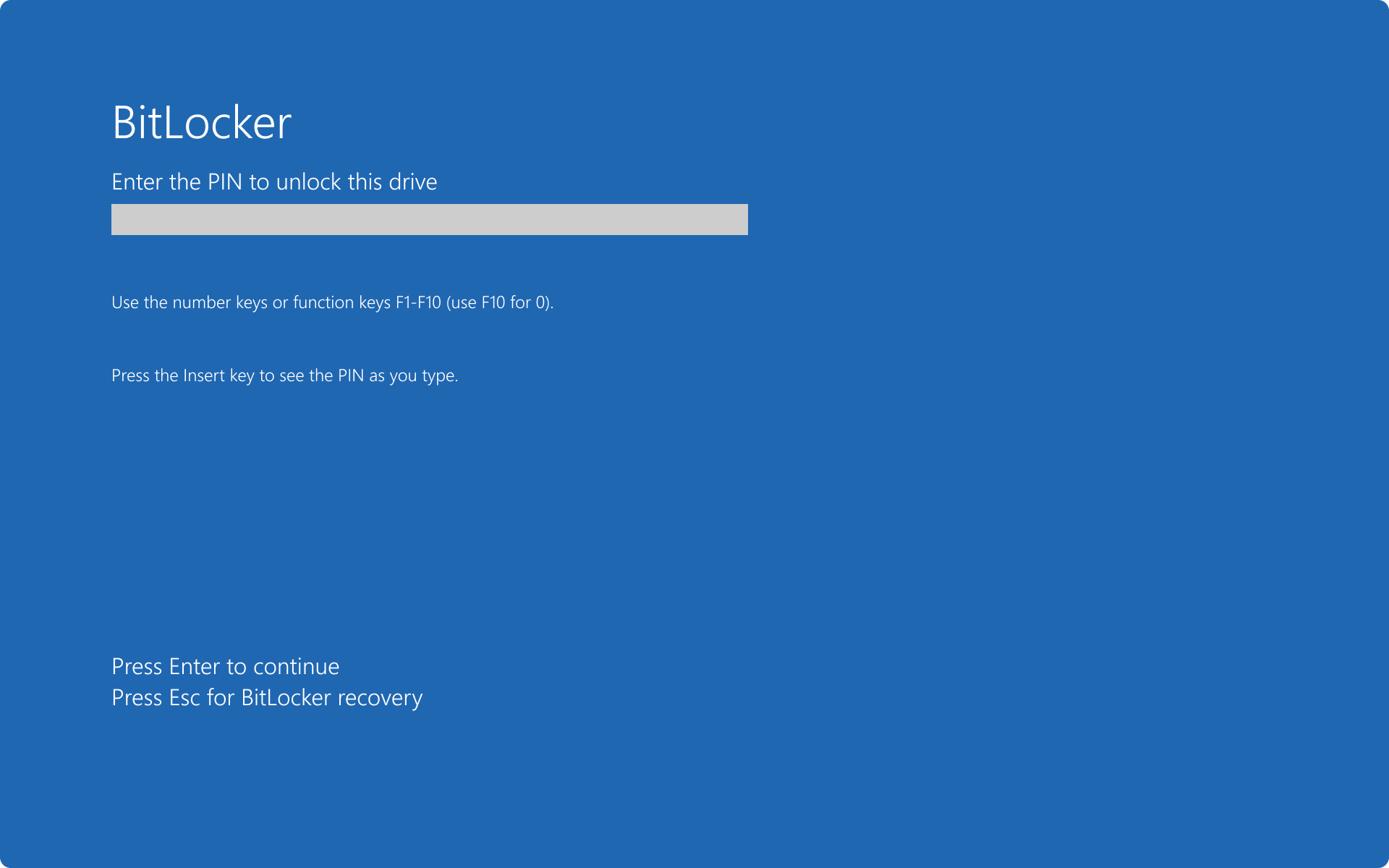
- TPM + PIN
- Password
- Recovery key
-
Encrypts:
- System drives
- External drives (BitLocker To Go)
Why it’s similar to LUKS
- Full volume encryption
- Strong cryptography
- Multiple unlock methods
- Boot-time authentication
Differences from LUKS
- Closed source
- Keyslots are more limited and less flexible
- Less granular control compared to
cryptsetup
2. VeraCrypt
Best open-source alternative.
What it is:
A widely trusted cross-platform disk encryption tool (successor to TrueCrypt).
Capabilities
- Full disk encryption
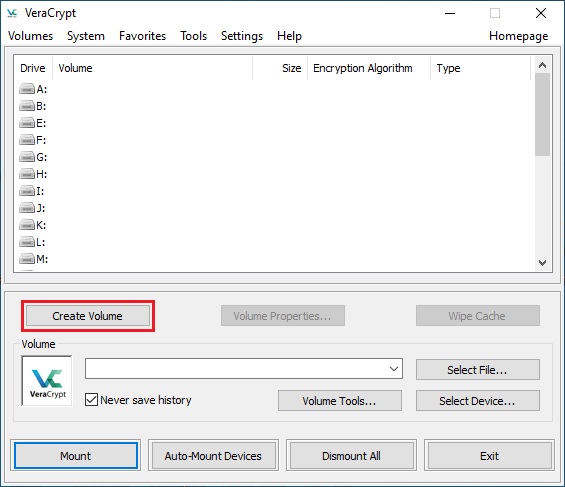
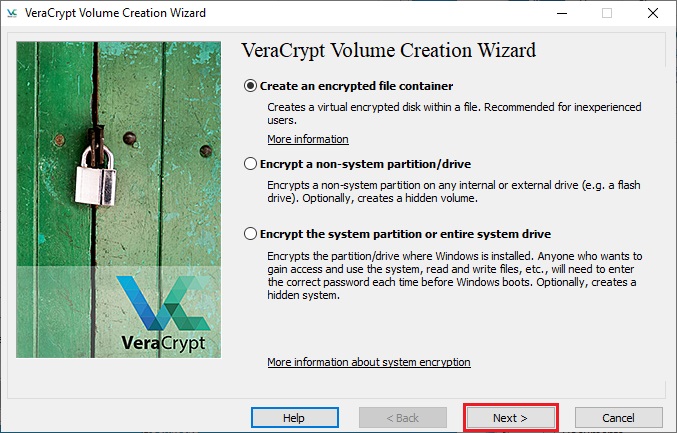
- Encrypted containers (files acting as virtual disks)
- Hidden volumes / plausible deniability
-
Multiple ciphers:
- AES
- Serpent
- Twofish
- Cascades (AES-Twofish-Serpent)
Compared to LUKS
- Similar cryptographic strength
- Portable across OSes
- But lacks native Linux dm-crypt integration
3. DiskCryptor
Closest conceptual match to LUKS architecture (less maintained).
Features
- Full disk encryption
-
Supports:
- AES
- Twofish
- Serpent
- Boot authentication
- Multiple keyfiles
Drawbacks
- Development slower
- Smaller community
- Less auditing than VeraCrypt
Quick Comparison
| Feature | LUKS | BitLocker | VeraCrypt | DiskCryptor |
|---|---|---|---|---|
| Open source | ✅ | ❌ | ✅ | ✅ |
| Native OS integration | Linux | Windows | No | Partial |
| Full disk encryption | ✅ | ✅ | ✅ | ✅ |
| Keyslots | Many | Limited | Limited | Limited |
| Hidden volumes | ❌ | ❌ | ✅ | ❌ |
✅ Summary
- Closest built-in Windows equivalent: BitLocker
- Closest open-source option: VeraCrypt
- Closest design philosophy to LUKS: DiskCryptor (but less active)
💡 If you're coming from LUKS:
Most Linux users on Windows use BitLocker for convenience or VeraCrypt for transparency and cross-platform compatibility.
If you want, I can also explain:
- How LUKS + TPM compares to BitLocker + TPM
- How to open LUKS volumes on Windows
- The closest Windows equivalent to
cryptsetupkeyslots (this is actually an interesting difference).
BitLocker
BitLocker is a full-disk encryption feature developed by Microsoft for the Windows operating system. It secures data by encrypting entire storage volumes, helping protect against theft or unauthorized access if a computer or drive is lost or compromised. Integrated into Windows since Windows Vista, BitLocker has become a core enterprise and consumer data-protection tool.
Key facts
- Developer: Microsoft
- Initial release: 2007 (Windows Vista)
- Supported platforms: Windows 10, Windows 11, Windows Server 2016 – 2025
- Encryption algorithm: AES 128-bit or 256-bit in XTS mode
- Best used with: Trusted Platform Module (TPM) 1.2 or later
How BitLocker works
BitLocker encrypts all data on a drive using the Advanced Encryption Standard (AES). On systems equipped with a Trusted Platform Module, the TPM stores cryptographic keys and verifies the system’s integrity before booting, ensuring the device hasn’t been tampered with. Additional authentication factors—such as a PIN or startup key on a USB drive—can be configured for multifactor protection. Without the correct credentials or recovery key, encrypted data remains unreadable even if the drive is removed.
Features and components
BitLocker offers two principal modes:
- Device Encryption – a simplified, often automatic protection enabled on modern Windows devices.
- BitLocker Drive Encryption – an advanced mode allowing manual configuration of encryption policies for operating system, fixed, and removable drives.
Administrators can centrally manage recovery keys, enforce policies, and monitor compliance through Microsoft Intune, Active Directory, or specialized management tools.
Recovery and management
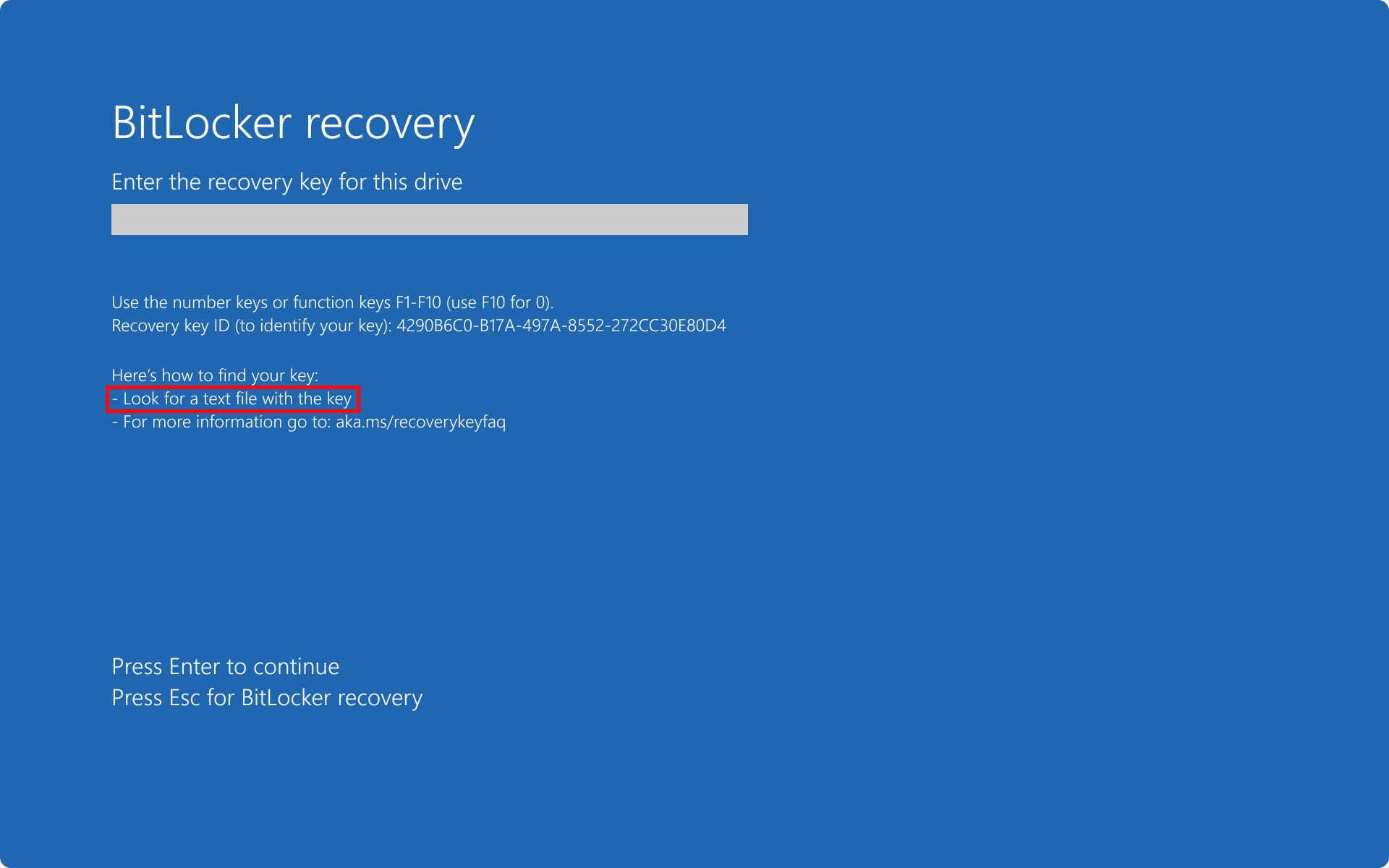
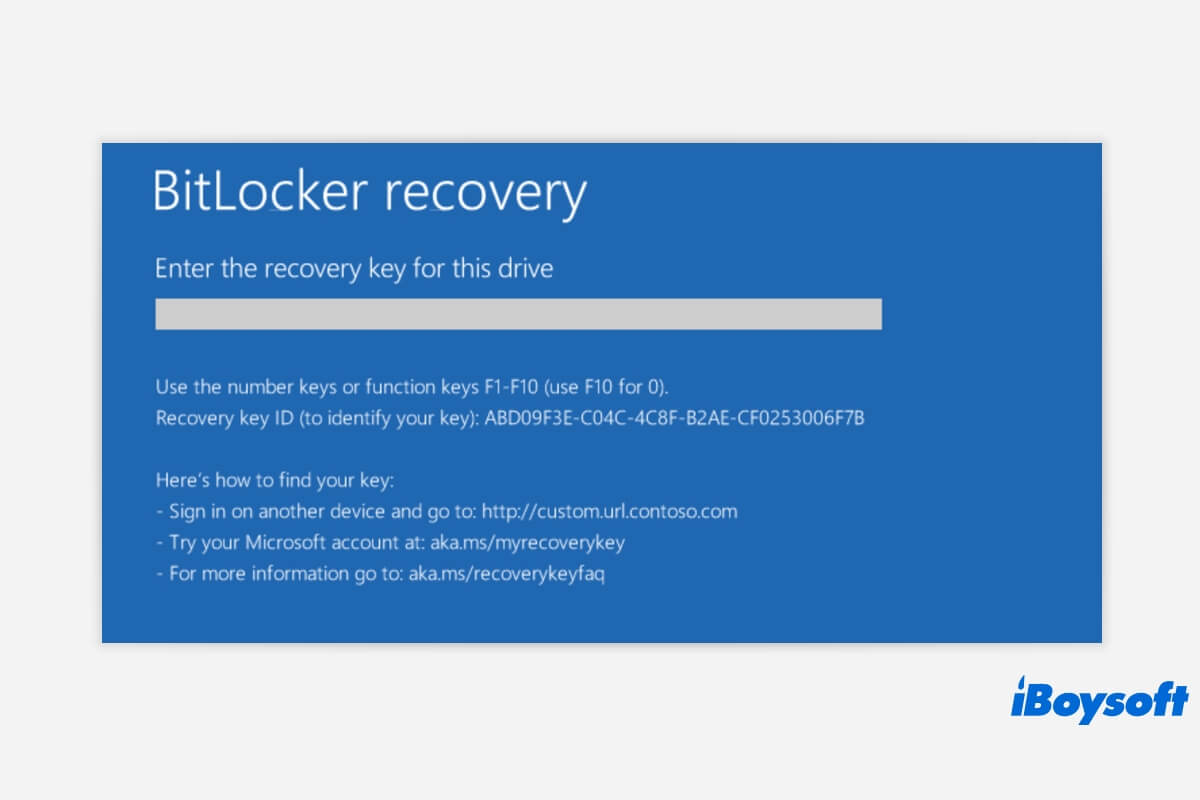
If BitLocker detects unauthorized hardware or firmware changes, it locks the drive and requests a unique 48-digit recovery key. Users and organizations are advised to back up this key securely to a Microsoft account, Active Directory, or external storage. Enterprise tools like Microsoft Endpoint Manager and Group Policy simplify policy deployment and key recovery across networks.
Security significance
By encrypting disks at rest, BitLocker mitigates risks of offline attacks and data exposure. It aligns with common compliance frameworks such as GDPR and HIPAA, making it a widely adopted defense for safeguarding sensitive or regulated information on Windows systems. (Microsoft Learn)
-
[
BitLocker Management Software for Enterprise - BitTruster
BITLOCKER ENCRYPTION MANAGEMENT SOFTWARE BitTruster is a powerful, centralized BitLocker management software designed to simplify enterprise-wide encryption. Our agentless BitLocker solution streamli...
-
[
BitLocker Management
Experience BitTruster in action! Discover how our centralized BitLocker management solution simplifies encryption, ensures compliance, and enhances security—tailored to your enterprise needs. Book No...
-
[
BitLocker Overview | Microsoft Learn
Table of contents Exit editor mode Focus mode Table of contents Add * * * SHARE VIA * * * Print BITLOCKER OVERVIEW * Applies to: ✅ Windows 11, ✅ Windows 10, ✅ Windows Server 2025, ✅ Windows Se...
-
[
Kit de herramientas de cifrado de datos para equipos móviles | Microsoft Learn
Tabla de contenido Salir del modo de editor Modo de enfoque Tabla de contenido Agregar * * * COMPARTIR A TRAVÉS DE * * * Imprimir KIT DE HERRAMIENTAS DE CIFRADO DE DATOS PARA EQUIPOS MÓVILES: G...
-
[
Data Recovery Tool - BLR Tools
BLR Tools® Software for Windows OS and Mac OSImage BLR DATA RECOVERY SOFTWARE Advance level of data recovery software by BLR Tools can recover lost and deleted data from recycle bin, HDDs, SSDs, and...
](https://www.bitlocker-recovery.com/data-recovery-tool/?utm_source=chatgpt.com)
-
[
Información general de BitLocker - Soporte técnico de Microsoft
Saltar al contenido principal Iniciar sesión con Microsoft Iniciar sesión o crear una cuenta Hola: Seleccione una cuenta diferente. Tiene varias cuentas Elija la cuenta con la que desea iniciar...
-
[
BitLocker overview - Microsoft Support
Related topics × Skip to main content Sign in with Microsoft Sign in or create an account. Hello, Select a different account. You have multiple accounts Choose the account you want to sign in...
-
[
BitLocker Management Software | Manage Bitlocker Drive encryption - ManageEngine Endpoint Central
Features>BitLocker Drive Management BITLOCKER MANAGEMENT: CONFIGURATION & TOOL Free, 30-day trial BitLocker Management is a comprehensive approach to safeguarding sensitive data through encryption....
-
[
BitLocker password recovery tool by Thegrideon Software
Home » Password Recovery Tools » BitLocker Password BITLOCKER PASSWORD RECOVERY BitLocker Password by Thegrideon Software is an advanced password recovery tool for BitLocker encrypted volumes and Bi...
](https://www.thegrideon.com/bitlocker-password-recovery.html?utm_source=chatgpt.com)
-
[
Hasleo BitLocker Anywhere - ihned zdarma ke stažení - Stahuj.cz
SVĚT SOFTWARE Zkontrolováno antivirem IMAGE: HASLEO BITLOCKER ANYWHERE 9.8 Šifrování disku s využitím BitLockeru Hasleo BitLocker Anywh

VeraCrypt
VeraCrypt is an open-source disk encryption software used to secure data on storage devices through on-the-fly encryption. It is widely adopted for protecting sensitive information on personal computers and portable drives, offering robust cryptographic features without requiring commercial licensing.
Key facts
- Developer: IDRIX
- Initial release: 2013
- License: Apache License 2.0
- Platforms: Windows, macOS, Linux
- Core function: Full-disk and volume-level encryption
Origins and development
VeraCrypt was developed as a fork of the discontinued TrueCrypt project, with the goal of addressing its security concerns and improving its cryptographic resilience. Released in 2013 by the French company IDRIX, VeraCrypt enhanced key derivation and encryption algorithms to make brute-force attacks significantly harder while maintaining user compatibility with TrueCrypt volumes.
Features and functionality
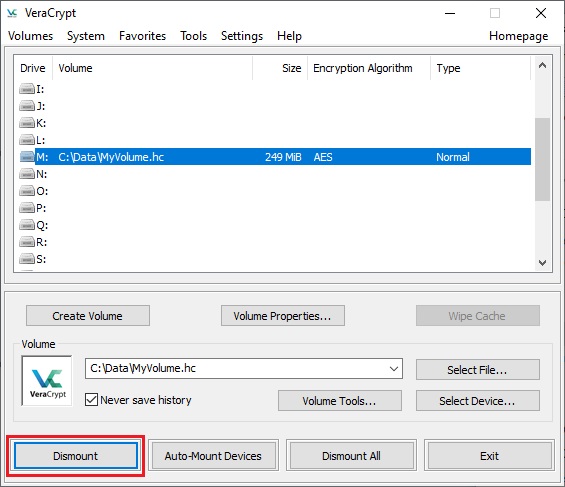
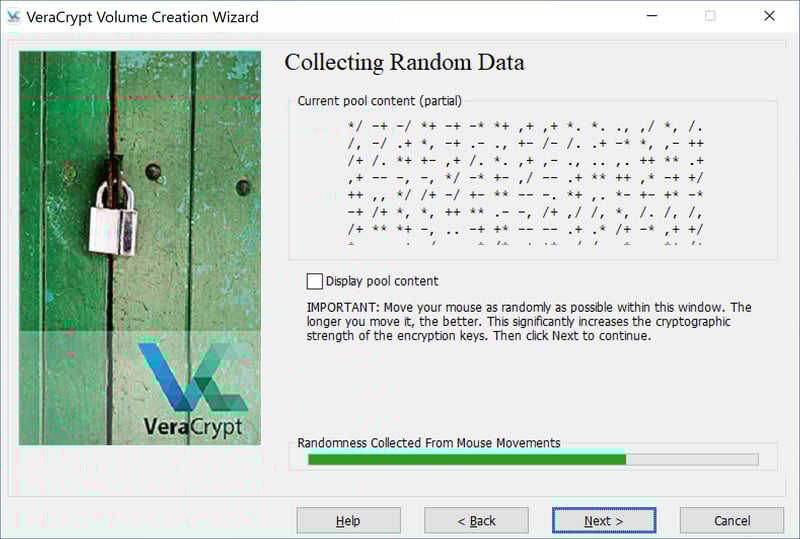
VeraCrypt allows users to create encrypted containers, encrypt entire drives or partitions, and even secure system drives with pre-boot authentication. It supports a range of encryption algorithms, including AES, Serpent, and Twofish, with options for cascaded encryption. Hidden volumes and plausible deniability features provide additional layers of protection for privacy-sensitive users.
Security and reception
The software is generally regarded as one of the most secure open-source encryption tools available. Independent security audits—such as those commissioned by the Open Source Technology Improvement Fund (OSTIF)—have reviewed VeraCrypt’s codebase, identifying and verifying fixes for vulnerabilities. Its transparency and active maintenance have earned it trust among privacy advocates and cybersecurity professionals.
Current use and community
VeraCrypt remains actively developed, with ongoing updates to improve performance and security. Its community-driven model ensures adaptability to emerging threats and platform changes, making it a long-term choice for users requiring strong, verified disk encryption across multiple operating systems.



DiskCryptor
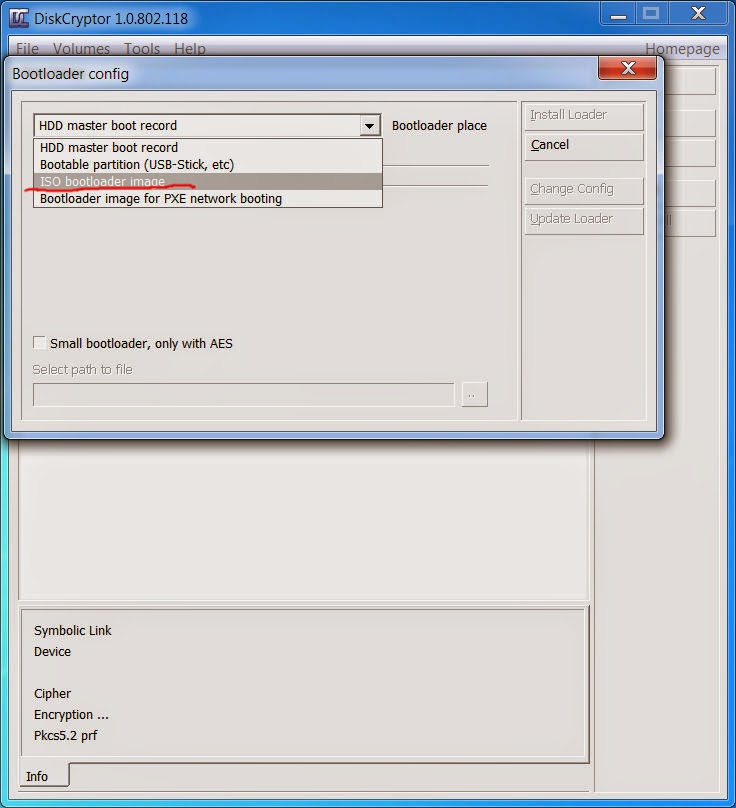
DiskCryptor is an open-source disk encryption software for Windows designed to provide full and transparent encryption of entire disk partitions, including system drives. Developed as a free alternative to commercial tools, it enables users to protect data at rest through strong cryptographic algorithms.
Key facts
- Initial release: 2008
- Platform: Microsoft Windows (XP–10)
- License: GNU General Public License (GPL)
- Encryption algorithms: AES, Twofish, Serpent (individually or in cascades)
- Boot encryption: Supports system and external drives
Functionality and Features
DiskCryptor allows users to encrypt internal and external storage devices, including USB drives and entire system partitions. Once encrypted, data can only be accessed after pre-boot authentication, making it resistant to offline attacks. The software integrates with the Windows boot loader to support full-disk and partition-level encryption.
Technical Design
The tool uses strong symmetric-key encryption, offering multiple algorithms and cascaded modes for enhanced security. It relies on on-the-fly encryption, meaning data is automatically encrypted and decrypted in memory without user intervention. Keys are derived from user-supplied passwords, with support for multi-key configurations and dynamic mounting through the graphical interface or command line.
Development and Community
Originally derived from the now-discontinued FreeOTFE project, DiskCryptor became a standalone project emphasizing transparency and open development. Its source code is publicly available, allowing independent review of its cryptographic implementation. Although development activity has slowed in recent years, the software remains in use among privacy-focused Windows users.
Comparison and Usage Context
DiskCryptor is often compared to VeraCrypt and the legacy TrueCrypt. While VeraCrypt focuses on container-based encryption and cross-platform support, DiskCryptor emphasizes fast, native Windows integration and full-disk encryption capability, making it suitable for users who require secure, lightweight protection of Windows systems.
How do I check, if my disk is encrypted with BitLocker?
You can check whether a disk is encrypted with BitLocker in several ways on Windows.
1. Quickest Way: File Explorer
- Open File Explorer
- Go to This PC
- Look at the drive icons
What to look for
- A padlock icon on the drive → BitLocker is enabled
- No lock icon → probably not encrypted
You can also:
- Right-click the drive
- Select Manage BitLocker
If BitLocker is enabled, the panel will show encryption status.
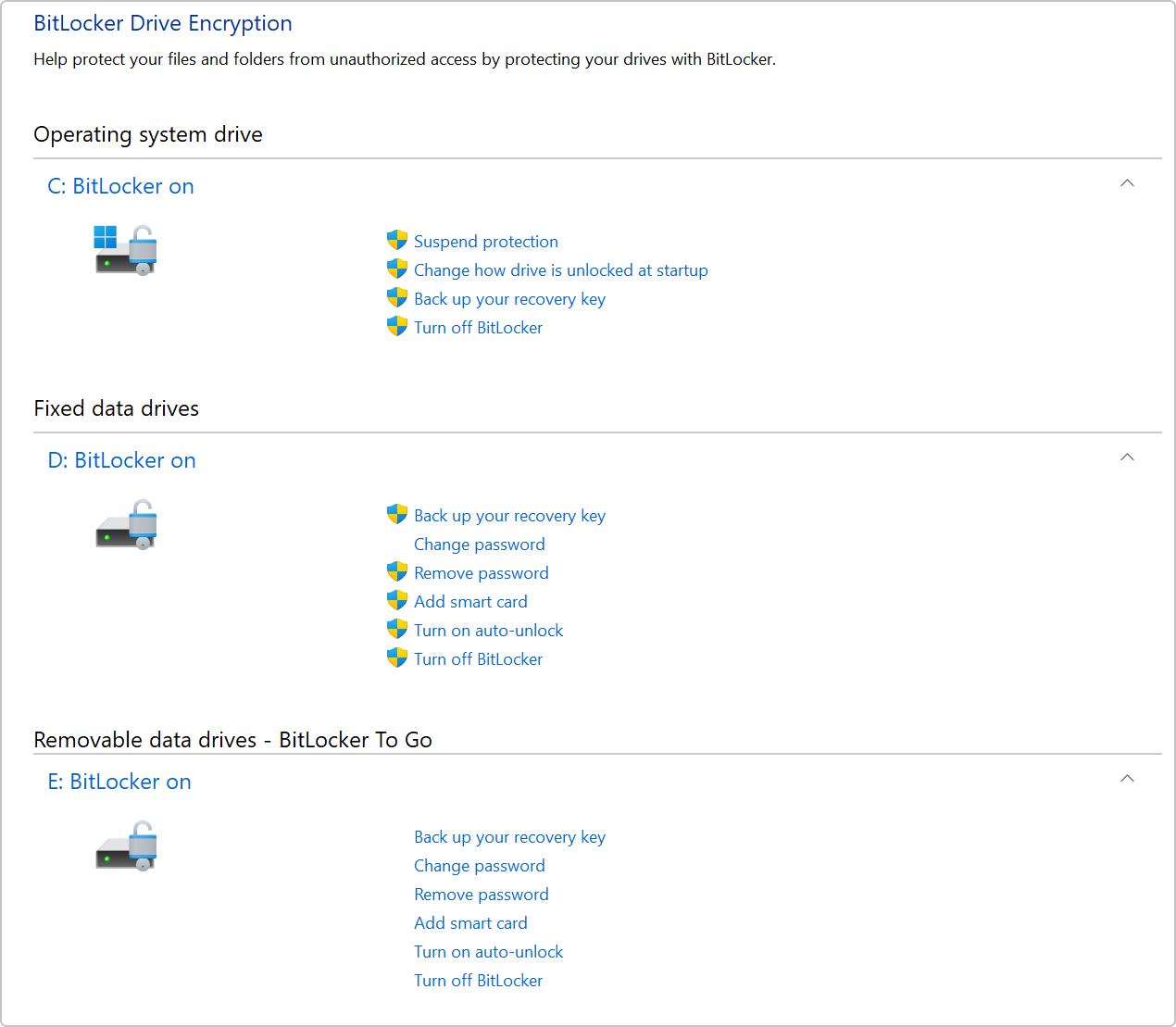
2. Control Panel Method
- Press Start
- Search for Manage BitLocker
- Open BitLocker Drive Encryption
You will see a list like:
It also shows:
- encryption status
- recovery key options
- suspend/resume encryption
3. Command Line (Most Reliable)
Open Command Prompt or PowerShell and run:
Example output:
Important fields:
| Field | Meaning |
|---|---|
| Conversion Status | Fully encrypted / not encrypted |
| Percentage Encrypted | progress |
| Protection Status | whether protection is active |
4. PowerShell Alternative
In PowerShell:
Example output:
✅ Simple interpretation
| Result | Meaning |
|---|---|
| FullyEncrypted | Disk encrypted |
| FullyDecrypted | Not encrypted |
| EncryptionInProgress | Currently encrypting |
💡 Tip:
Many modern laptops enable BitLocker automatically if you sign into Windows with a Microsoft account and the system has a TPM.
If you want, I can also show:
- How to check if BitLocker used TPM or password unlock
- How to verify encryption strength (AES-128 vs AES-256)
- How to check if only the system disk or all disks are encrypted.
I see: Percentage encrypted: 100%
If Percentage Encrypted: 100% appears in the output of manage-bde -status, it means the drive is fully encrypted with BitLocker. 🔐
However, there are two related fields that matter for the final interpretation:
What to check in the output
Look for these lines together:
Meaning of each
| Field | Meaning |
|---|---|
| Percentage Encrypted: 100% | All sectors on the disk are encrypted |
| Conversion Status: Fully Encrypted | Encryption process finished |
| Protection Status: On | BitLocker protection is active |
Possible combinations
| Percentage | Protection | Meaning |
|---|---|---|
| 100% | On | ✅ Disk fully encrypted and protected |
| 100% | Off | ⚠️ Disk encrypted but BitLocker protection suspended |
| <100% | On | Encryption still in progress |
Optional: Check encryption algorithm
Run:
Look for:
or
Both are secure; XTS-AES-256 is the stronger configuration.
✅ Bottom line:
Seeing Percentage Encrypted: 100% means your disk data is encrypted. If Protection Status is ON, BitLocker is actively protecting the drive.
If you want, I can also show a quick way to check whether BitLocker unlocks automatically with TPM or requires a PIN/password, which affects how secure the boot process is.
I have Protection On
Great — that means your drive is properly protected by BitLocker. 🔐
If your manage-bde -status output shows:
then:
✅ Your disk is fully encrypted
✅ BitLocker protection is active
✅ The data cannot be read without unlocking the key
What this means in practice
- If someone steals your laptop or removes the SSD, the data is unreadable without the encryption key.
- The disk is decrypted automatically at boot only if the system passes the configured authentication (usually TPM).
Most modern Windows systems unlock using a TPM chip (Trusted Platform Module) on the motherboard.
Optional: Check how your disk unlocks
Run:
You may see something like:
Typical meanings:
| Protector | Meaning |
|---|---|
| TPM | Unlocks automatically if system integrity is verified |
| TPM + PIN | Requires a PIN at boot (more secure) |
| Password | Manual password unlock |
| Numerical Password | Recovery key |
One important thing to verify
Make sure your BitLocker recovery key is backed up.
You can check it in:
- your Microsoft account
- Active Directory / company account
- a saved file or printed copy
Microsoft account link:
https://account.microsoft.com/devices/recoverykey
✅ Summary
Your system currently has:
- Full disk encryption: enabled
- Encryption progress: complete
- Protection: active
So your disk is secure at rest.
If you want, I can also show you one command that security professionals use to verify if BitLocker is actually protecting against offline attacks (there’s a subtle difference many people miss).
If someone steals my laptop, can they descipher my disks?
Short answer: very unlikely, as long as BitLocker is enabled with Protection On and the attacker doesn’t also get your login credentials or recovery key. 🔐
Since you said:
- Percentage Encrypted: 100%
- Protection Status: On
your disk is cryptographically encrypted at rest.
What a thief can and cannot do
If someone steals the laptop powered OFF
They cannot read the disk contents.
Typical attacks like:
- removing the SSD and plugging it into another computer
- booting from a USB Linux system
- mounting the disk externally
➡️ will only show encrypted data.
BitLocker uses strong encryption (usually AES-XTS 128 or 256), which is not realistically breakable with current computing power.
If they try to remove the disk
BitLocker encryption stays with the disk.
So if they:
- Remove the SSD
- Connect it to another PC
They will see an encrypted BitLocker volume that requires the recovery key.
If they steal it while it is ON or unlocked
This is the main risk.
If the laptop is:
- powered on
- sleeping
- logged in
then the disk is already decrypted in memory.
An attacker could theoretically:
- access files
- copy data
- perform memory attacks
This is why shutting down or locking the machine matters.
If they guess your Windows password
Your password does not directly decrypt BitLocker, but if they log into Windows they can access your files normally.
So password strength still matters.
Recovery key protection
If the attacker obtains your BitLocker recovery key, they could unlock the disk.
Many systems store the key in a Microsoft account:
https://account.microsoft.com/devices/recoverykey
Keep that safe.
Your current security level
Based on what you reported:
✔ Disk fully encrypted
✔ BitLocker protection active
✔ Offline disk attacks prevented
Meaning: stealing the laptop alone will not expose the disk data.
✅ Best extra precautions
- Always shut down the laptop before travel
- Use a strong Windows password
- Optionally enable pre-boot PIN with BitLocker for stronger protection
If you'd like, I can also show you two rare but real attacks against BitLocker (TPM sniffing and cold-boot) and how likely they are in practice. They’re interesting but mostly relevant for high-value targets.