Setup Guide
Install Fightcade
New to Fightcade? Go download it!
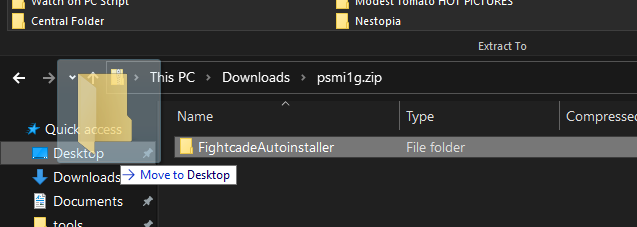
- Once you download the file, open it with Windows (or a program of your choosing:

- Move the
FightcadeAutoinstallerfolder to a directory of your choosing:
- Open the
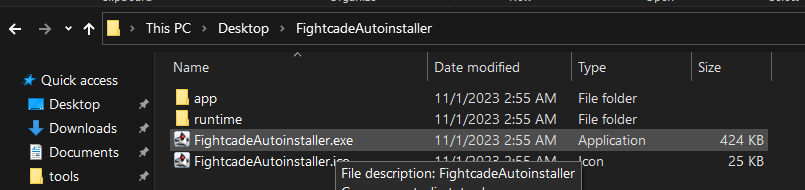
FightcadeAutoinstallerfolder and click and runFightcadeAutoinstaller.exe. Follow the instructions and you're all set!
Register Your Account
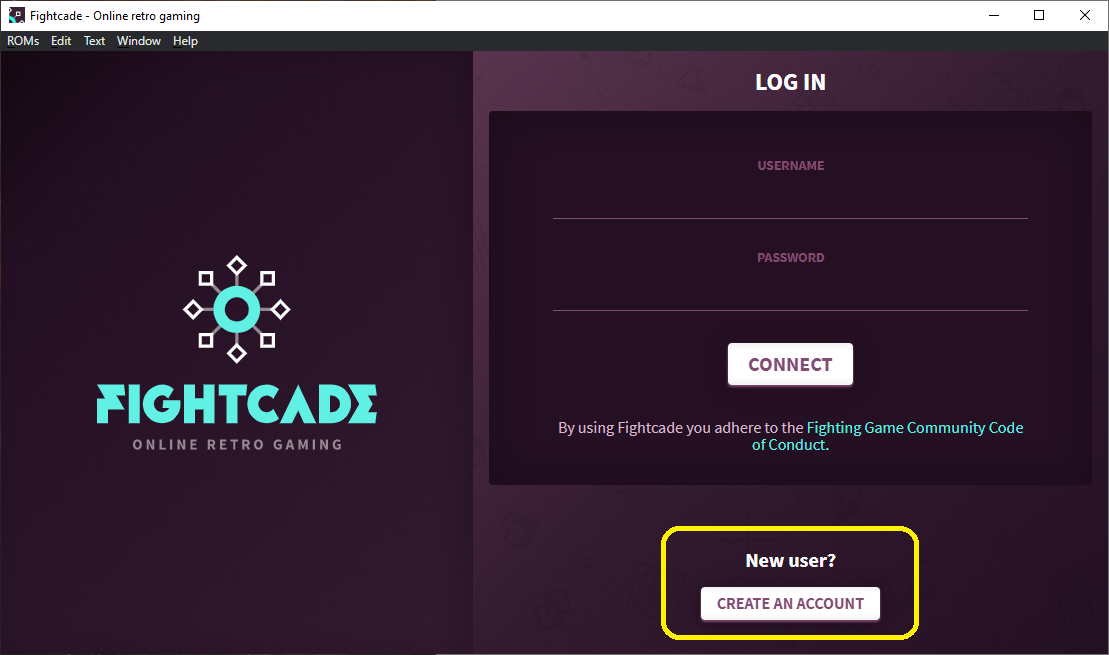
Launch Fightcade and you'll see a login screen. Click the link at the bottom of the app to register an account.
Get In The Lobby
On the left click the big magnifying glass to do a search, and type "tgm2p" in the search bar at the top of the screen.
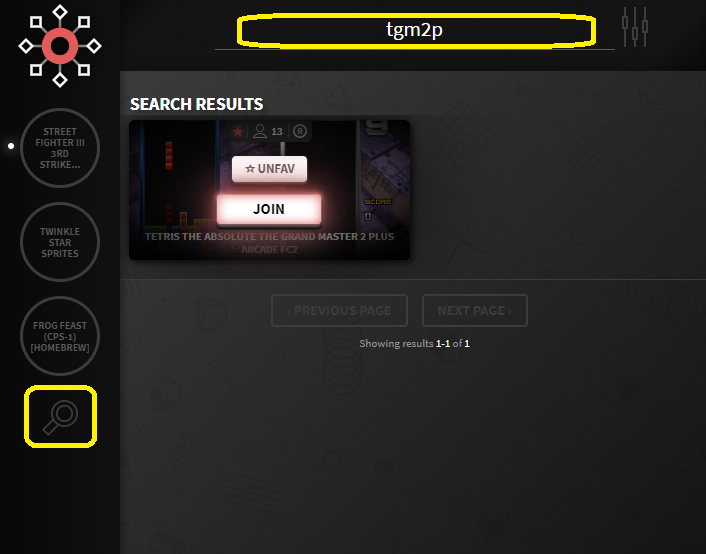
Click JOIN to enter the lobby. You can only be in 3 lobbies at once, so if it's not working leave a lobby so that you have room to join a new lobby.
Map Your Controls
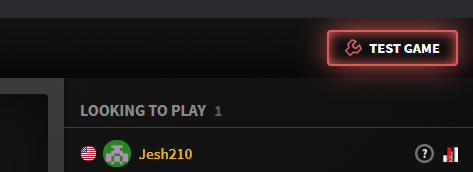
From the game lobby, click the big "Test Game" button in the top right corner.
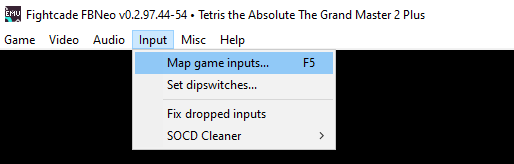
If your ROMs are set up right, the game will launch. Click on Input -> Map game inputs... in the file menu.
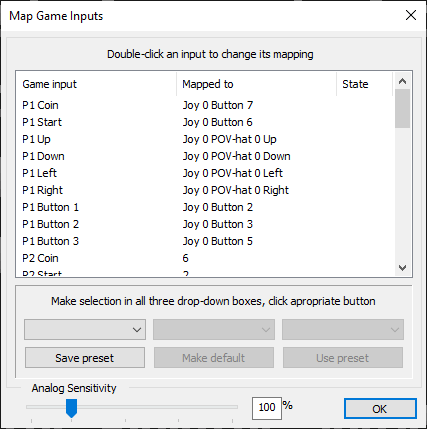
Now its time to map your controls. Map the P1 buttons. Check the chart below to see what each button does:
| Button | Description |
|---|---|
| P1 Coin | Button you hit when the game first loads |
| P1 Start | Button you hit after hitting P1 Coin to actually start game |
| P1 Up | Move up in menus (Instant softdrops piece without locking) |
| P1 Down | Move down in menus (Softdrops pieces and locks them) |
| P1 Left | Move left |
| P1 Right | Move right |
| P1 Button 1 | Counterclockwise |
| P1 Button 2 | Clockwise |
| P1 Button 3 | Counterclockwise (hitting Button 1 & 3 on frame 1 does a 180) |
 |
Go Play
Now you're ready to show us what you're made of!
If you want to lab, go check out this quick intro video (TBD). You can control your opponent's garbage pattern!
And if you really want to go full nerd there's a lengthy strategy guide.